CleanTalk setup manual for Joomla 1.5, 2.5, 3.X
| 3. Select archive with plugin and run installation in the menu Extensions -> Install / Uninstall 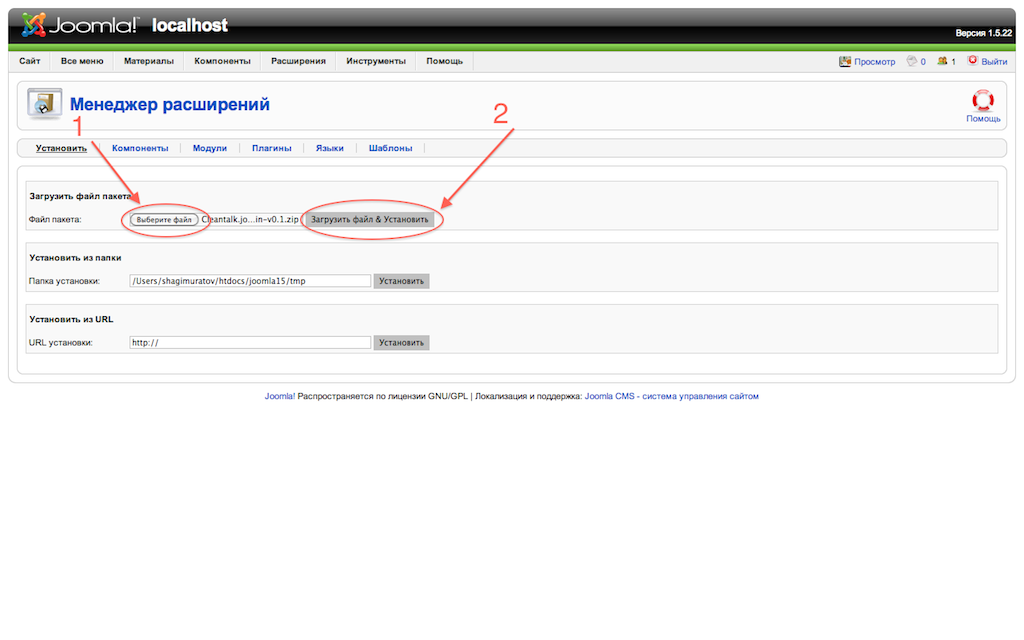 | |
| 4. Get an account and service Access key. 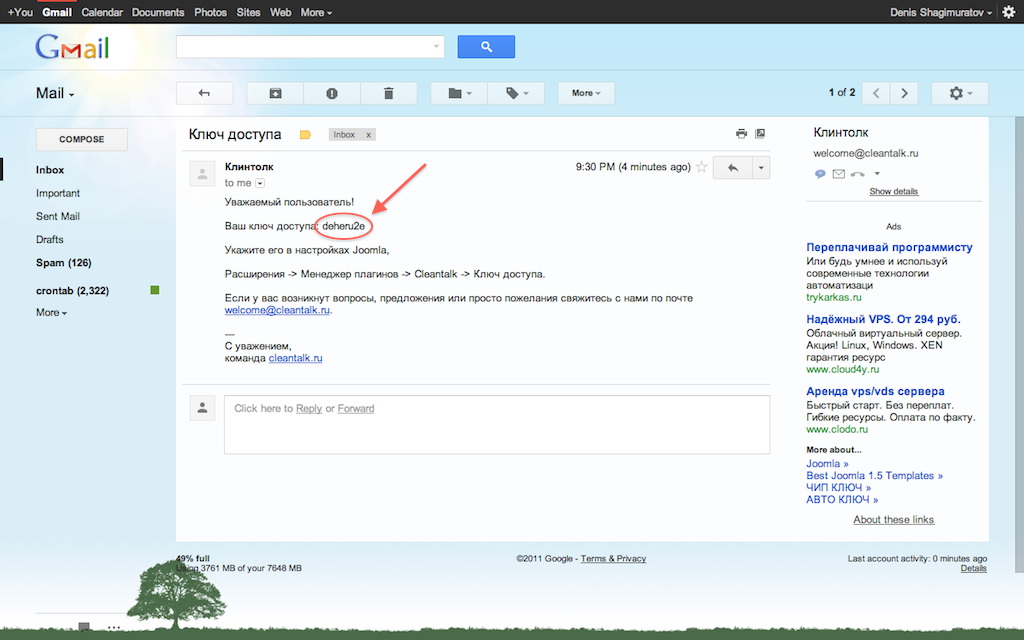 | 5. In the plugin settings, enter the Access key and activate the plugin. Extensions -> Plugin Manager -> Anti-Spam by CleanTalk -> Access Key. 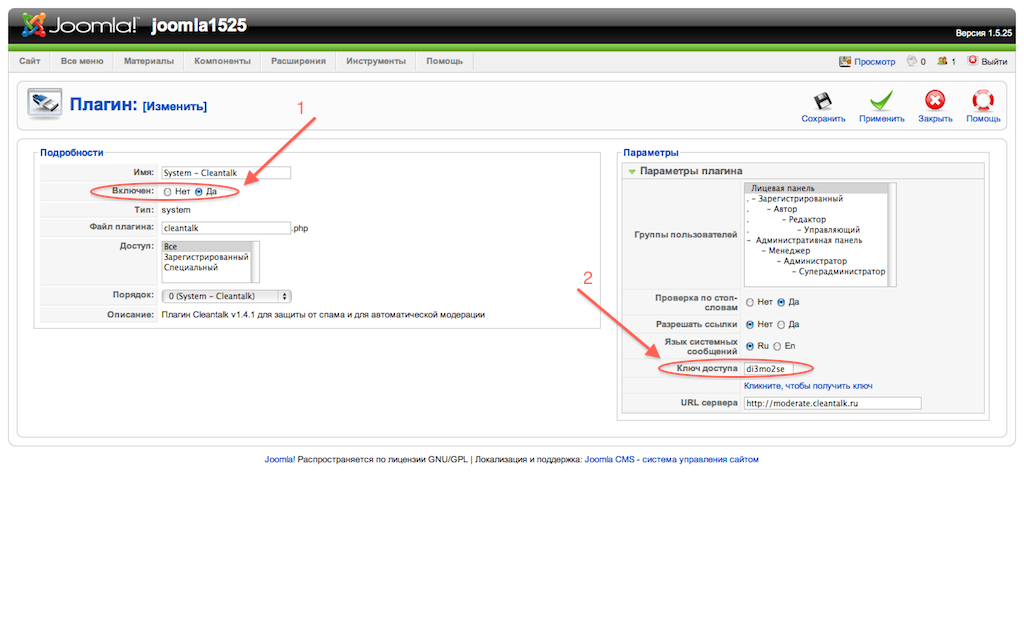 |
If you have installed JComments please look for instructions below, otherwise go to tests. | |
| 6. Turn on JComments (1) in required categories and turn up (2) notify messages for new comments on the site. Components -> JComments -> Settings -> General 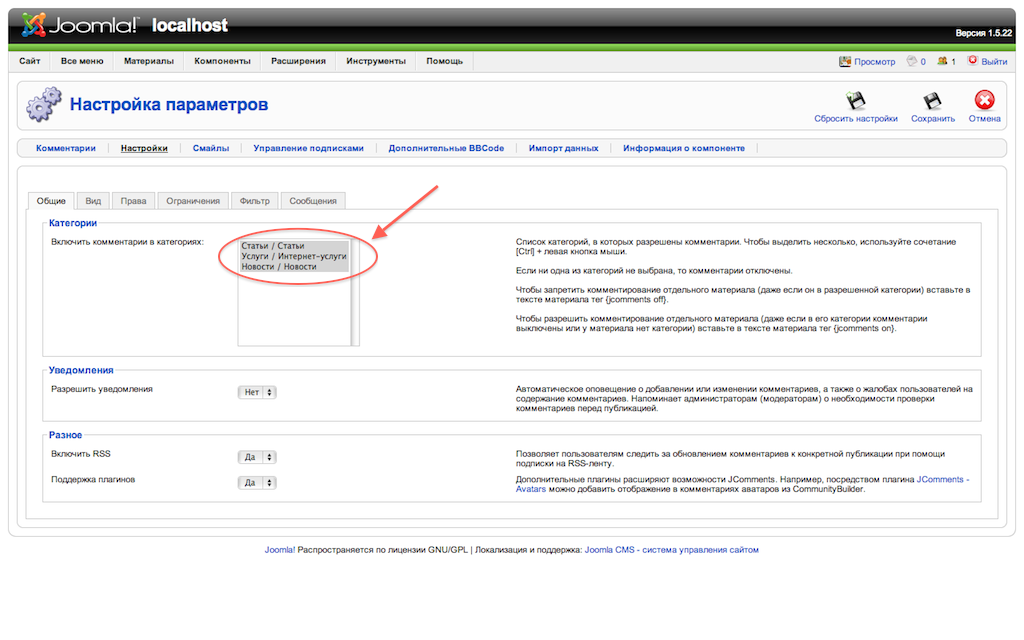 | 7. In the Jcomments settings enable automatic publication and disable CAPTCHA for comments. Components -> JComments -> Settings -> Permissions 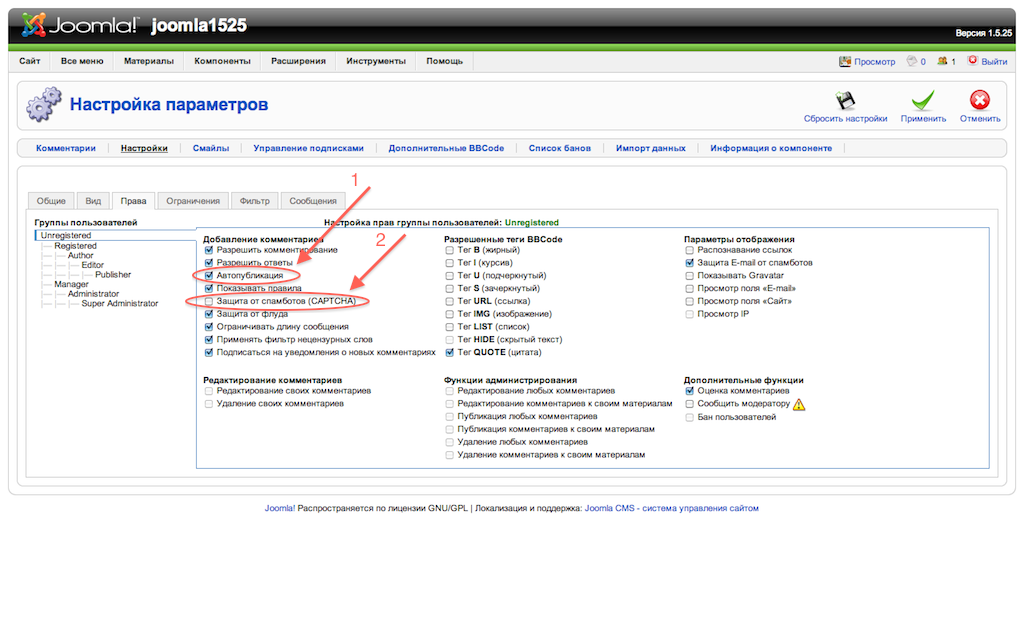 |
| 8. Enable notices for new comments: Components -> JComments -> Settings -> General 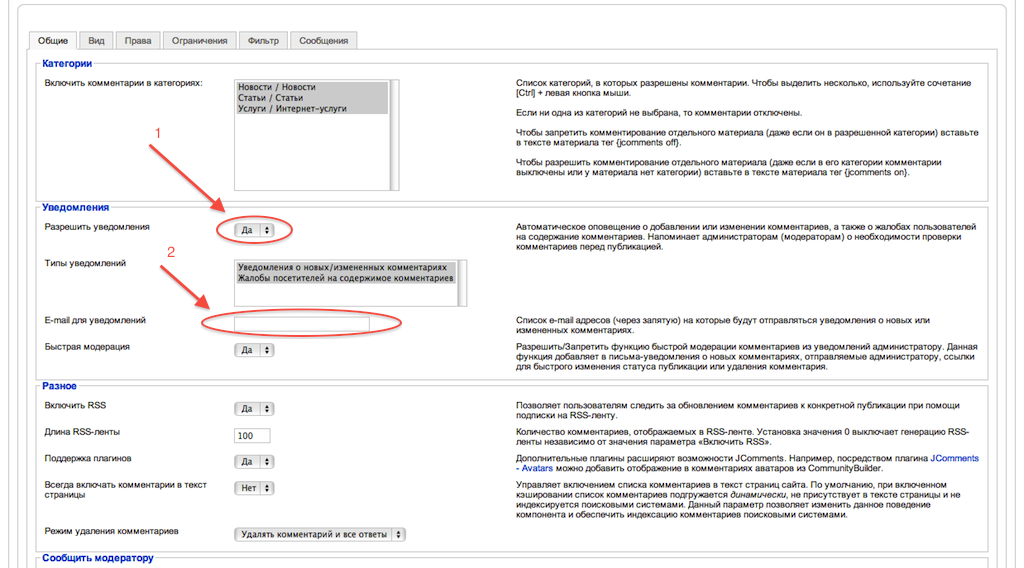 | 9. Write a message on any article which includes JComments. To test the plugin use email stop_email@example.com 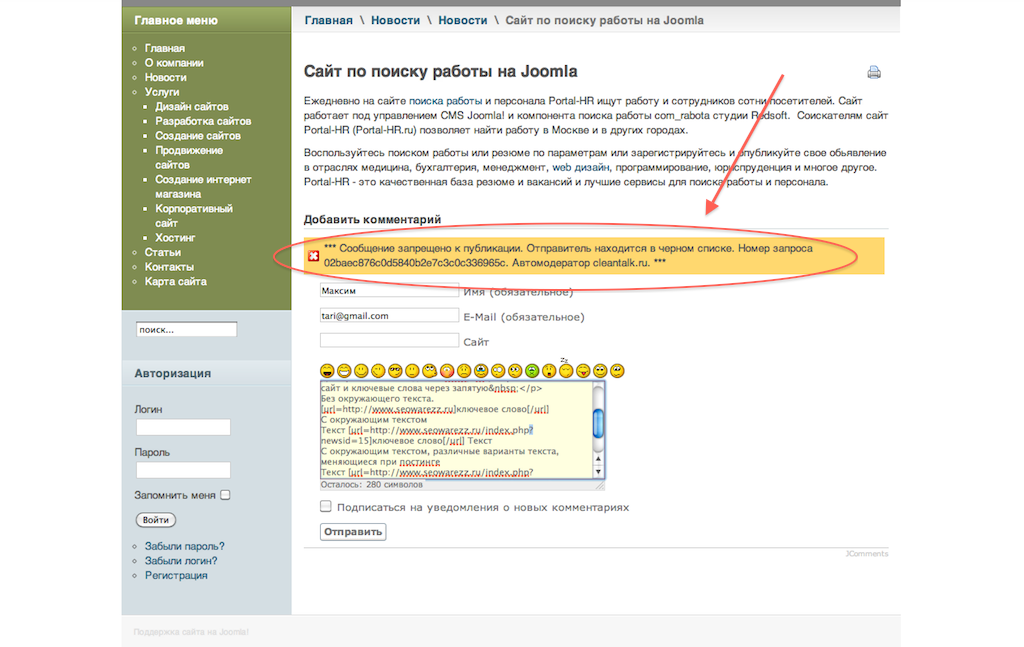 |
 | 11. Test feedback forms with the same email stop_email@example.com 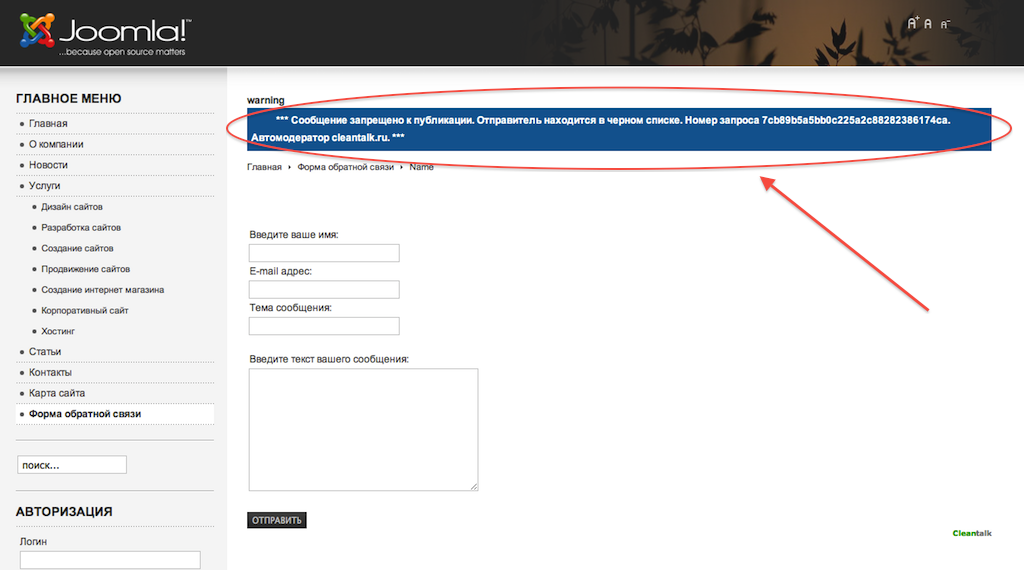 |
Поздравляем с установкой CleanTalk!
Посмотреть статус антиспама, добавить новый сайт или управлять существующими вы можете в Панель управлении.
| |