How to Use the Security Log
Go to your CleanTalk Dashboard → Log → Security (Brute-force) Log
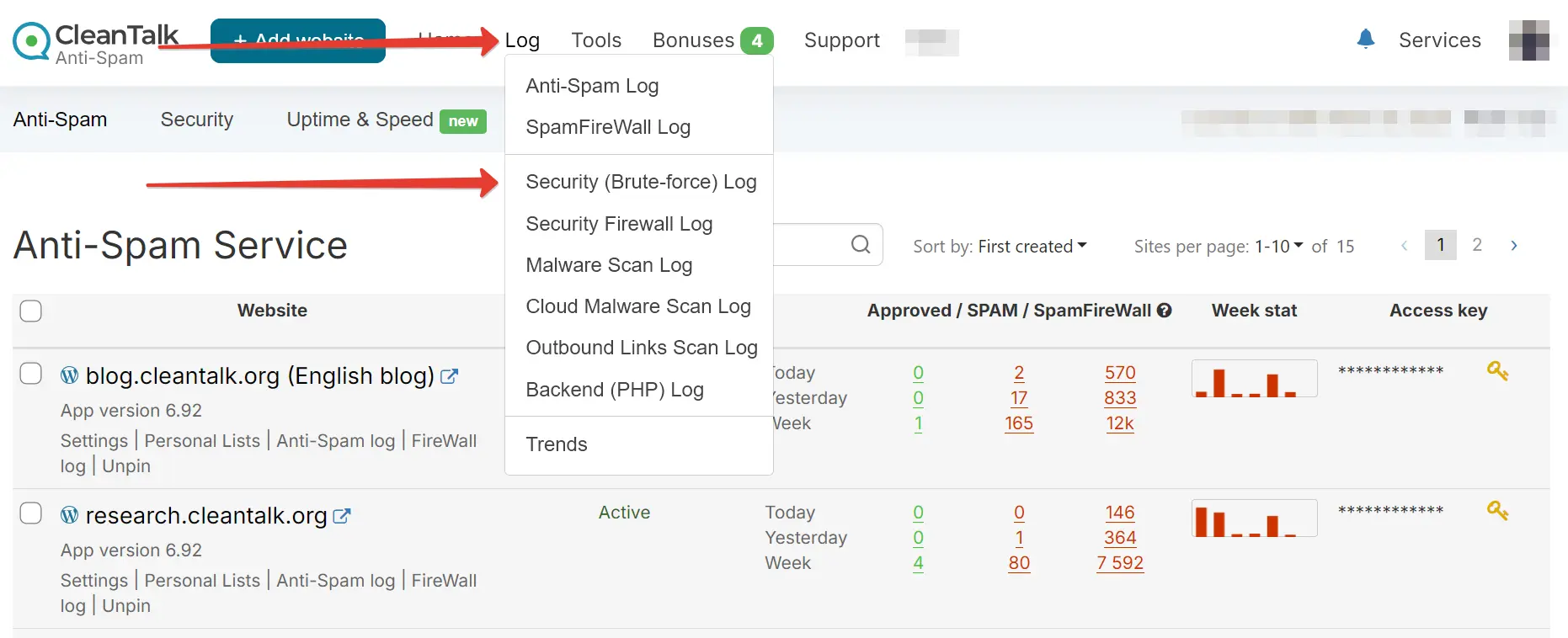
You are on the Security Log page now:
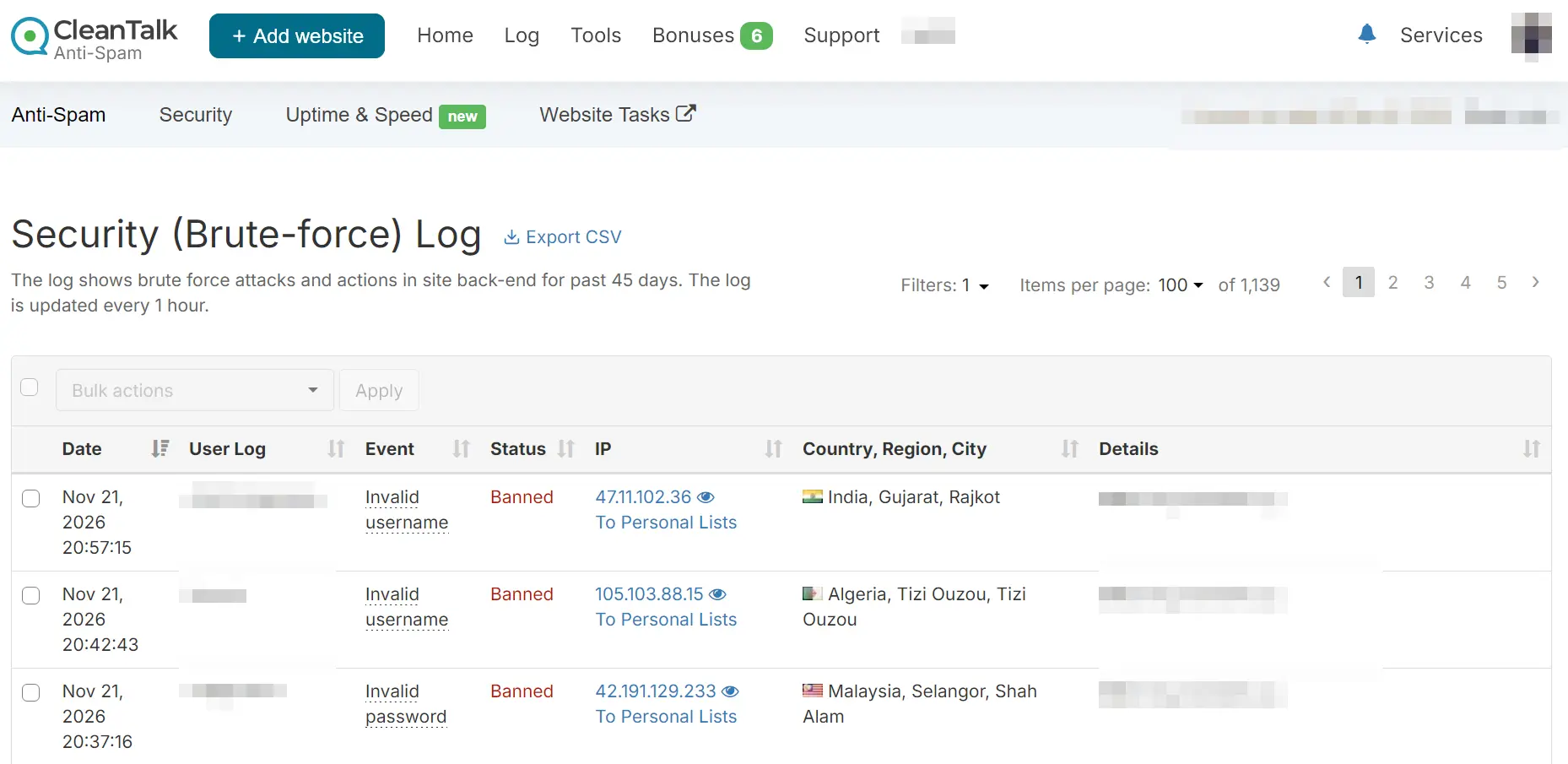
The following information is available:
- Date: the exact date and time when the request was made.
- User Log: the user's username or login name.
- Event: the action performed by the user.
- Status: the result of the security check.
- IP: the user's IP address.
- Country, Region, City: the user's geographic location.
- Details: the specific page where the event took place.
You can also filter the results.
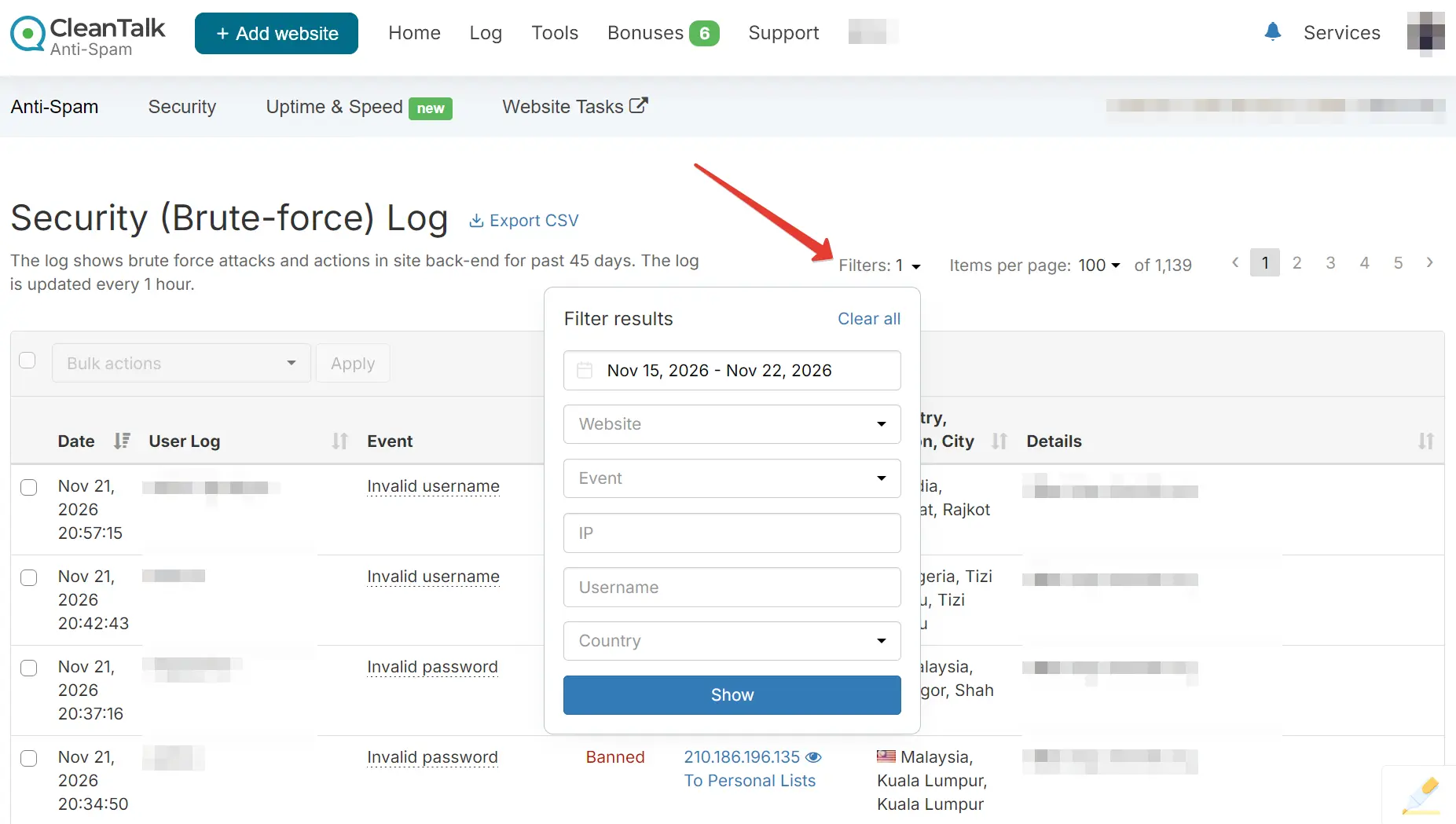
The following filters are available:
- Time Period: Select the timeframe for the records you wish to view.
- Website: Filter records by a specific website in your account.
- Event: Filter records by the action performed by the user.
- IP: Filter records by a specific IP address.
- Username: Filter records by a specific username.
- Country: Filter records by the sender's country of origin.
4. Go to your Security Firewall Log:

5. You are on the Security Firewall Log. It looks similar as the Security Log, but shows only IP addresses and countries which visited your website:
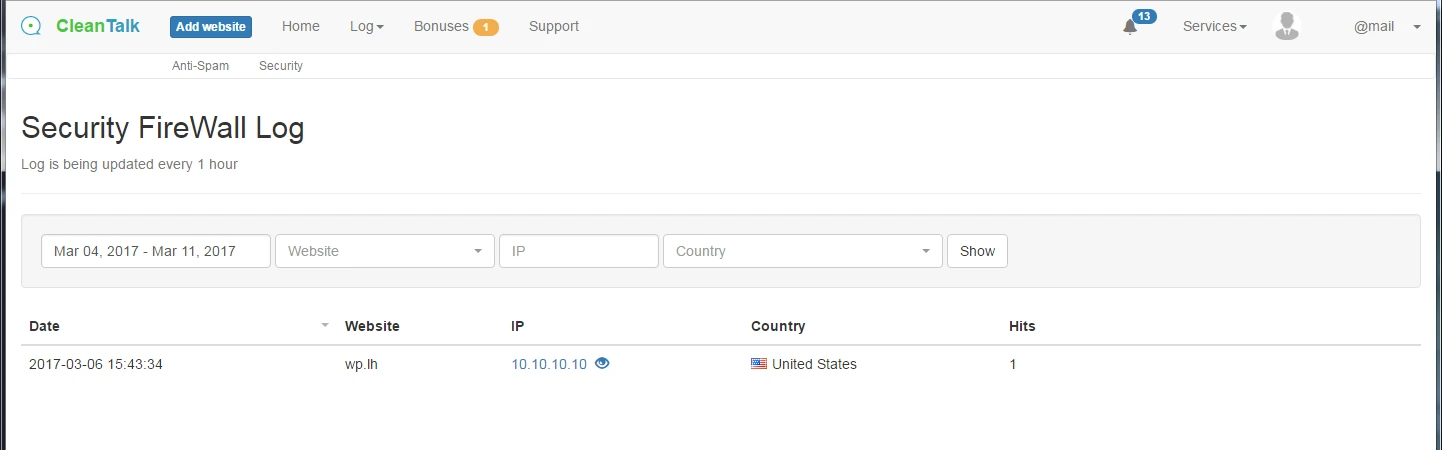
You can read more about using Security Firewall Log here.
If you wish to block some countries from visiting your website, please use this instruction: https://cleantalk.org/help/security-firewall
Não encontrou o que procurava? Entre em contato com nossa equipe de suporte técnico para obter ajuda.
Também pode ser interessante
- Alternativa ao Wordfence com teste gratuito.lp-container { line-height: 2; } .lp-container ul, .lp-container ul li { line-height: normal; } ...
Copied to clipboard