Spam Comment Management
For our users with WordPress websites, a Spam Comment Management feature is available.
By default, all spam comments go straight to your Spam folder, but you have full control over how the plugin handles them.
To configure how spam comments are handled, log in to your Anti-Spam Dashboard, find the website you want to update, and click Settings under the website's name.
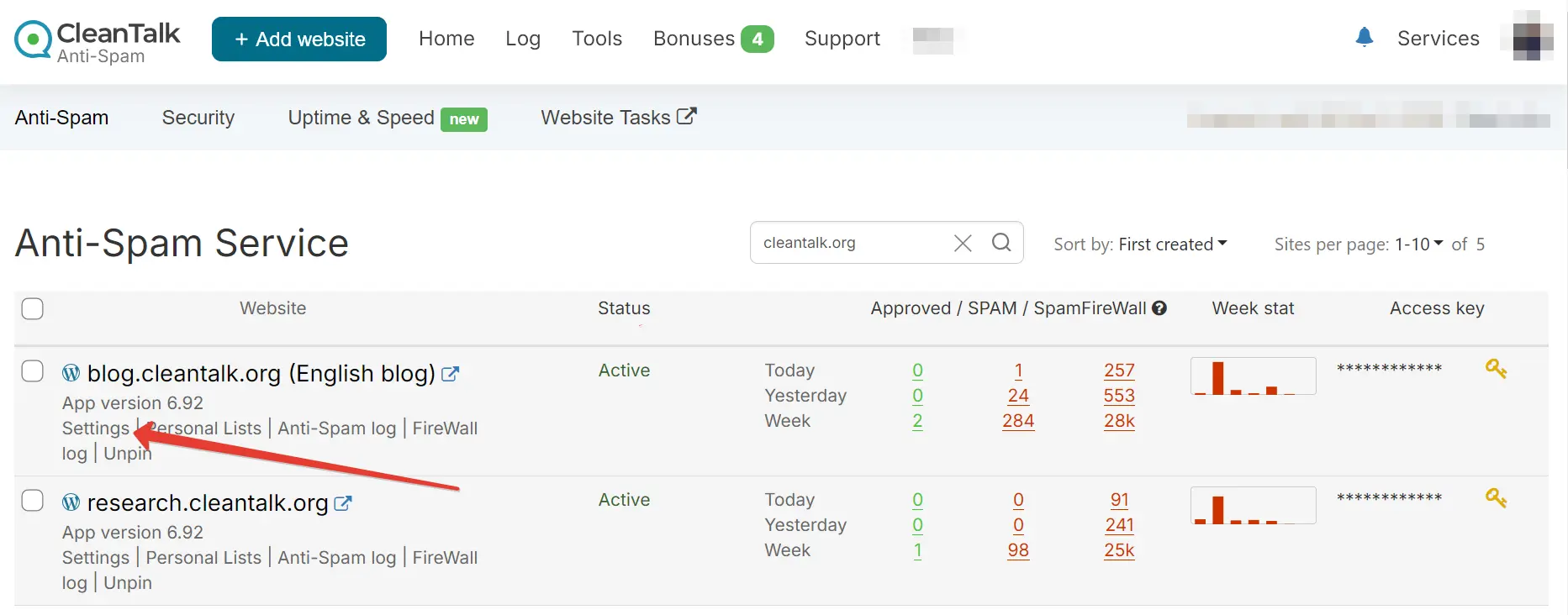
On the website settings page, select your preferred option from the SPAM comment action menu and click Save at the bottom of the page.
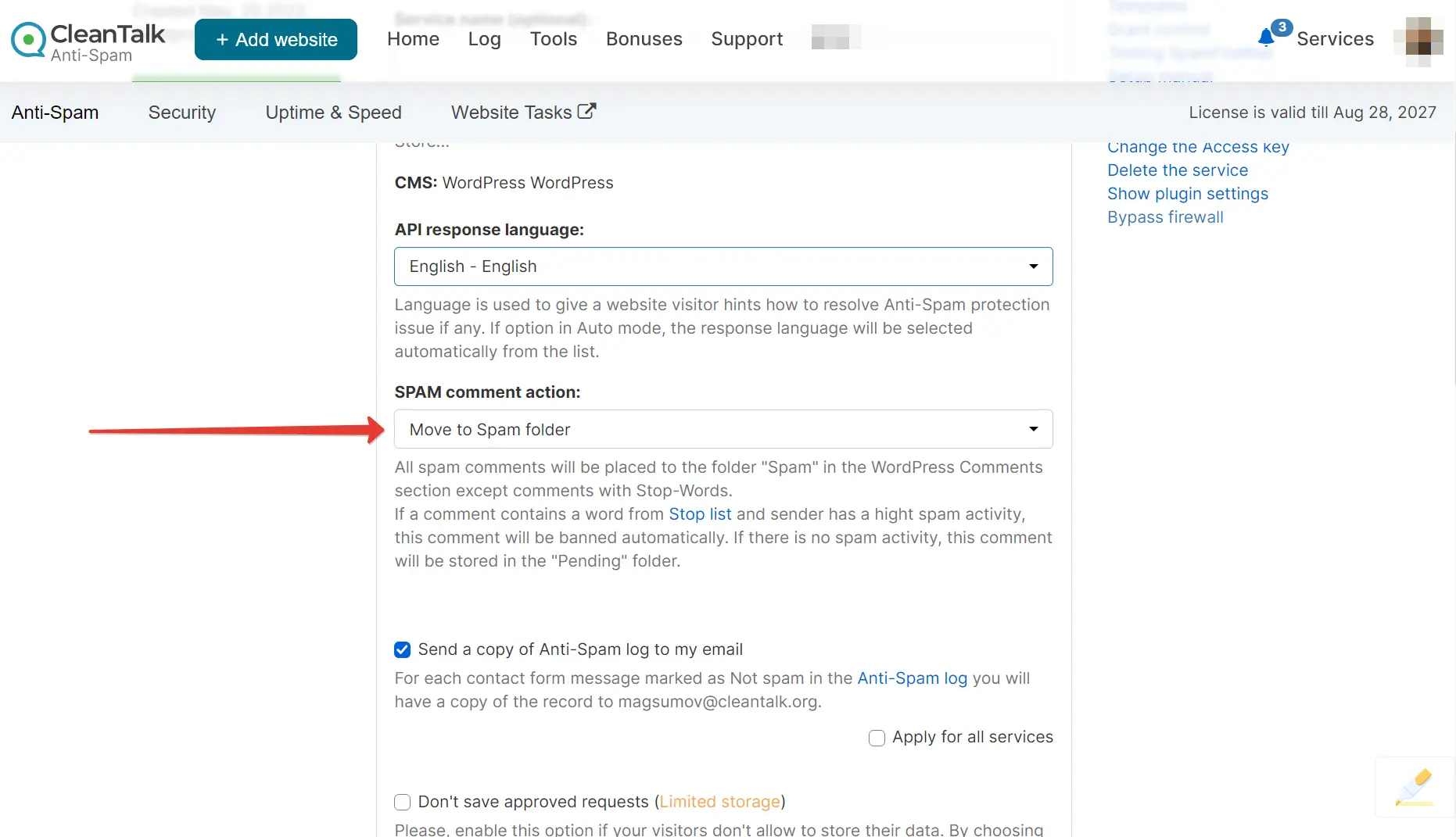
Here are the four ways you can manage spam comments:
Note on Stop-Words: If a comment contains a Stop-Word and comes from a sender with high spam activity, it will be banned automatically. If the sender has no prior spam activity, it will be held in Pending for you to review.
Move to Spam folder
All spam comments are sent to the Spam folder in your WordPress Comments section.
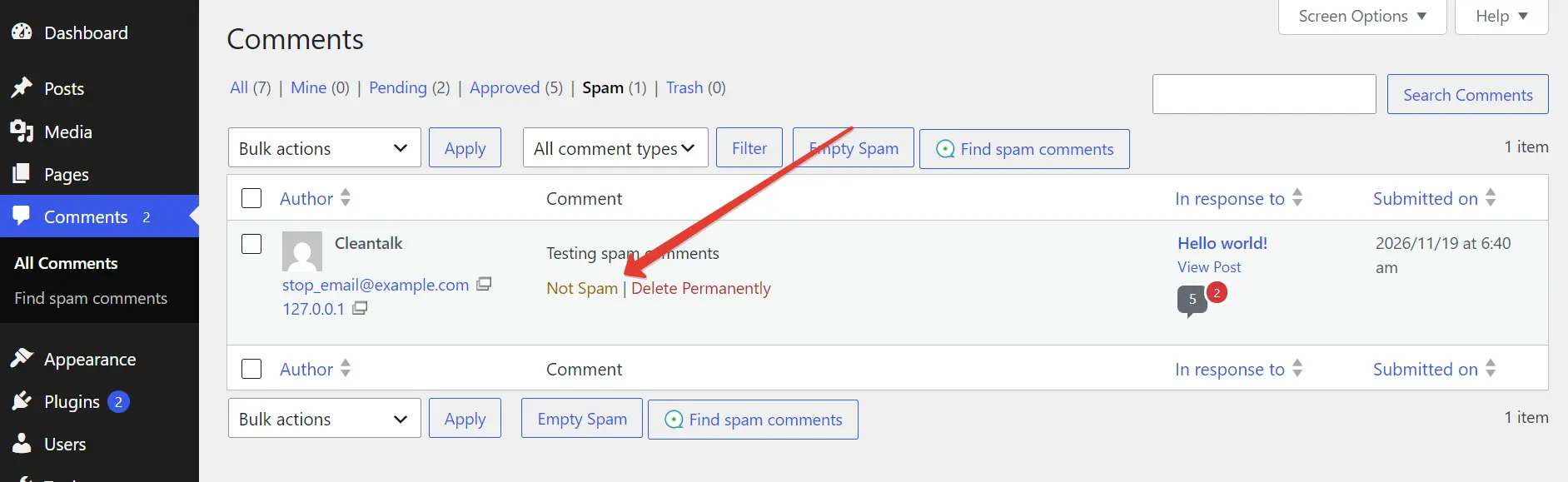
If you mark a comment in the Spam folder as Not Spam in WordPress, it will be moved to the Pending folder.
Note: You can prevent your Spam folder from getting cluttered by turning on automatic cleanup. Go to WordPress Admin Page —> Settings —> Anti-Spam by CleanTalk —> Advanced settings, enable "Keep spam comments for 15 days," and click Save Changes.
Move to Trash
All spam comments bypass the Spam folder and go directly to the Trash folder in your WordPress Comments section.
Ban comments without moving to the WordPress backend
All spam comments will be permanently deleted without reaching your WordPress backend, except for comments containing Stop-Words. You can view all blocked and banned comments in your Anti-Spam Log.
Smart spam comments filter
The plugin automatically sorts spam comments based on severity: automated bot spam is sent straight to Trash, while other suspicious comments go to the Spam folder.
Não encontrou o que procurava? Entre em contato com nossa equipe de suporte técnico para obter ajuda.
Também pode ser interessante
- The Real Person Badge | CleanTalk Anti-SpamThe Real Person Badge A benchmark system for WordPress that separates real users from bots. The...
- How to Check Existing Users and Comments for SpamChecking Existing Users and Comments for Spam Description How to start checking on WordPress How...
- User And Comments Checking in WordPressUser And Comments Checking in WordPress Description In the CleanTalk Anti-Spam Plugin, we added the possibility...