How to Test CleanTalk SpamFireWall
Please follow these steps to test the SpamFireWall functionality on your site:
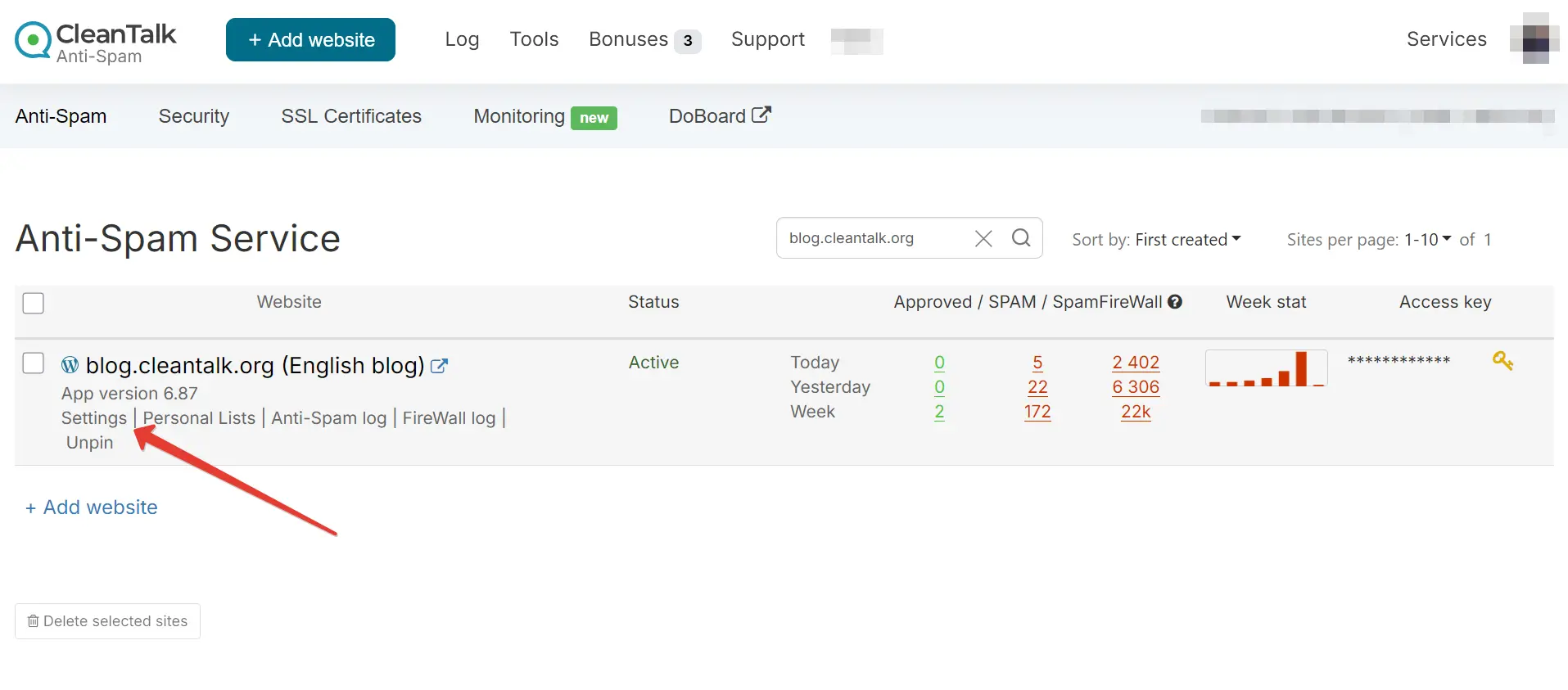
- Go to your CleanTalk Anti-Spam Dashboard.
- Click “Settings” below your site's name.
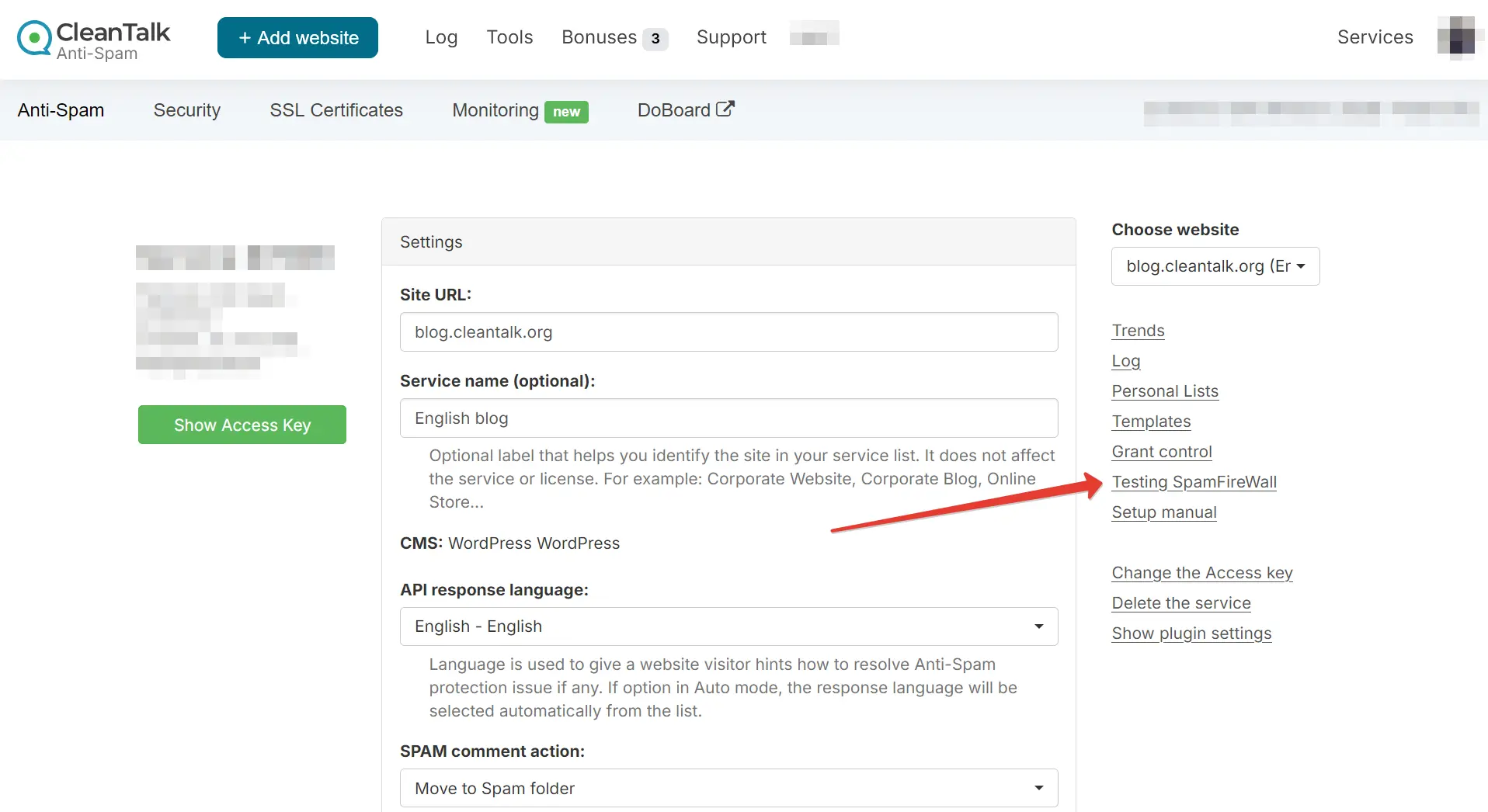
- Click "Testing SpamFireWall" in the right-side menu.
Alternatively, you can test if SpamFireWall is working by doing the following:
- Open an incognito window in your web browser.
- Visit https://yourdomain.com/?sfw_test_ip=10.10.10.10 (replace https://yourdomain.com with your actual domain).
As a result, you will receive the SpamFireWall blocking page.
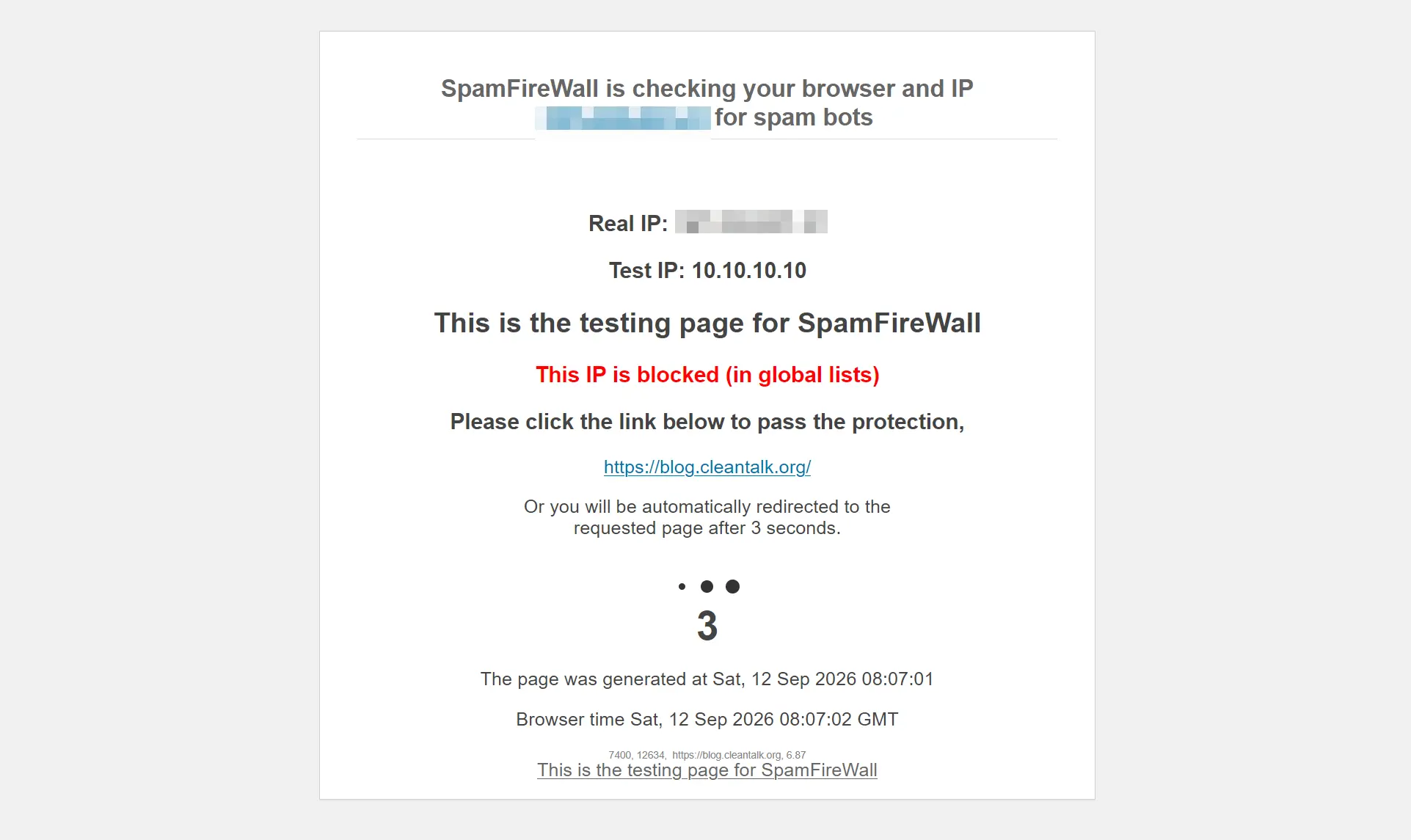
After three seconds, you should be redirected back to your site's homepage.
The SpamFireWall blocking page displays the following details:
- Real IP: Your actual IP address.
- Test IP: The IP address currently being tested (appended to the URL). While 10.10.10.10 is used by default for testing, you can specify any IP address in the test URL parameter.
- IP Status: The current security status of the tested IP.
- Generation Time: The exact date and time the blocking page was shown.
- Browser Time: The current local time detected from your web browser.
If SpamFireWall is not working or not behaving properly (for example, if you are not redirected back to your site within 3 seconds), please try the following troubleshooting steps:
- Ensure that the SpamFireWall option is enabled in your plugin settings.
- Click "Synchronize with Cloud" (for WordPress) or click Save Changes (for other CMS platforms).
- Wait a few minutes for data synchronization to complete (Note: if you have a large number of custom entries in your personal lists, this may take longer).
- Clear all the site's cache.
没找到您需要的内容? 联系我们的技术支持团队以获取帮助.
您可能也会感兴趣
- CleanTalk Anti-Spam Protection and Cache Plugins on WordPressSpecifics of the CleanTalk Anti-Spam Protection and Cache Plugins on WordPress Sometimes the SpamFireWall...
- Checking emails by API method email_checkAPI method email_check Common description Method's get parameters Response Explanation Multiple...
- Checking an email by API method email_check_oneAPI method email_check_one Common description Method's get parameters Response Explanation Restrictions Method...
Copied to clipboard