How to use CleanTalk dashboard settings templates
To improve the user experience we've implemented a new feature. Dashboard and plugin settings templates are available now. You can save/restore/clone settings on your websites. Templates interface located here.
The feature is available after purchasing our Extra Package for Anti-Spam or Security service. Go to your Anti-Spam Renewal Licence Page or Security Renewal Licence Page to see the details.
You can create a new template by pressing Add Templates button:

In the next window, you can enter a template name, choose service which settings you want to use, and set this template as default if you want:

Press Add button and a template will be created:

A - Service Type (Anti-Spam or Security)
B - Template name and control buttons. Edit - allows modifying template settings:

Apply - applies the template to selected services. You can choose a few services:

C - Last template update date.
D - Options details. Press Details to see template options:
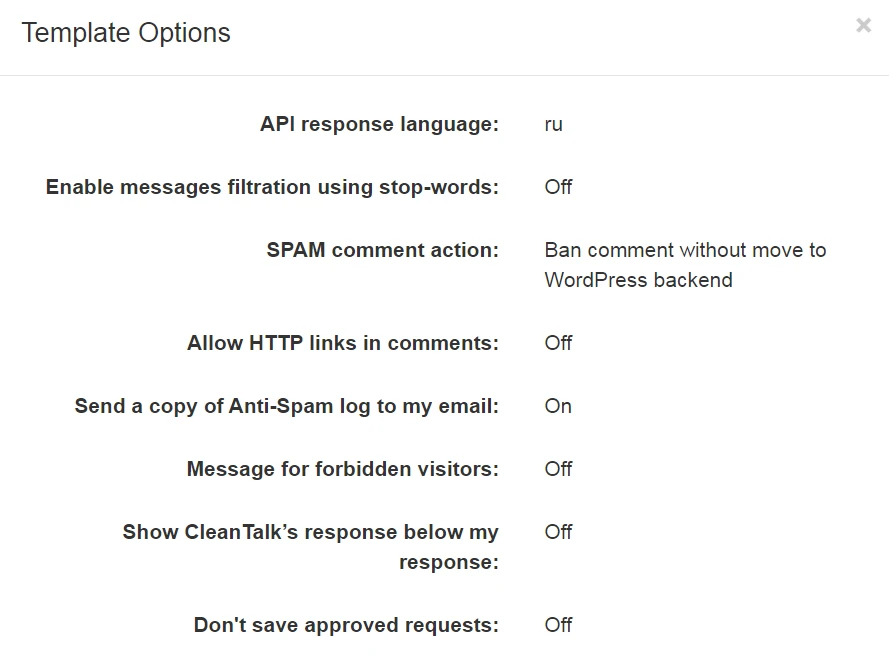
E - Plugin options. Here you can see plugin options if you save them from the plugin. You can read more about this here.
F - here you can see the last service to which the template was applied.

Couldn't find what you were looking for? Contact our technical support team for assistance.
It would also be interesting
- Extra Package for CleanTalk Security ServiceExtra Package for Security Service 45-Day Log Custom Text for the Security FireWall Website Access...
- CleanTalk Anti-Spam - direct web form integrations for spam protectionDirect web form integrations for spam protection CleanTalk Anti-Spam protects all web forms on websites...
- DashboardAnti-Spam Dashboard Guide How do I report a missed spam bot or incorrect filter How to use Anti-Spam...