Как удалить плагины Anti-Spam и Security или сбросить их данные
Иногда плагин может работать некорректно из-за ошибок или конфликтов, либо вам может понадобиться удалить его без оставления каких-либо следов на сайте.
Опция Полная деактивация позволяет полностью удалить все данные плагина, включая ключ доступа, настройки и таблицы базы данных, не удаляя сам плагин. Это полезно, если вы хотите начать настройку с нуля или устранить проблемы в работе плагина.
Вот как это работает:
- При повторной активации плагина с включённой опцией Полная деактивация все данные плагина удаляются, а настройки сбрасываются до значений по умолчанию.
- При удалении плагина сначала выполняется Полная деактивация, а затем удаляются файлы плагина.
Если вы хотите сохранить свои настройки, вы можете экспортировать их как шаблон, а затем позже импортировать обратно в плагин. См. инструкцию: https://cleantalk.org/help/plugin-template
В этом руководстве мы покажем, как сбросить все данные плагина с помощью опции Полная деактивация, сохранив сам плагин, а также как полностью удалить плагин с сайта без оставления каких-либо следов.
Как полностью деактивировать плагин Anti-Spam
1. Перейдите в настройки плагина и откройте вкладку Продвинутые настройки.
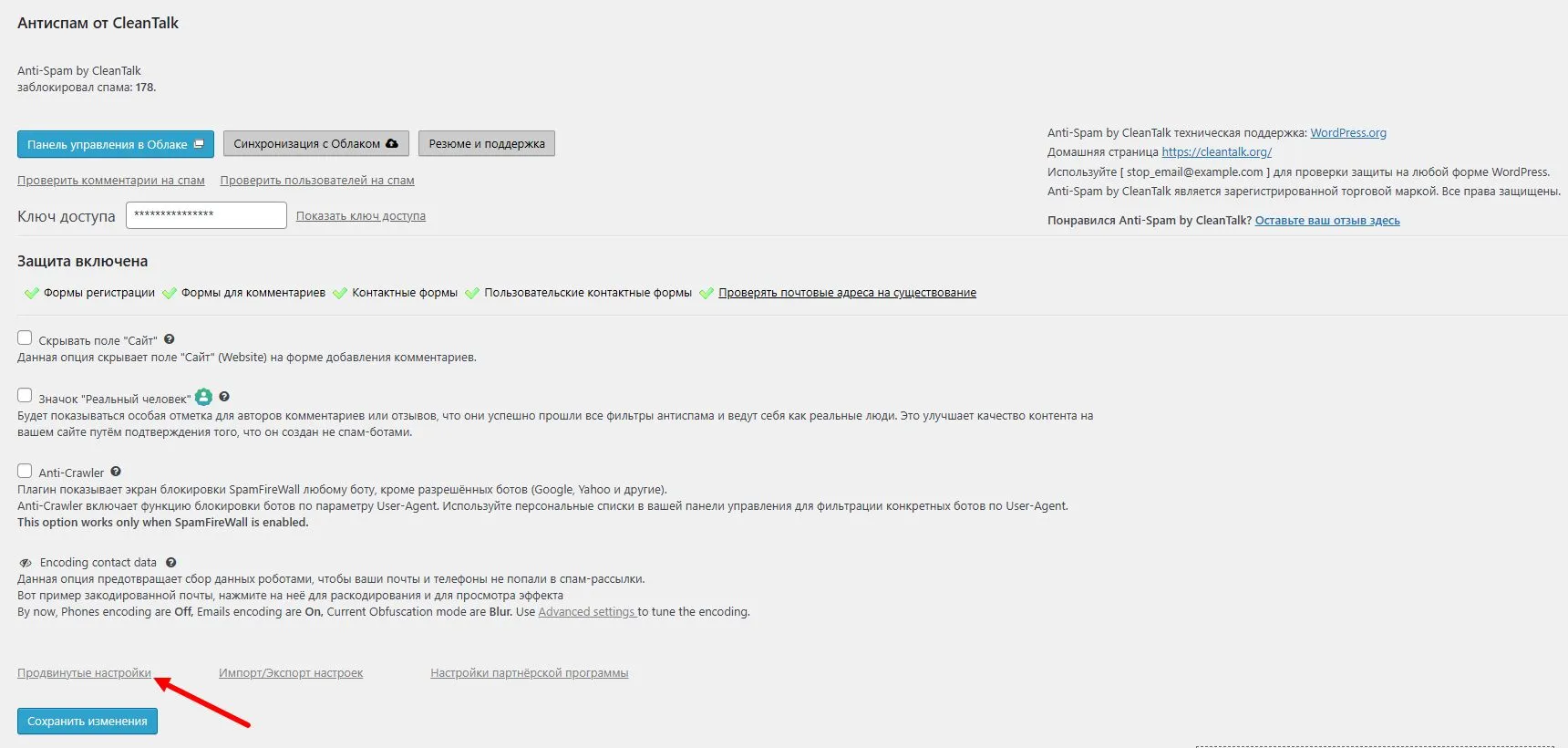
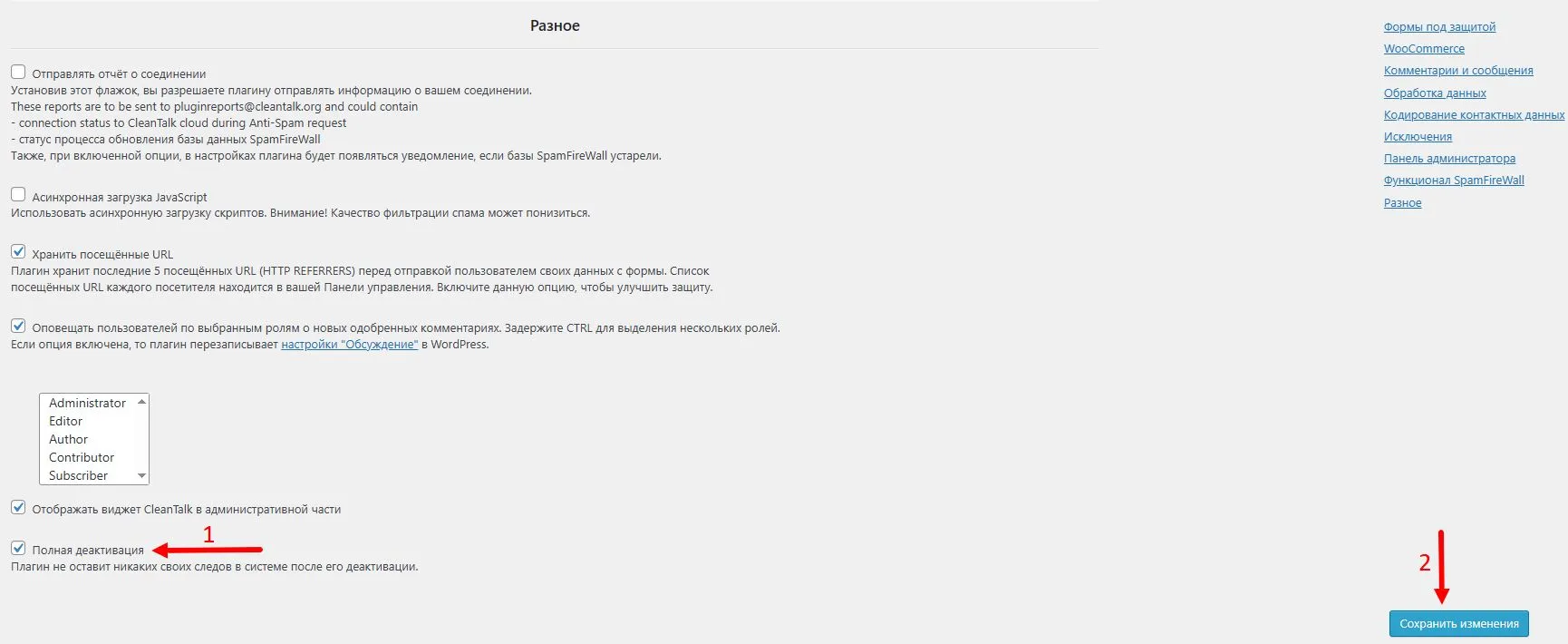
2. Прокрутите страницу вниз до раздела Разное, найдите опцию Полная деактивация, включите её и нажмите кнопку Сохранить изменения.
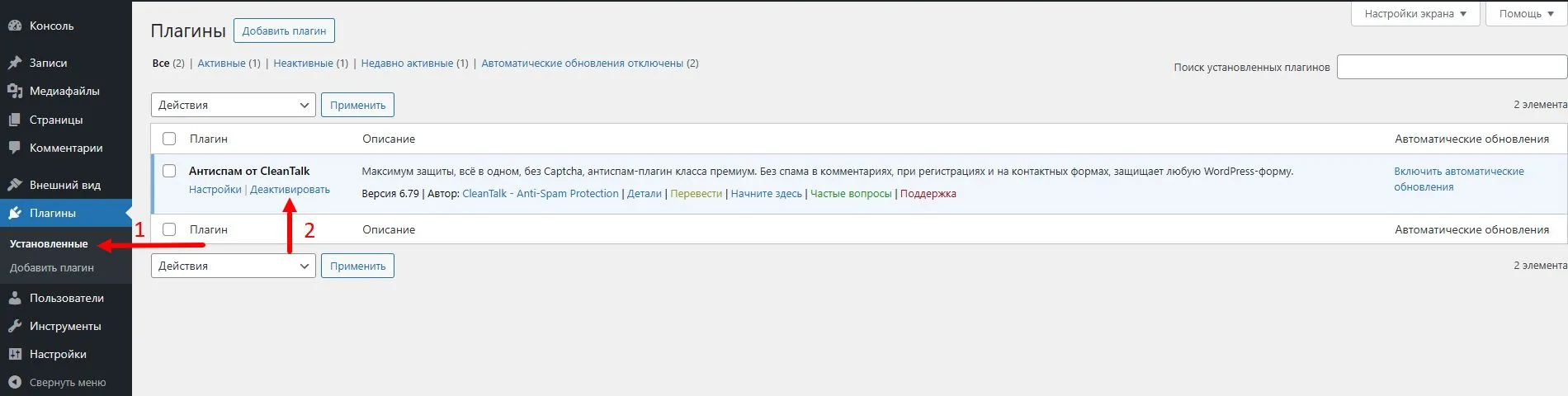
3. Перейдите в Плагины → Установленные, найдите Антиспам от CleanTalk, затем нажмите Деактивировать и Активировать.
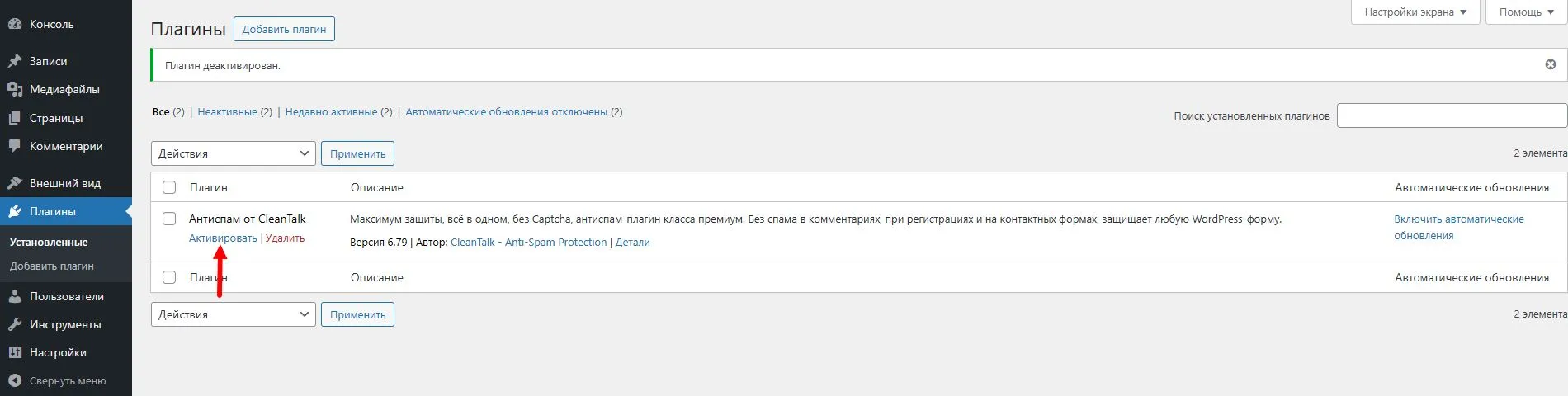
Примечание: Эта опция сбрасывает все настройки плагина. После повторной активации вам потребуется снова ввести ключ доступа. Вы можете найти ваш ключ доступа к Антиспам плагину здесь: https://cleantalk.org/my/?cp_mode=antispam или воспользоваться этой инструкцией: https://cleantalk.org/help/access-key
Как полностью деактивировать плагин Security
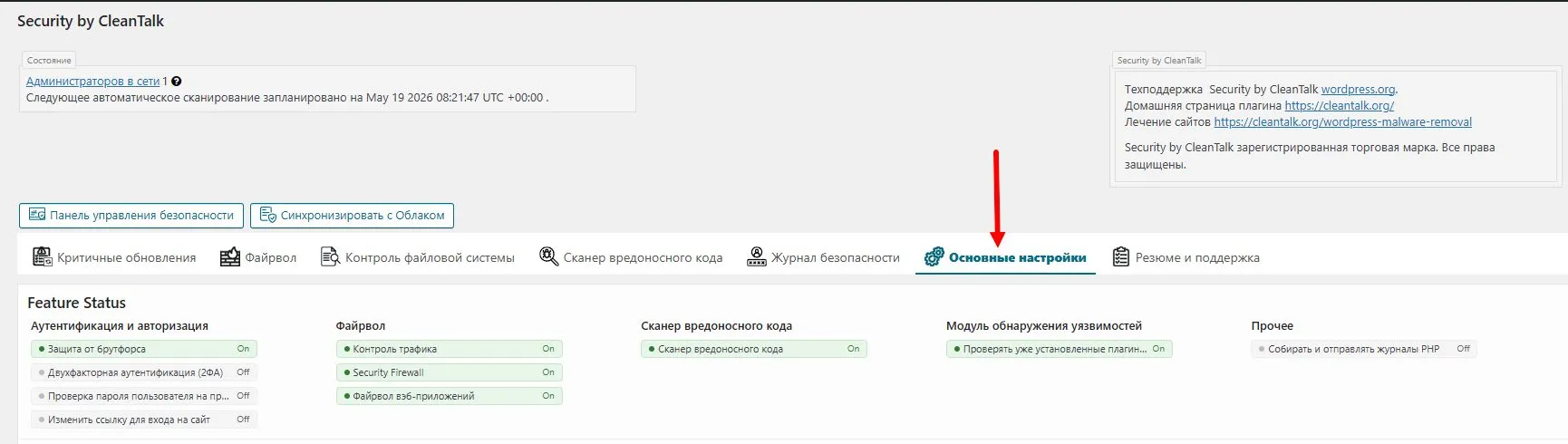
1. Перейдите в настройки плагина и откройте вкладку Основные настройки.
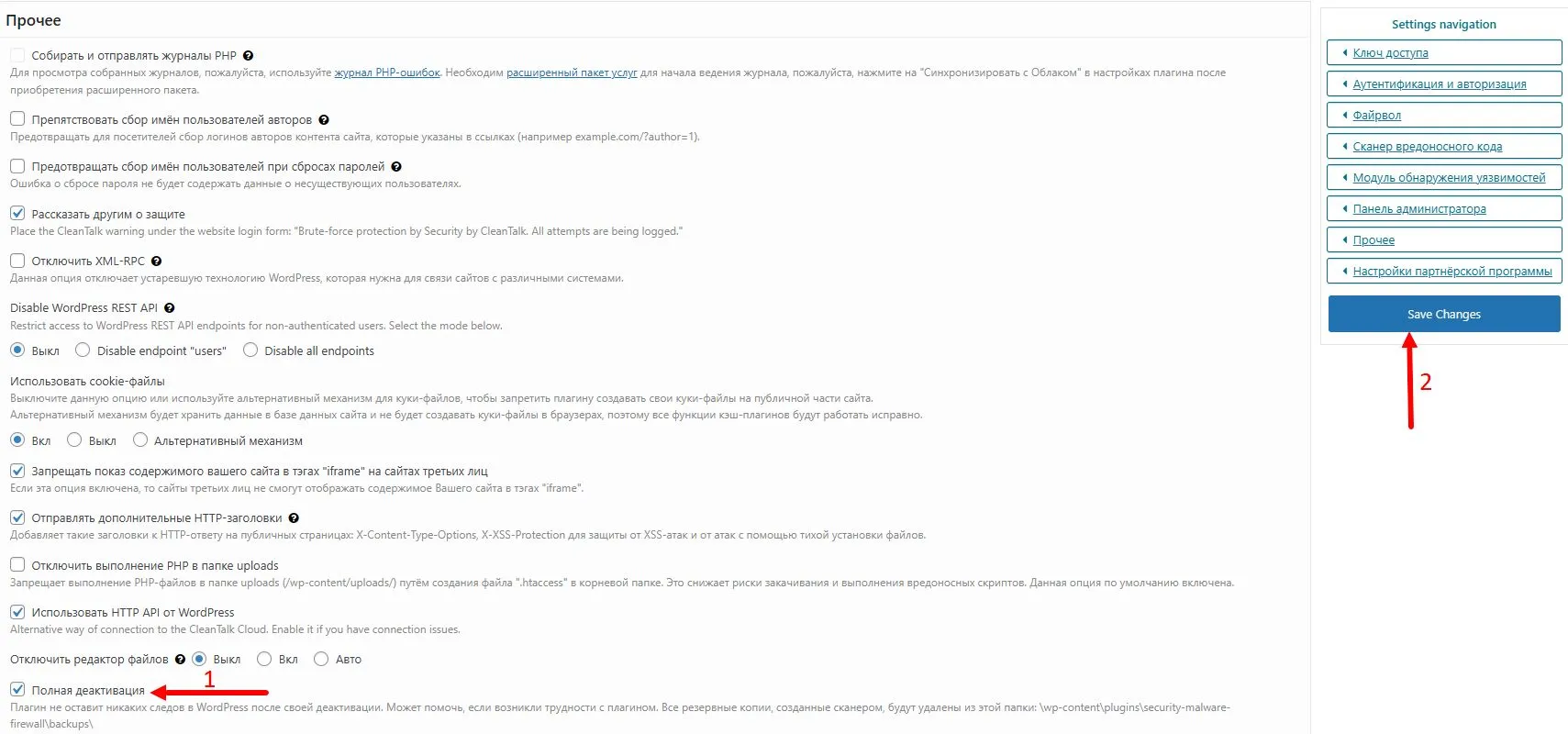
2. Прокрутите страницу вниз до раздела Прочее, найдите опцию Полная деактивация, включите её и нажмите кнопку Save changes.
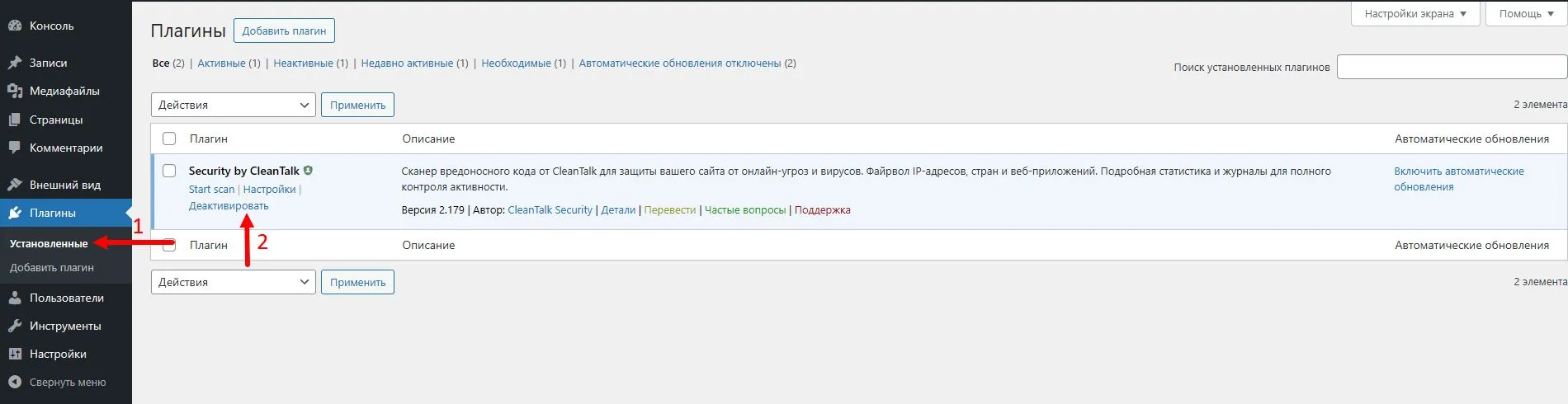
3. Перейдите в Плагины → Установленные, найдите Security by CleanTalk, затем нажмите Деактивировать и Активировать.
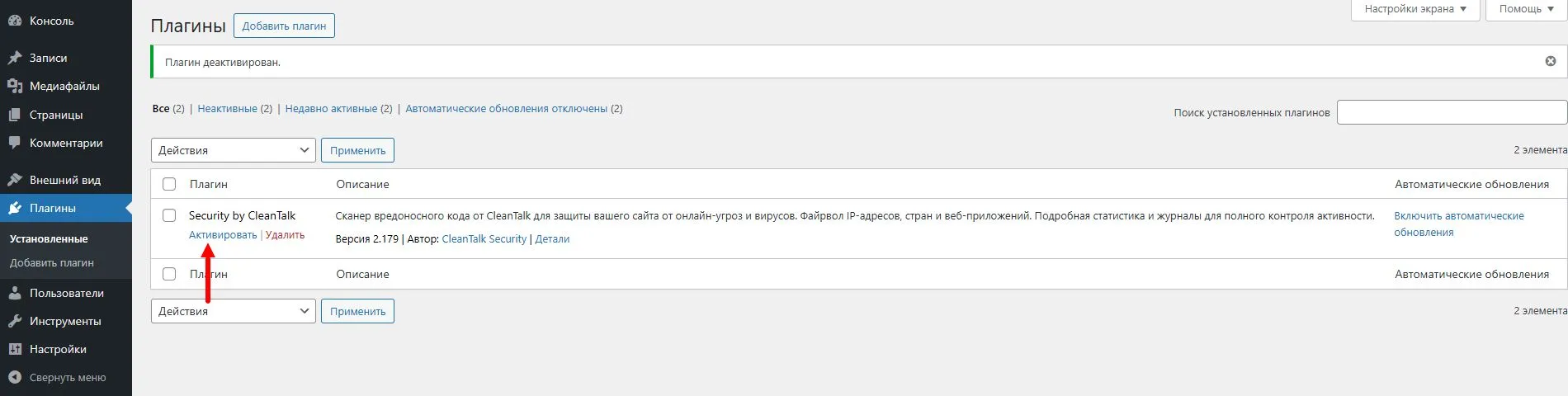
Примечание: Эта опция сбрасывает все настройки плагина. После повторной активации вам потребуется снова ввести ключ доступа. Вы можете найти ваш ключ доступа к Security плагину здесь: https://cleantalk.org/my?cp_mode=security или воспользоваться этой инструкцией: https://cleantalk.org/help/access-key
Как удалить плагины Anti-Spam и Security
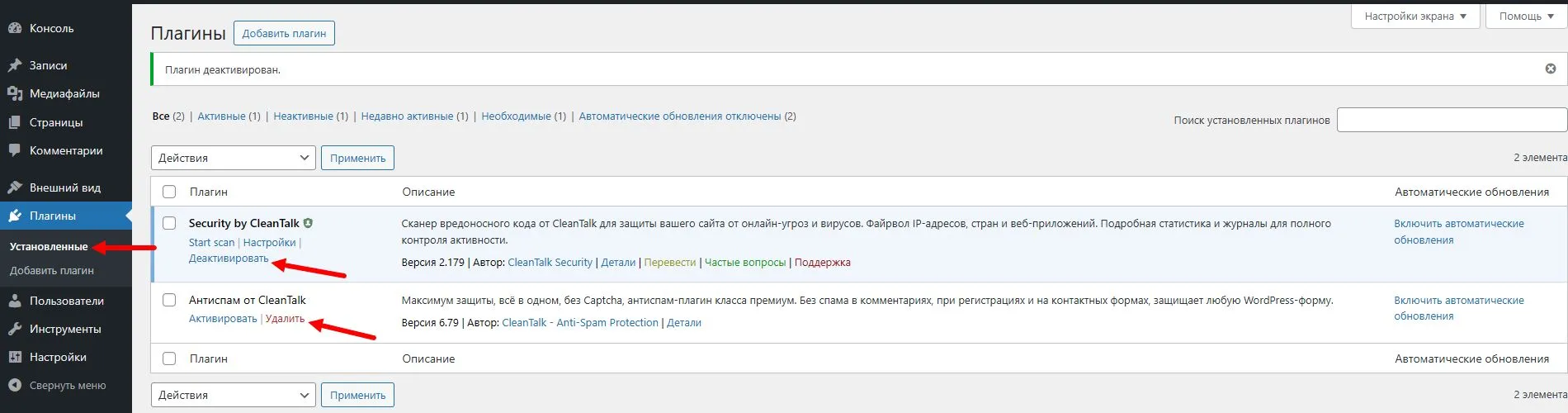
Перейдите в Плагины → Установленные, найдите Антиспам от CleanTalk или Security by CleanTalk, затем нажмите Деактивировать и Удалить.
Если у вас остались вопросы, обратитесь в нашу службу технической поддержки.
Будет так же интересно
- Получение доступа к базе данных чёрных списков от CleanTalkКак получить доступ к базе данных чёрных списков от CleanTalk CleanTalk...
- Как установить Анти-Спам расширение от CleanTalk на OpenCart 3.xУстановка Анти-Спам расширения от CleanTalk на OpenCart 3.x Чтобы...
- Список руководств по установке антиспам модулей CleanTalk Инструкции по установке антиспама от CleanTalk Здесь находятся...