- Fix. Init. Getting user fixed.
- Fix. Cron. PID comparing fixed. (#46)
- Upd. SFW. Definition of modes, output of statuses for each mode (#47)
Как обновить Анти-Спам плагин от CleanTalk на Joomla 3.x - 6.x:
Как обновить Анти-Спам плагин на Joomla 3.x
Текстовая версия
1. В главном меню Joomla откройте Расширения → Расширения → Управление.
2. Найдите плагин "Anti-spam by CleanTalk ", отметьте чекбокс и нажмите "Удалить". Подтвердите удаление.
3. Скачайте архив с плагином от CleanTalk (ссылка в начале этой страницы или по выданной Вам ссылке лично).
4. В главном меню Joomla откройте Расширения → Менеджер расширений → Установка.
5. На вкладке "Загрузить и установить" выберите скачанный архив.
6. После установки откройте настройки плагина: Расширения → Плагины → Анти-Спам от CleanTalk.
7. Переключите состояние в статус "Включено" и включите желаемые пункты в настройках. Проверьте, что ключ доступа совпадает с ключом из Вашей панели управления CleanTalk. Затем нажмите на кнопку "Сохранить".
8. (Необязательно) Проверьте защиту с помощью пробной регистрации с почты из чёрного списка stop_email@example.com.
Версия со скриншотами
1. В главном меню Joomla откройте Расширения → Расширения→ Управление.
2. Найдите плагин "Anti-spam by CleanTalk ", отметьте чекбокс и нажмите "Удалить". Подтвердите удаление.
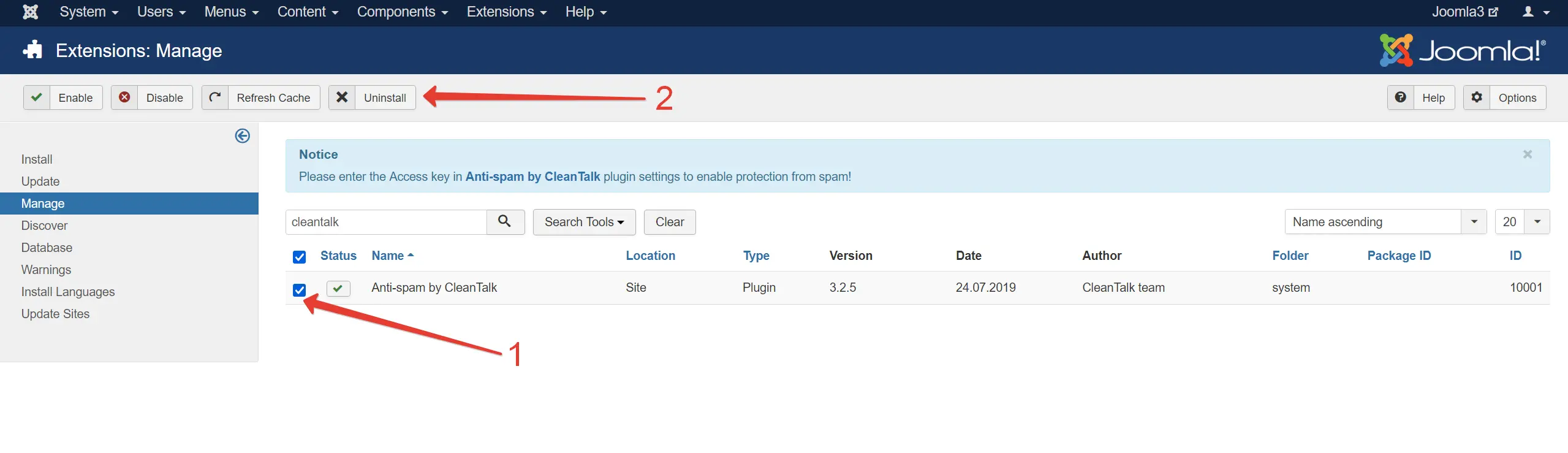
3. Скачайте архив с плагином от CleanTalk (ссылка в начале этой страницы или по выданной Вам ссылке лично).
4. В главном меню Joomla откройте Расширения → Менеджер расширений → Установка.
5. На вкладке "Загрузить и установить" выберите скачанный архив.
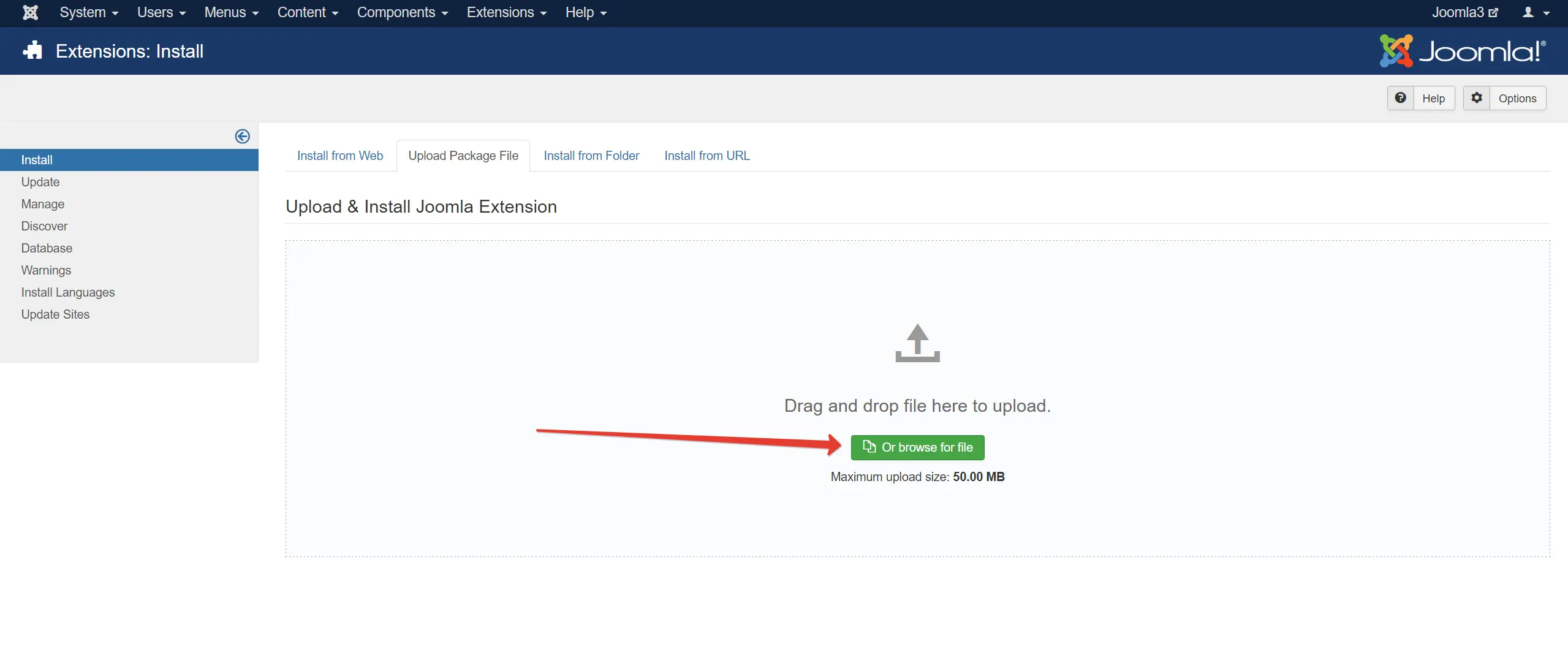
6. После установки откройте настройки плагина: Расширения → Плагины → Анти-Спам от CleanTalk.
7. Переключите состояние в статус "Включено" и включите желаемые пункты в настройках. Проверьте, что ключ доступа совпадает с ключом из Вашей панели управления CleanTalk. Затем нажмите на кнопку "Сохранить".
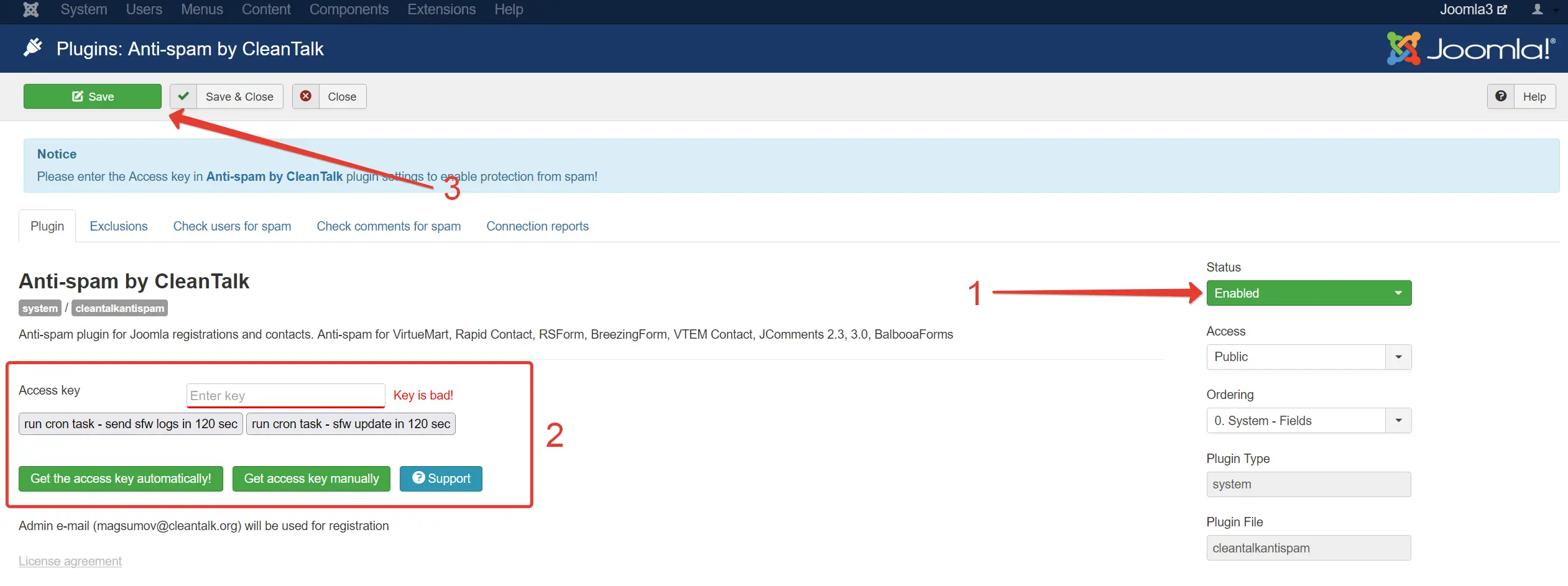
Обновление Joomla с версии 3.x до 4.x/5.x
Если вы обновляете Joomla с версии 3.x до 4.x или 5.x, удалите Анти-Спам плагин перед обновлением!
Как обновить Анти-Спам плагин на Joomla 4.x - 6.x
Текстовая версия
1. В главном меню Joomla откройте Система → Управление → Расширения.
2. Найдите плагин "Анти-Спам от CleanTalk" (можно воспользоваться поиском по слову cleantalk), отметьте чекбокс и нажмите "Удалить". Подтвердите удаление. Если вы используете версии Joomla 5 или 6, то нажмите Действия → Удалить.
3. Скачайте архив с плагином (ссылка в начале этой страницы или по выданной вам ссылке лично).
4. В главном меню Joomla откройте Система → Установка → Расширения.
5. На вкладке "Загрузить и установить" выберите скачанный пакет.
6. После установки откройте настройки плагина: Система → Управление → Плагины → Анти-Спам от CleanTalk.
7. Переключите статус плагина на "Включено" и включите желаемые пункты в настройках. Проверьте, что ключ доступа совпадает с ключом из Вашей панели управления CleanTalk. Затем нажмите на кнопку "Сохранить".
8. (Необязательно) Проверьте защиту с помощью пробной регистрации с почты из чёрного списка stop_email@example.com.
Версия со скриншотами
1. В главном меню Joomla откройте Система → Управление → Расширения.
2. Найдите плагин "Анти-Спам от CleanTalk" (можно воспользоваться поиском по слову cleantalk), отметьте чекбокс и нажмите "Удалить". Подтвердите удаление.
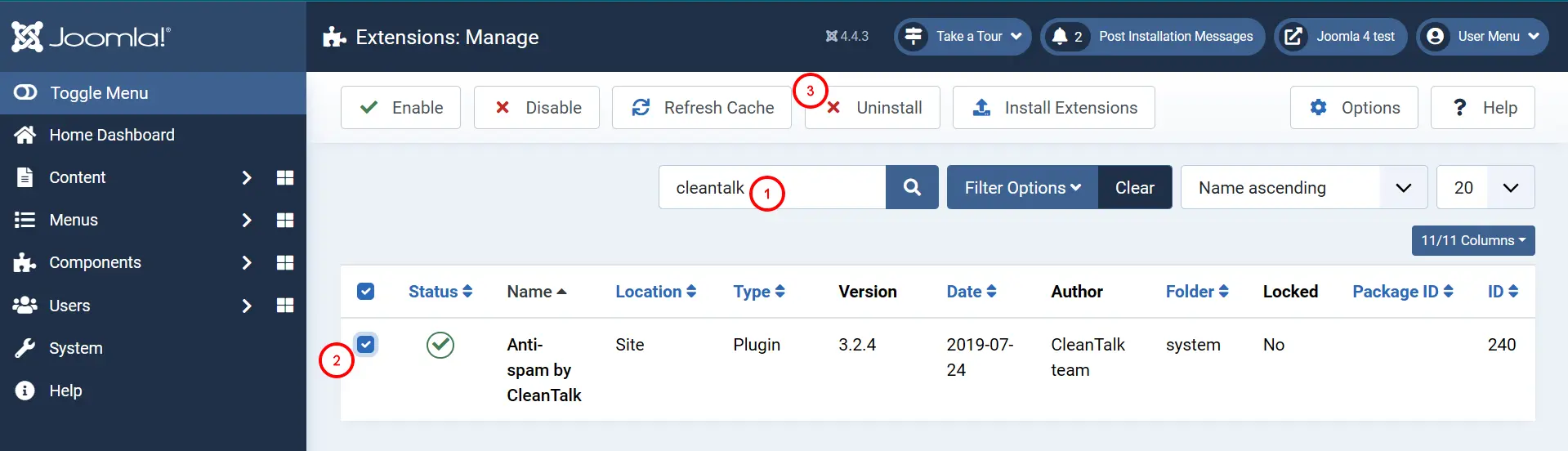
2.1. Если вы используете версии Joomla 5 или 6, то нажмите Действия→ Удалить.
3. Скачайте архив с плагином (ссылка в начале этой страницы или по выданной вам ссылке лично).
4. В главном меню Joomla откройте Система → Установка → Расширения.
5. На вкладке "Загрузить и установить" выберите скачанный пакет.
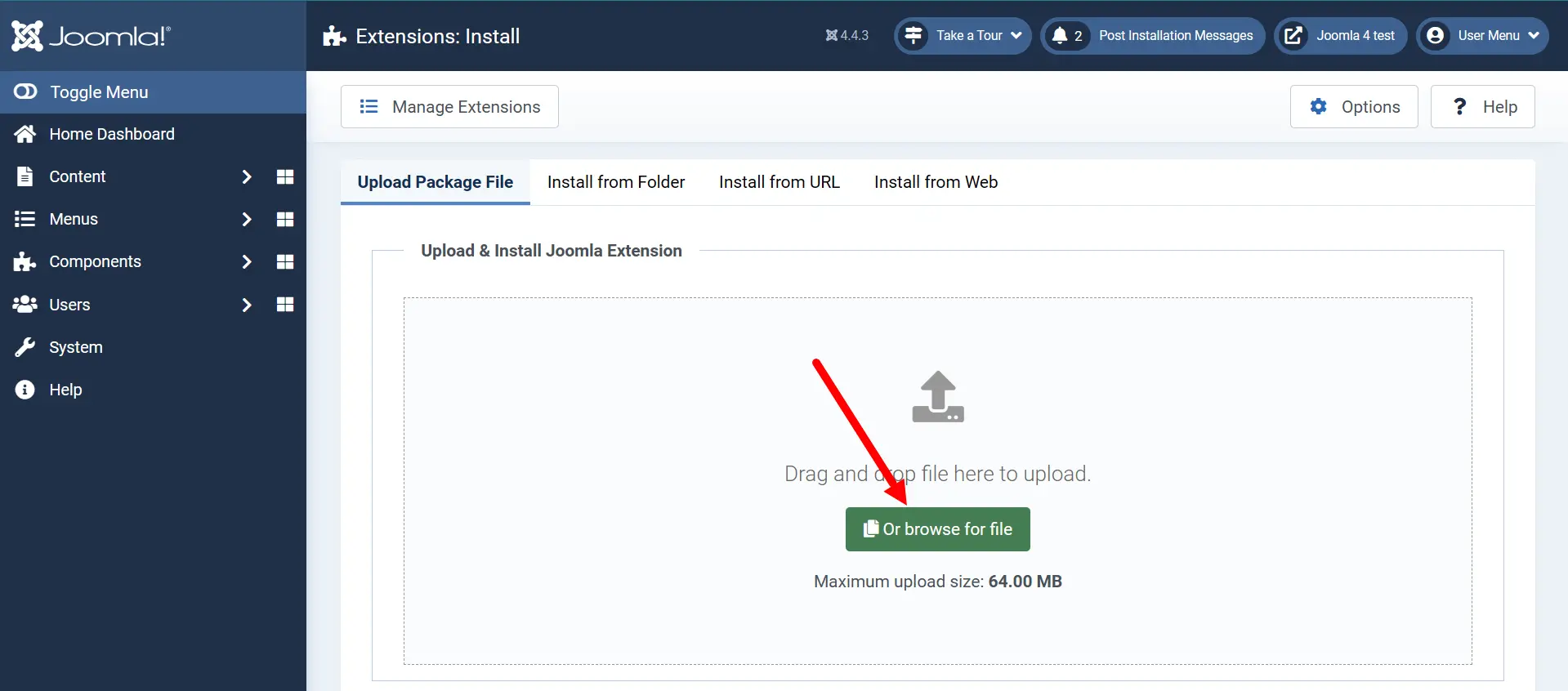
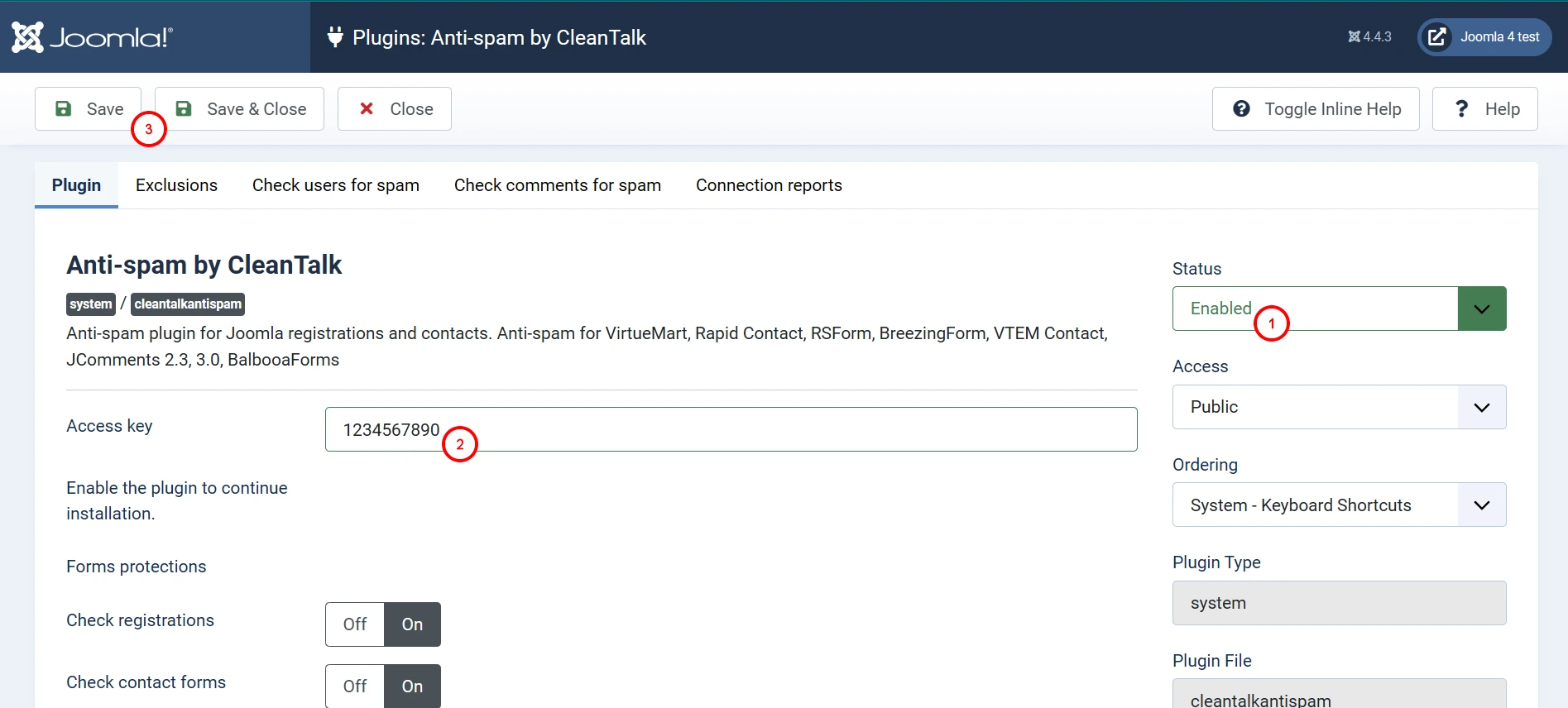
6. После установки откройте настройки плагина: Система → Управление → Плагины → Анти-Спам от CleanTalk.
7. Переключите статус плагина на "Включено" и включите желаемые пункты в настройках. Проверьте, что ключ доступа совпадает с ключом из Вашей панели управления CleanTalk. Затем нажмите на кнопку "Сохранить".
8. (Необязательно) Проверьте защиту с помощью пробной регистрации с почты из чёрного списка stop_email@example.com.
Если у вас есть вопросы о CleanTalk, то, пожалуйста, создайте приватное обращение здесь:
https://cleantalk.org/my/support/open
Если у вас остались вопросы, обратитесь в нашу службу технической поддержки.
Будет так же интересно
- Частозадаваемые вопросы - оплатаЧастозадаваемые вопросы — оплата Сервис платный? Описание...
- Как установить Анти-Спам расширение от CleanTalk на OpenCart 3.xУстановка Анти-Спам расширения от CleanTalk на OpenCart 3.x Чтобы...
- Список руководств по обновлению антиспам модулей CleanTalk Инструкции по обновлению CleanTalk для CMS WordPress Joomla 1.5 ...