How to install the Anti-Spam by CleanTalk plugin on Craft CMS
1. Go to Plugin Store, type "cleantalk" into the search box, click on Anti-Spam by CleanTalk, no captcha/recaptcha.
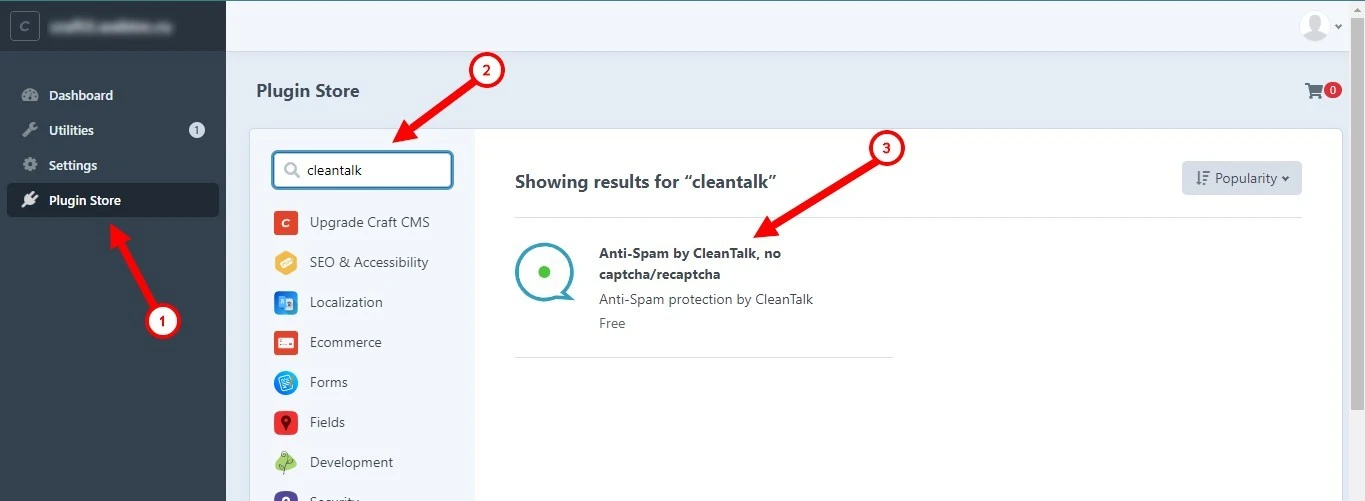
2. Scroll down the plugin description, click Install.

3. Go to Settings, find the Anti-Spam by CleanTalk plugin, and click on it.

4. Enter the Access key from your CleanTalk dashboard, click Save.
5. Make a test submission of the form using this blacklisted email address: stop_email@example.com. You should see a message about blocking.

How to Add a Website to Your CleanTalk Anti-Spam Dashboard
Please, use this guide to add a website to your CleanTalk Anti-Spam Dashboard.
Congratulations. The Anti-Spam is installed!
Please go to the Dashboard to see the Anti-Spam status, add new websites, or manage existing ones!
Please check your inbox to get your account password.
没找到您需要的内容? 联系我们的技术支持团队以获取帮助.
您可能也会感兴趣
- FAQ and Troubleshooting about Anti-Spam FAQ About CleanTalk Anti-Spam Features How do IP/Email blacklists work? Is CleanTalk Compatible with...
- All Installation Manuals of CleanTalk Anti-Spam ServiceCleanTalk Anti-Spam Installation Guides Here you can find our plugin installation guides for popular...
- What Features are Included in a CleanTalk Extra Package for Anti-Spam ServiceCleanTalk Extra Package for Anti-Spam Service 45-Day Log Stop-Words Country Block List Customize Response...
Copied to clipboard