WooCommerce spam orders: protection and order recovery
Spam bots place orders in WooCommerce stores automatically. A fake order looks like a real one - a name, an email, a product in the cart - but nobody is waiting for the parcel. CleanTalk Anti-Spam stops these orders at the checkout, keeps every blocked order in a separate list, and lets you restore any of them in one click if a real customer was stopped by mistake.
Installing the CleanTalk Anti-Spam plugin takes about 2 minutes and does not require any special configuration. After installation it protects every form on your website, including the WooCommerce checkout. All installation instructions are here https://cleantalk.org/help/install.
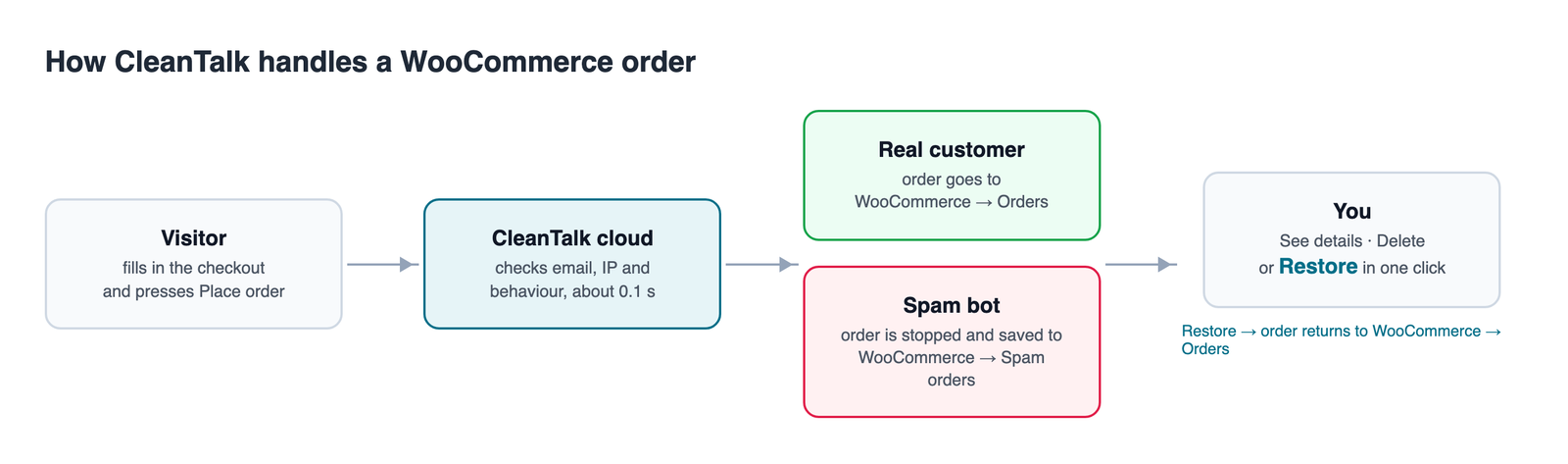
Why fake orders appear in WooCommerce
| What bots do
| What it costs you
|
How CleanTalk protects the WooCommerce checkout
| When an order is submitted, the plugin sends the sender data - email, IP address, name and behaviour signals - to the CleanTalk cloud and receives a verdict in about 0.1 second. Real customers see nothing: no CAPTCHA, no puzzles, no extra step. Only automated submissions are stopped. What is covered
What the cloud checks
|
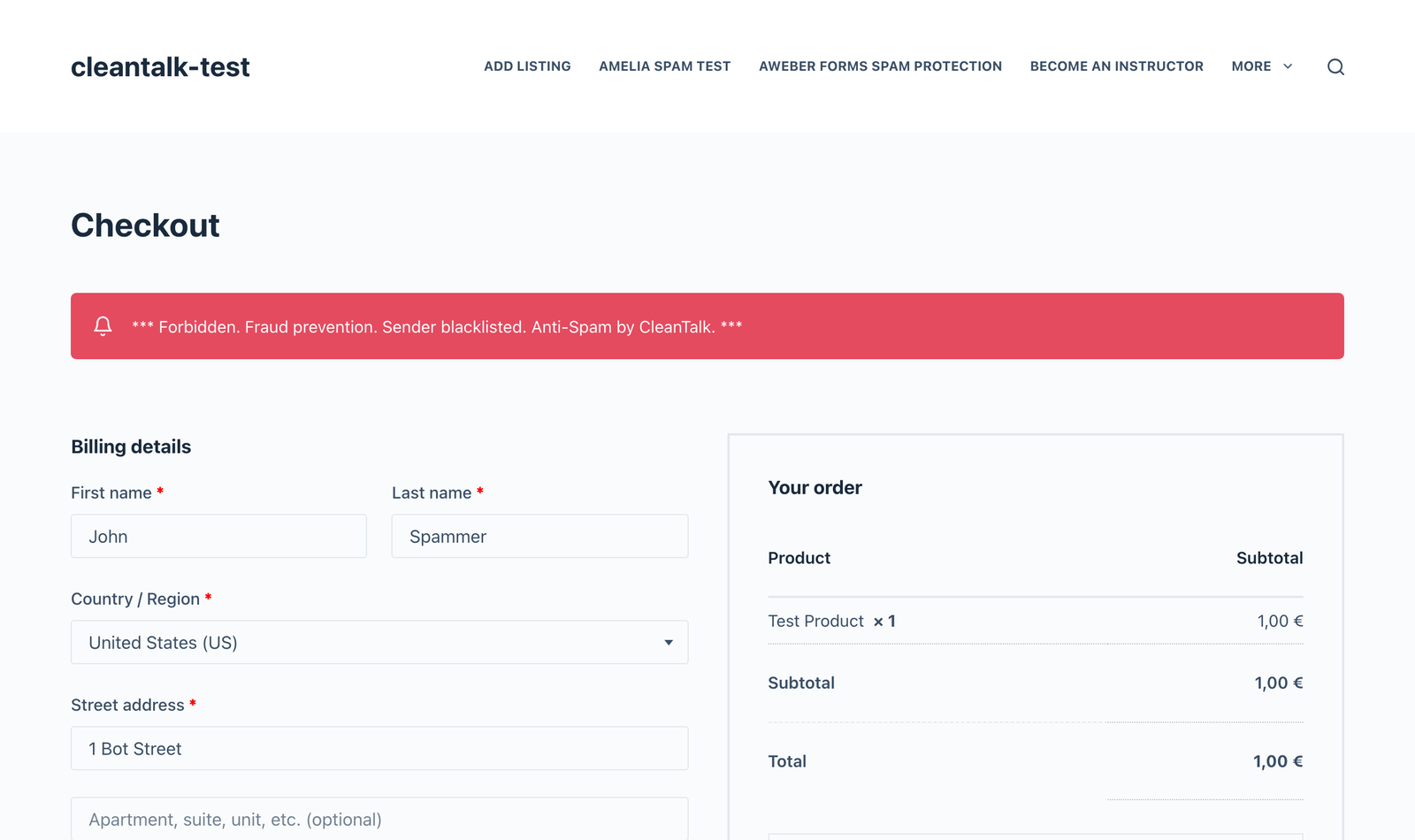
This is what a spam bot gets at the checkout: the order is refused, and nothing is created in your store. |
Keep every blocked order instead of losing it
|
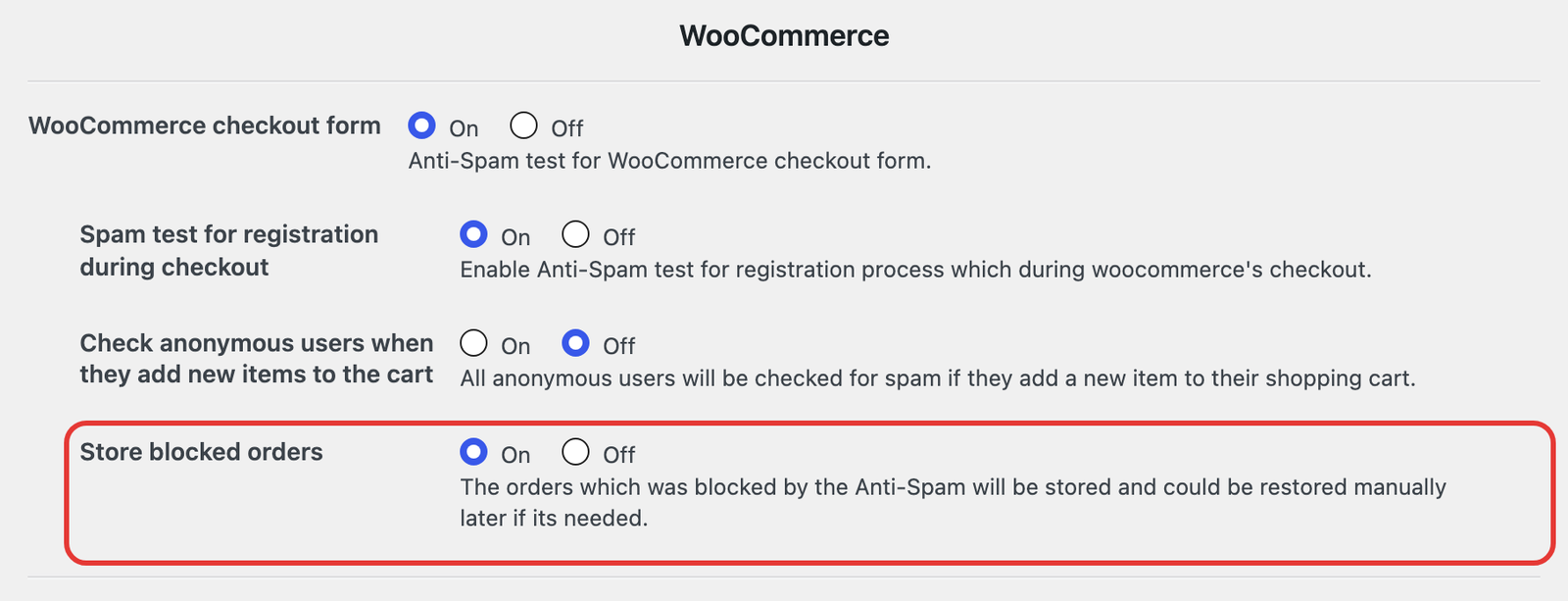
| A blocked order does not have to disappear. With the Store blocked orders option enabled, the plugin saves the whole order - the cart, the customer data and the reason for the verdict - in a separate list, where you can review it and restore it later. Stored orders do not touch your stock, your order numbering or your WooCommerce reports. How to switch it on: WordPress Dashboard → Settings → Anti-Spam by CleanTalk → Advanced settings → WooCommerce → Store blocked orders → On → Save Changes |
Where blocked orders are stored
WordPress Dashboard → WooCommerce → WooCommerce spam orders
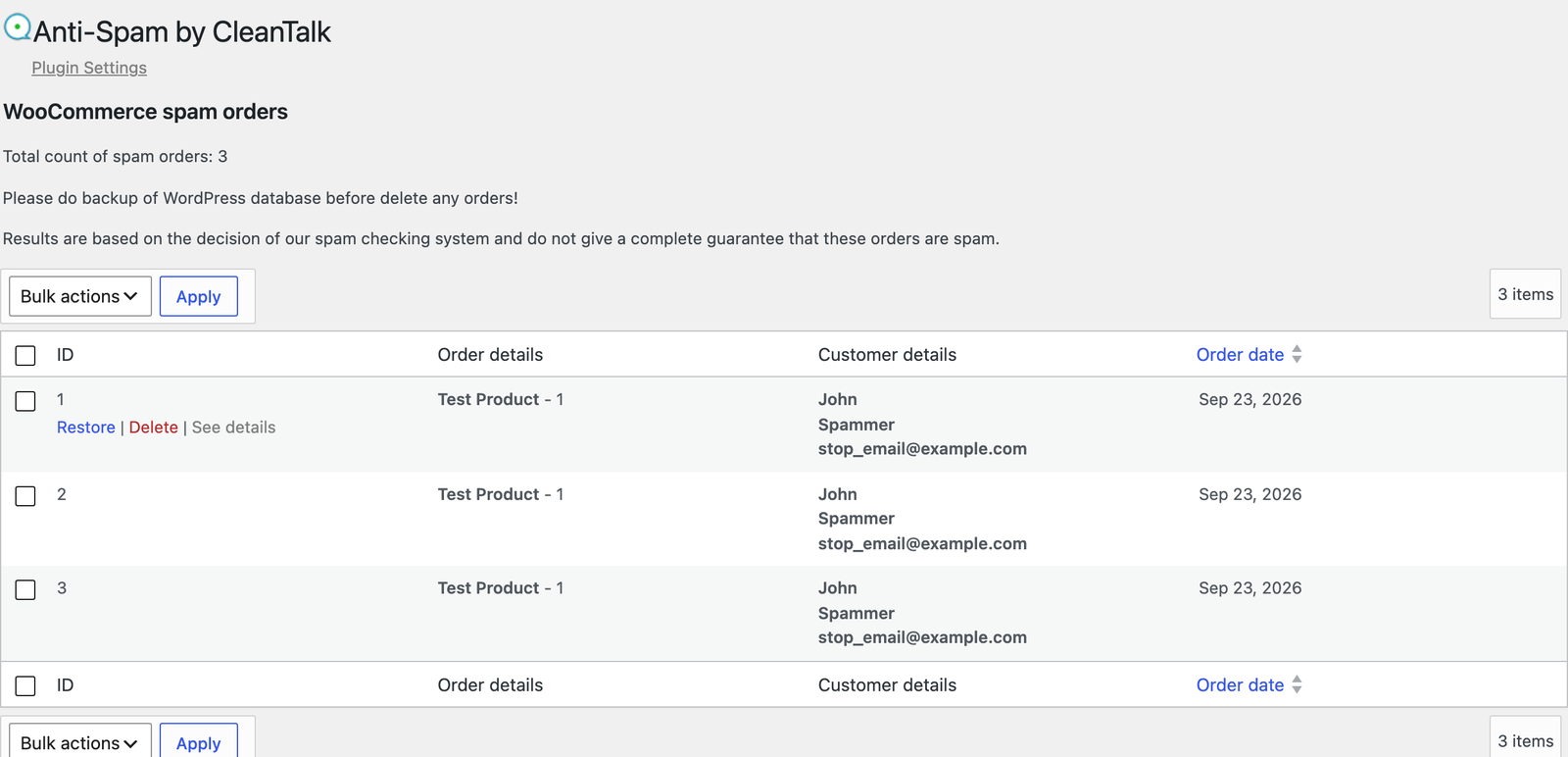
| What each column shows
| What you can do with a row
|
How to restore an order in one click
| No filter is perfect, and a real customer can occasionally be stopped - for example when the order is placed from an IP address that a spam bot used before.
|
|
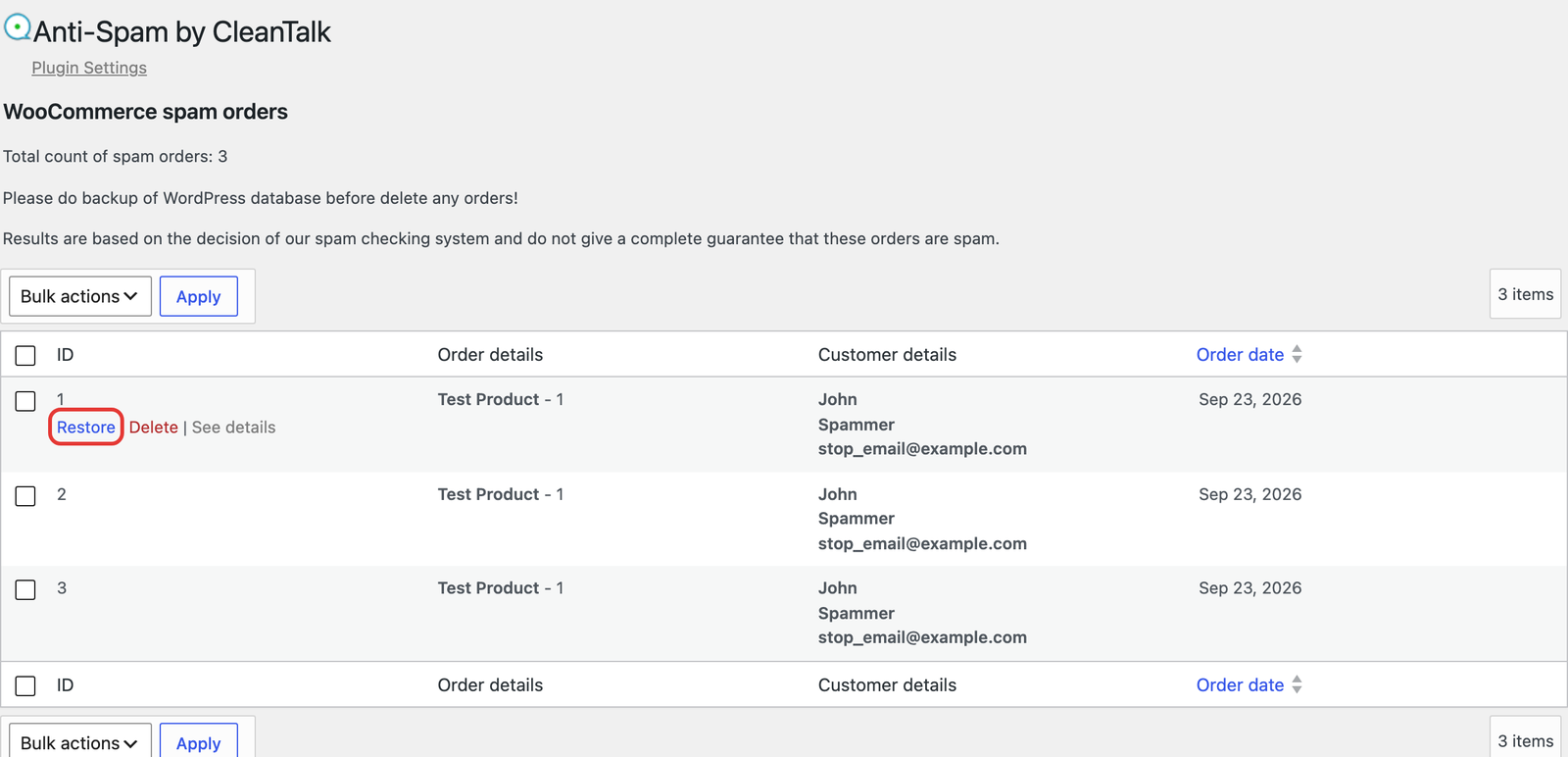
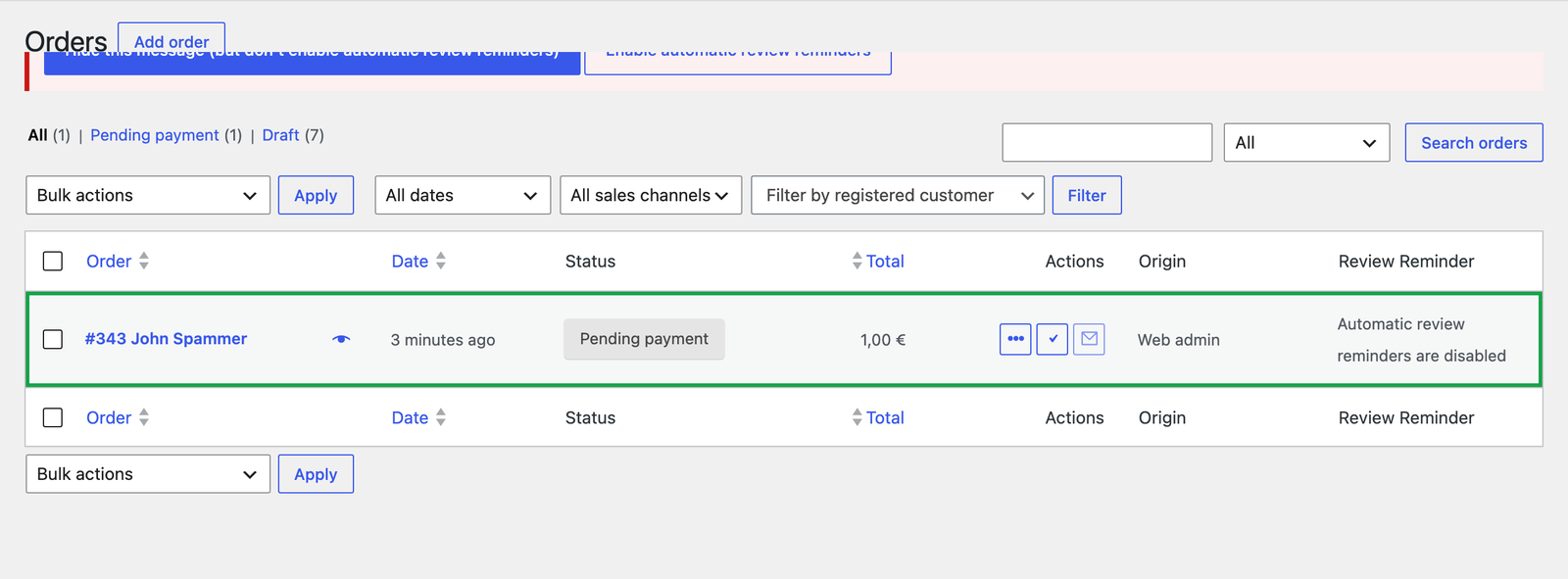
The order returns to your normal WooCommerce orders list with all of its data and continues the usual workflow. The customer does not have to place it again, and you do not have to ask them to.
How to see why an order was blocked
|
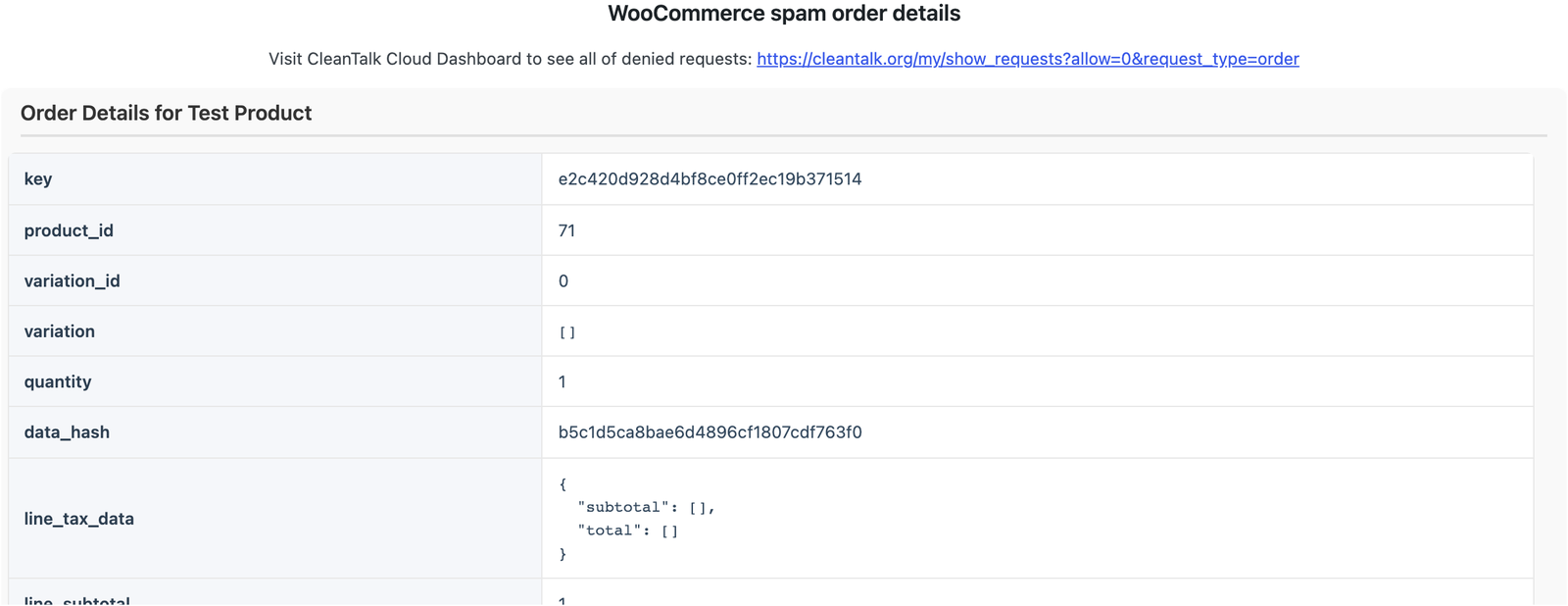
| Press See details on the order and take the CleanTalk request id. The same request is available in your CleanTalk Dashboard, with the verdict, the reason - block list, behaviour, disposable email and so on - and the full body of the request. If you disagree with a verdict, send it to us from the same screen. We review such requests and correct the filter. |
FAQ
| Do real customers see a CAPTCHA? Do blocked orders clutter my store? Is this included in my license? | Which checkouts are supported? Can I delete stored orders? What if I turn the option off? |
Related guides
Если у вас остались вопросы, обратитесь в нашу службу технической поддержки.