Исключение файлов и папок из проверки на вредоносное ПО
Security by CleanTalk включает мощный сканер вредоносного ПО, предназначенный для обнаружения подозрительного и вредоносного кода на вашем сайте. Однако в некоторых случаях безопасно и даже рекомендуется исключать определённые файлы или каталоги из проверки.
Исключения позволяют более точно настроить процесс сканирования, пропуская заведомо безопасные, нерелевантные или отдельно управляемые области. Это помогает снизить количество ложных срабатываний, ускорить сканирование и избежать ненужной нагрузки на ресурсы.
В этой статье мы объясняем, как работают исключения файлов и каталогов в Security by CleanTalk, в том числе как использовать файл spbct_directory_exclusions.txt, а также приводим практические примеры того, когда и почему следует применять исключения.
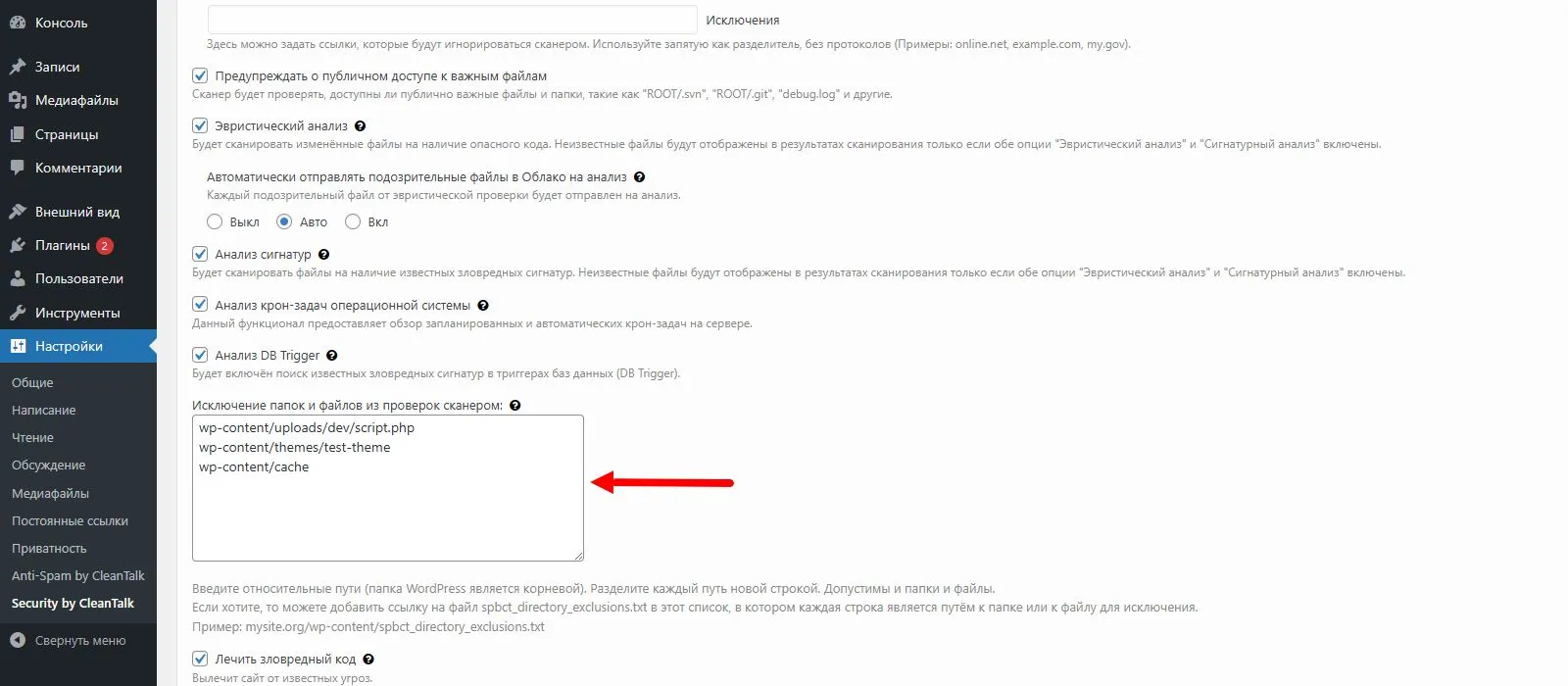
Опцию исключений можно найти в настройках нашего плагина:
Страница администратора WordPress —> Настройки —> Security by CleanTalk —> Основные настройки —> Исключение папок и файлов из проверок сканером.
Примеры использования
Ниже приведены практические примеры исключений. Для всех них действует одно важное правило: при исключении каталога также будут пропущены все его подкаталоги и файлы. В путях можно использовать любой разделитель директорий (/ или \). Каждый путь указывается с новой строки. Вы можете задавать как каталоги, так и отдельные файлы.
1) Исключение ненужных файлов и папок
Для дополнительной оптимизации сканирования вы можете исключить отдельные некритичные каталоги и файлы, которые не требуют проверки безопасности, например каталоги для разработки или логов.
Примеры исключений:
wp-content/uploads/dev/script.php
wp-content/themes/test-theme
wp-content/logs
2) Исключение вложенных сайтов
В некоторых средах один хостинг-аккаунт может содержать несколько сайтов, расположенных в подкаталогах, например:
site1.com/
├── site2.com/
└── old-site/
Каталоги, содержащие другие веб-сайты, следует исключить. Это предотвратит ненужное использование ресурсов. Каждый вложенный веб-сайт должен быть просканирован отдельным экземпляром Security by CleanTalk.
Пример исключения: site2.com или old-site.
3) Исключение каталогов резервных копий
Папки с резервными копиями часто содержат дубликаты файлов вашего сайта. Сканирование этих копий может вызывать ложные срабатывания и потреблять лишние ресурсы.
Пример исключения: wp-content/backups
Примечание: путь к папке резервных копий может отличаться. Если это так, укажите корректный путь к ней.
4) Исключение каталогов кэша
Папки кэша хранят временные данные, создаваемые плагинами, темами или серверными системами кэширования. Эти файлы являются динамическими и не относятся к исходному коду, поэтому их сканирование может приводить к нерелевантным результатам.
Пример исключения: wp-content/cache
Примечание: путь к папке кэша может отличаться. Если это так, укажите корректный путь к ней.
5) Исключение с помощью специального файла
При желании вы можете указать все исключения в отдельном файле. Создайте текстовый файл с именем spbct_directory_exclusions.txt и укажите каждый путь для исключения с новой строки. Затем просто добавьте путь к этому файлу в поле «Исключение папок и файлов из проверок сканером» в настройках плагина.
Пример:
- Содержимое файла spbct_directory_exclusions.txt:
client-portal
wp-content/backups
wp-content/cache - Разместите этот файл в любом месте сайта, например в каталоге
wp-content/. - В настройках сканера добавьте путь:
wp-content/spbct_directory_exclusions.txt
После этого сканер будет считывать все исключения из данного файла.
Если у вас остались вопросы, обратитесь в нашу службу технической поддержки.
Будет так же интересно
- Все руководства по установке службы безопасности CleanTalkРуководства по установке CleanTalk Security Здесь вы можете...
- Как добавить сайт в профиле CleanTalkДобавление сайта в профиле CleanTalk Для Анти-Спам лицензии 1....
- Установка плагина безопасности от CleanTalk на WordPressУстановка плагина безопасности от CleanTalk на WordPress Функции...