WordPress: The CleanTalk Anti-Spam Plugin Settings
Setting up the Anti-Spam and W3 Total Cache
Page, Form, or Field Exclusion From Anti-Spam Checking
CleanTalk SpamFireWall to Block Spam Traffic on Your Websites
Checking Existing Users and Comments for Spam
How to disable the storage of information on approved requests
Plugin Settings Templates
Spam Comment Management
I Can't Find a Submitted Message in the Backend of My Website
How the Option "Set Cookies" Works
Forwarding Requests to Email
How to hide (encode) email addresses on your WordPress website from crawlers and bots
Trust text, affiliate settings
Widget for other roles
You can access the settings for the Anti-Spam by CleanTalk plugin by navigating here:
• WordPress Admin Page → Settings → Anti-Spam by CleanTalk
General settings
Advanced Settings
Forms to Protect:
- Registration forms
- Comments form
- Contact forms
- Custom contact forms
- Test the default WordPress search form for spam
- Protect external forms
- Protect internal forms
- Add a honeypot field
- Force protection
WooCommerce:
Comments and Messages:
- CleanTalk Comment Moderation
- Disable all comments
- BuddyPress private messages
- Automatically delete spam comments
- Remove links from approved comments
- Show links to check email and IP addresses for spam
Data Processing:
- Protect logged in Users
- Don't check trusted user's comments
- Use AJAX for JavaScript check
- Use static keys for JS check
- Check all POST data
- Set cookies
- JavaScript Library Exclusions
- Use WordPress HTTP API
- Add a CleanTalk Pixel to improve IP-detection
- Check email before POST request
- Show email existence alert when filling in the field
Contact Data Encoding:
Exclusions:
Admin Bar:
SpamFireWall Features:
Miscellaneous:
- Send connection reports
- Async JavaScript loading
- Store visited URLs
- Notify users with selected roles about new approved comments
- Show Dashboard Widget
- Complete deactivation
The details about each option are below.
General Settings
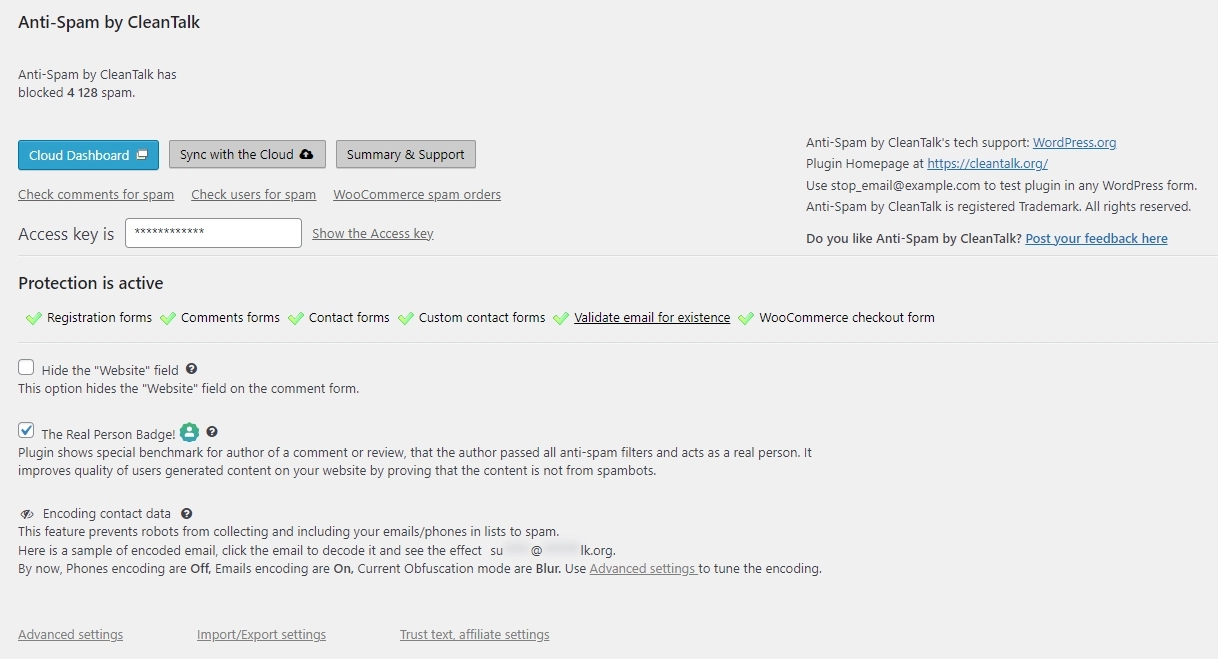
Hide the "Website" field
The "Website" field is present on the standard WordPress comment forms. It's not a required field, so you can hide it. It's frequently used by spammers to place spam links in it. Anti-Spam by CleanTalk helps you protect your WordPress website comments by hiding this field.
Learn more here: https://cleantalk.org/help/how-to-hide-website-field-in-wordpress-comments
The Real Person Badge!
The plugin shows a special benchmark for the author of a comment or review, indicating that the author passed all anti-spam filters and acts as a real person. It improves quality of users generated content on your website by proving that the content is not from spambots. Benchmark is visible only for automatically approved comments. Make sure the option "Advanced settings → CleanTalk Comment Moderation" is turned on, and "WP Dashboard → Settings → Discussion → Comment must be manually approved" is turned off.
Learn more here: https://cleantalk.org/help/the-real-person
Advanced Settings
Forms to Protect
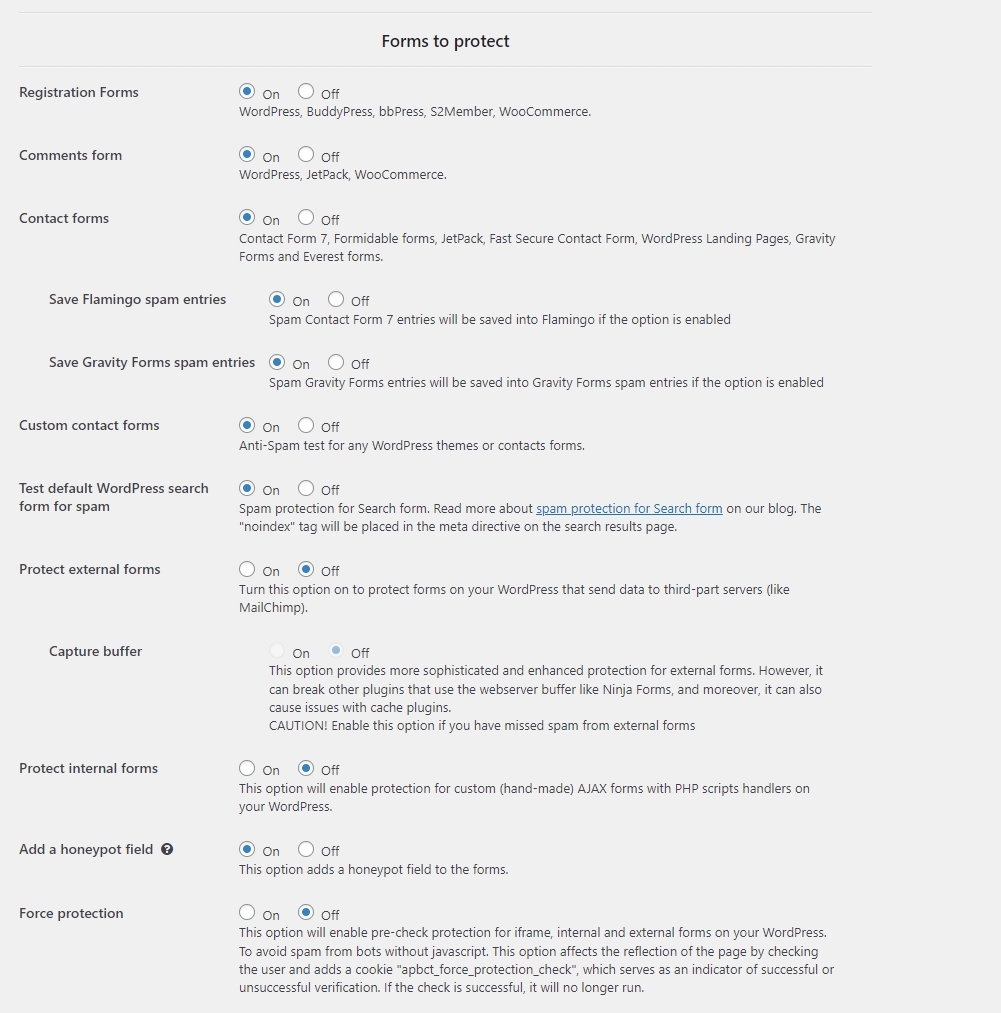
Registration forms
Protects your website registration page from spammers and spambots. All popular form plugins are supported.
The full list of them is here: https://cleantalk.org/help/anti-spam-integrations#registration-forms
If you are looking for an Akismet alternative for WordPress registrations, see this overview.
Comments form
Checks comments for spam.
We support all popular form plugins. You can view the full list of compatible integrations directly on our documentation page: https://cleantalk.org/help/anti-spam-integrations#wp-contact-form
Contact forms
Checks contact form submissions for spam.
We support all popular form plugins. You can view the full list of compatible integrations directly on our documentation page: https://cleantalk.org/help/anti-spam-integrations#wp-contact-form
Save Flamingo spam entries
Spam Contact Form 7 entries will be saved in Flamingo if the option is enabled.
Save Gravity Forms spam entries
Spam Gravity Forms entries will be saved in Gravity Forms spam entries if the option is enabled.
Custom contact forms
Checks custom contact form submissions (theme-built-in contact forms included) for spam. Any custom contact form plugins are supported.
Enable this option if you receive spam from your website form, your test submissions are not being blocked, and CleanTalk doesn't show new records in your Anti-Spam Log.
To test your form, please follow this guide: https://cleantalk.org/help/protection-test
Test default WordPress search form for spam
Protects default WordPress search form from spammers and spambots. The "noindex" tag will be placed in the meta directive on the search results page.
Learn more here: https://blog.cleantalk.org/how-to-protect-website-search-from-spambots/
Protect external forms
Checks form submissions that are being sent to third-party servers (like MailChimp).
Capture buffer
This option provides more sophisticated and enhanced protection for external forms. However, it can break other plugins that use the webserver buffer, like Ninja Forms, and moreover, it can also cause issues with cache plugins.
СAUTION! Enable this option if you have missed spam from external forms
Protect internal forms
Checks submissions from custom (handmade) AJAX forms with PHP scripts handlers.
Add a honeypot field
It helps to block bots. The honeypot field option adds a hidden field to the form. When spambots come to a website form, they can fill out each input field. Enable this option to make the protection stronger on these forms.
Learn more here: https://cleantalk.org/help/honeypot-field
Force protection
This option will enable pre-check protection for iframe, internal and external forms on your WordPress. To avoid spam from bots without JavaScript. This option affects the reflection of the page by checking the user and adds a cookie "apbct_force_protection_check", which serves as an indicator of successful or unsuccessful verification. If the check is successful, it will no longer run.
WooCommerce
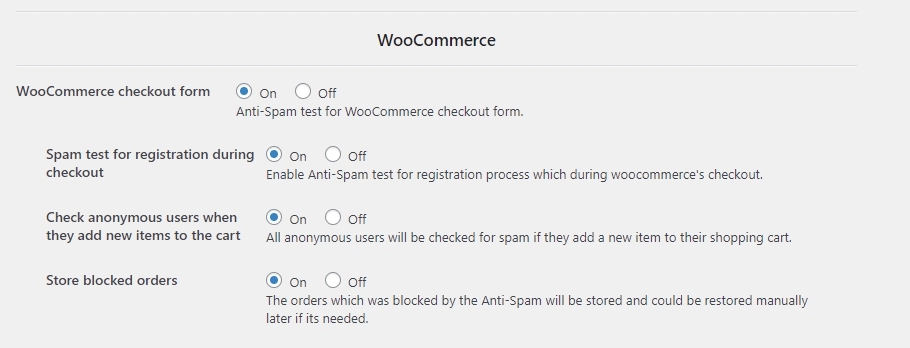
WooCommerce checkout form
Protection for WooCommerce checkout form.
Spam test for registration during checkout
Protects registration during the checkout process from spam.
Check anonymous users when they add new items to the cart
All anonymous users will be checked for spam if they add a new item to their shopping cart.
Store blocked orders
The orders which was blocked by the Anti-Spam will be stored and could be restored manually later if it's needed.
Comments and Messages
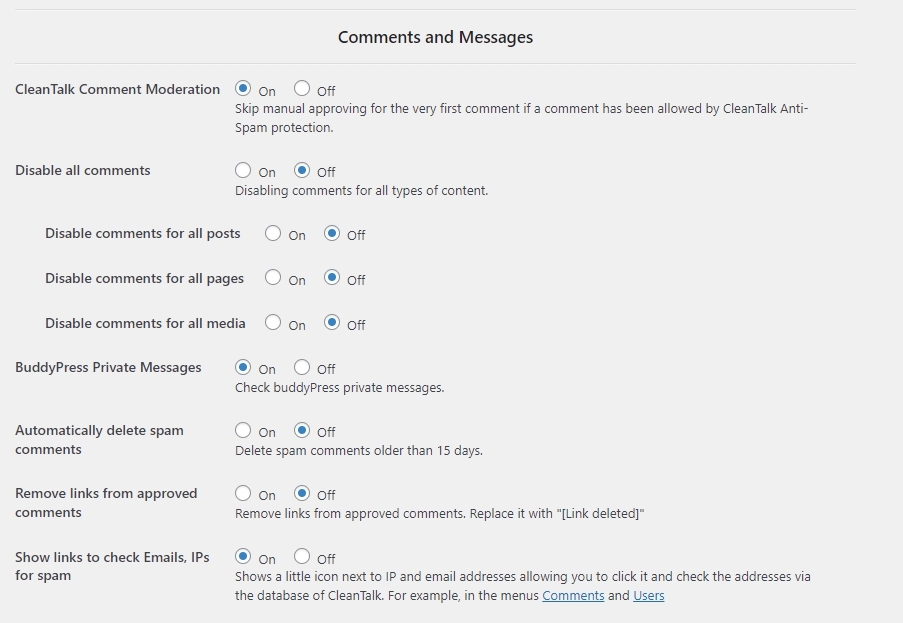
CleanTalk Comment Moderation
Skip manual approval for the very first comment if a comment has been allowed by CleanTalk Anti-Spam protection.
Disable all comments
Disables comments on your website for all types of content.
Disable comments for all posts
Disables comments on your website for articles from the Post section of your WordPress.
Disable comments for all pages
Disables comments on your website for all pages from the Pages section of your WordPress.
Disable comments for all media
Disables comments on your website for all media from the Media section of your WordPress.
BuddyPress Private Messages
Checks private messages in BuddyPress for spam.
Automatically delete spam comments
Keeps all spam comments in the "Spam" folder for 15 days. Spam comments older than 15 days will be automatically permanently deleted.
The folder is here: WordPress Admin Page → Comments → The "Spam" folder
Remove links from approved comments
Removes any links from approved comments. Links will be replaced with this line: [Link deleted]. If you don't want your visitors and users to post any links in their comments, then enable this option. All allowed comments will be published without links in the text.
Show links to check Emails, IPs for spam
Shows a little icon next to IP and email addresses, allowing you to click it and check the addresses via the database of CleanTalk.
Data Processing
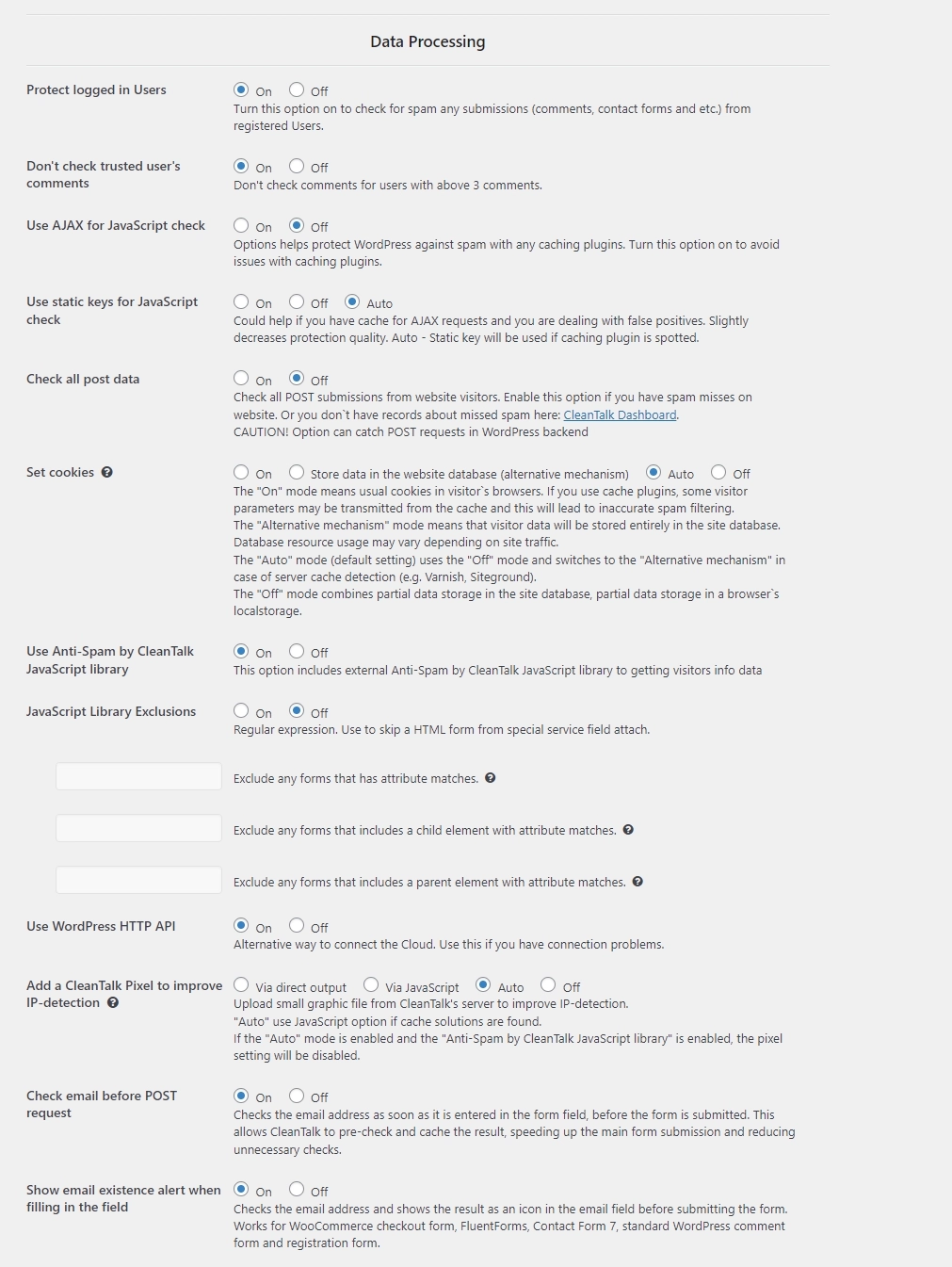
Protect logged-in users
Checks all registered users' submissions (including administrator if this role isn't added in the Exclusions) — comments, contact form data, custom form data, and alike.
Don't check trusted users' comments
Checks the first 3 comments from the same user for spam. All subsequent comments from this user will be allowed without any checking.
Use AJAX for JavaScript check
Performs JavaScript checks using AJAX. Enable this option if you are using caching plugins. And disable this option with the SpamFireWall option for your website to be compatible with Accelerated Mobile Pages (AMP).
Use static keys for JavaScript check
Helps to decrease false positives if you are using cache for AJAX requests. Slightly decreases protection quality. Auto - Static key will be used if the caching plugin is spotted.
Check all POST data
Checks every single POST submission that happened on your website. Enable it if you see missed spam and there are no records about missed spam in your Anti-Spam Log.
>>> Attention! Option can catch POST requests in the WordPress backend.
Set cookies
- The "On" mode means usual cookies in the visitor`s browsers. If you use cache plugins, some visitor parameters may be transmitted from the cache, and this will lead to inaccurate spam filtering.
- The "Alternative mechanism" mode means that visitor data will be stored entirely in the site database. Database resource usage may vary depending on the site traffic.
- The "Auto" mode (default setting) uses the "Off" mode and switches to the "Alternative mechanism" in case of server cache detection (e.g., Varnish, Siteground).
- The "Off" mode combines partial data storage in the site database and partial data storage in a browser`s local storage.
Learn more here: https://cleantalk.org/help/set-cookies-option
JavaScript Library Exclusions
Regular expression. Use to skip an HTML form from a special service field attachment.
a) Exclude any forms that have attribute matches. If your form tag has any HTML attributes, you can exclude the same form using the attribute name (example: ^my-form$ or ^get$).
b) Exclude any forms that include a child element with attribute matches. If your form tag has any HTML attributes, you can exclude the same form using the attribute name (example: ^my-child-div$).
c) Exclude any forms that includes a parent element with attribute matches. If your form tag has any HTML attributes, you can exclude the same form using the attribute name (example: ^my-parent-div$).
Use WordPress HTTP API
An alternative way to connect to the Cloud. Helps to solve connection issues to reach the CleanTalk servers.
Add a CleanTalk Pixel to improve IP detection
Uploads a small graphic file from CleanTalk's server to improve IP-detection.
"Auto" uses the JavaScript option if cache solutions are found.
If the "Auto" mode is enabled and the "Anti-Spam by CleanTalk JavaScript library" is enabled, the pixel setting will be disabled.
Learn more here: https://blog.cleantalk.org/introducing-cleantalk-pixel/
Check email before POST request
Checks the email address as soon as it is entered in the form field, before the form is submitted. This allows CleanTalk to pre-check and cache the result, speeding up the main form submission and reducing unnecessary checks.
Show email existence alert when filling in the field
Checks the email address and shows the result as an icon in the email field before submitting the form. Works for WooCommerce checkout form, FluentForms, Contact Form 7, standard WordPress comment form, and registration form.
Learn more here: https://cleantalk.org/help/show-email-existence-alert
Contact Data Encoding
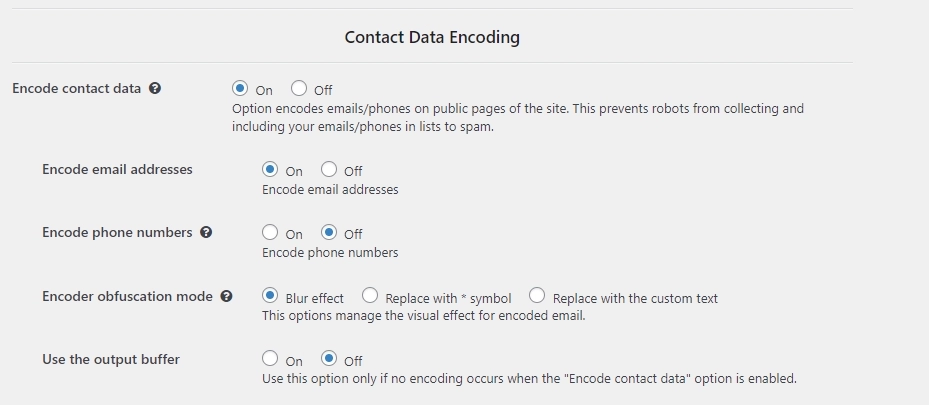
Encode contact data
This option allows you to encode contacts on the public pages of the site.
Learn more here: https://cleantalk.org/help/email-encode
Encode email addresses
Hides all email addresses on the public website pages.
Encode phone numbers
Hides all phone numbers on the public website pages.
Encoder obfuscation mode
These options manage the visual effect for encoded contact data — blurring, asterisks, or custom text.
Use the output buffer
Enable this option if encoding doesn't work for some reason.
Exclusions
Log excluded requests
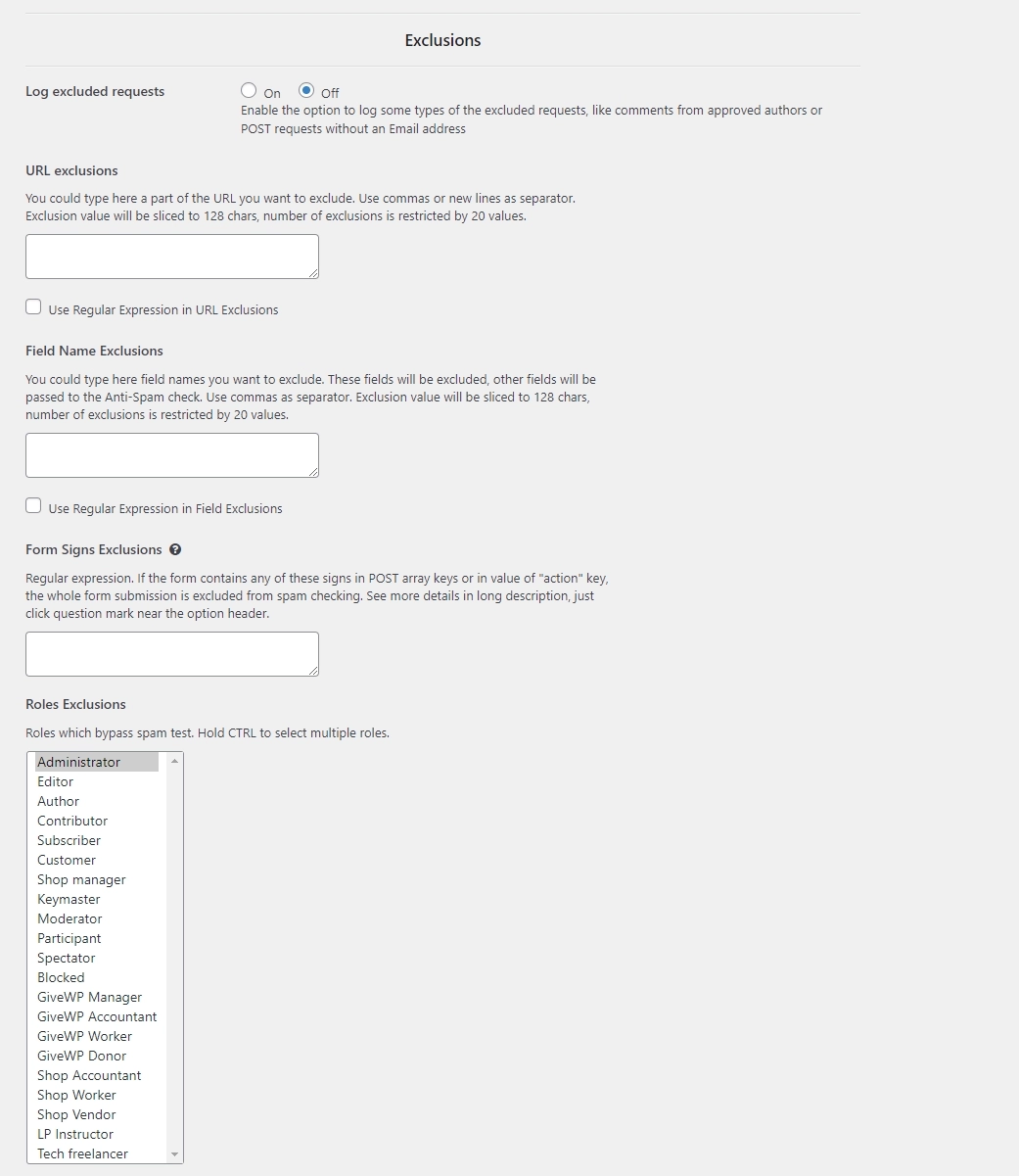
The plugin will catch data from the excluded forms without filtration. Enabling this option will show you these requests in the Anti-Spam logs.
Learn more here: https://cleantalk.org/help/anti-spam-log#excluded-from-spam-filters
URL exclusions
Use this field to exclude any page from spam check. Form submissions from excluded pages won't be checked by the plugin and will be logged with a flag "Excluded from spam filters". Use commas or new lines as a separator. Exclusion value will be sliced to 128 chars, number of exclusions is restricted to 20 values.
Learn more here: https://cleantalk.org/help/exclusion-from-anti-spam-checking#URL_exclusions
Field Name Exclusions
Use this field to exclude any form fields from any form on your website from spam checks. These fields will be excluded. Other fields will be passed to the Anti-Spam check. Use commas as a separator. Exclusion value will be sliced to 128 chars, number of exclusions is restricted to 20 values.
Learn more here: https://cleantalk.org/help/exclusion-from-anti-spam-checking#field_excluisons
Form Signs Exclusions
Regular expression. If the form contains any of these signs in POST array keys or in the value of the "action" key, the whole form submission is excluded from spam checking. See more details in the long description, just click the question mark near the option header.
Learn more here: https://cleantalk.org/help/exclusion-from-anti-spam-checking#field_excluisons
Roles that bypass the spam test
Use this option to exclude any user's roles from spam check. Hold CTRL to select multiple roles.
Learn more here: https://cleantalk.org/help/exclusion-from-anti-spam-checking#user_exclusions
Admin Bar
Show statistics in the admin bar
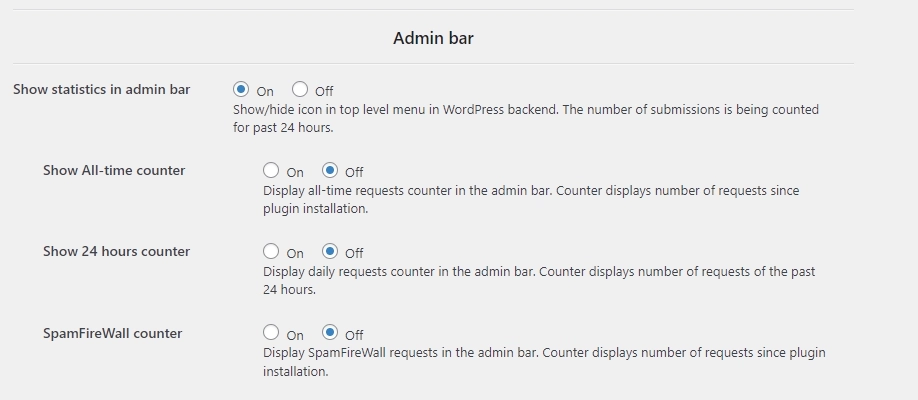
Enables the CleanTalk icon with anti-spam numbers in your website backend. The number of submissions is being counted for the past 24 hours.
A reset button is in the pop-down menu. Hover your mouse pointer over the CleanTalk icon to see the menu.
Show All-time counter
Displays the number of all spam-check requests near the CleanTalk icon since plugin installation.
Show 24 hours counter
Displays the number of all spam-check requests near the CleanTalk icon for the last 24 hours.
SpamFireWall counter
Displays the number of all SpamFireWall check requests near the CleanTalk icon since plugin installation.
SpamFireWall Features
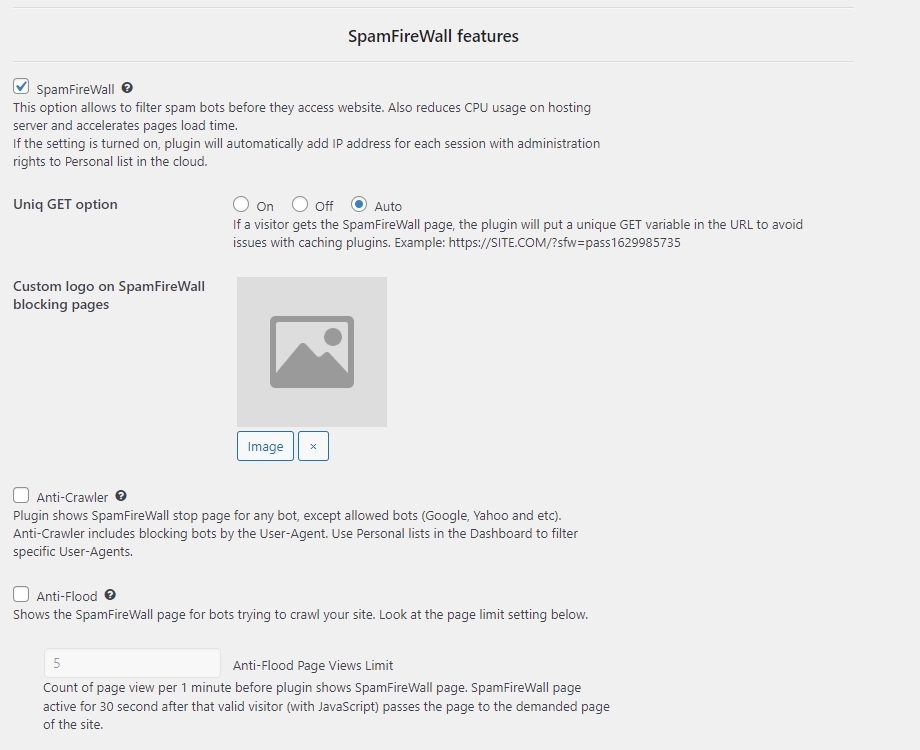
SpamFireWall
This option denies access for spammers and spambots to visit your website. It saves your webserver load time and has a separate blacklist to use.
More information about this option is here: https://cleantalk.org/help/cleantalk-spam-firewall
How to use SpamFireWall Personal lists is here: https://cleantalk.org/help/sfw-blacklist-usage
Unique GET option
Helps to resolve issues with cache plugins. A unique GET variable will be added to the URL if a visitor was blocked by SpamFireWall.
Example: https://SITE.COM/?sfw=pass1629985735
Custom logo on SpamFireWall blocking pages
You can upload your custom logo, and users will see it.
Anti-Crawler
The plugin shows SpamFireWall blocking screen for any bot, except allowed bots (Google, Yahoo and etc.).
More information about this option is here: https://cleantalk.org/help/anti-flood-and-anti-crawler#anticrawl
Anti-Flood
This option shows the SpamFireWall blocking screen for bots that are trying to scan your website. All users with a number of requests higher than the number entered in the additional settings for the Anti-Flood option will see a blocking screen.
More information about this option is here: https://cleantalk.org/help/anti-flood-and-anti-crawler#antiflood
Miscellaneous
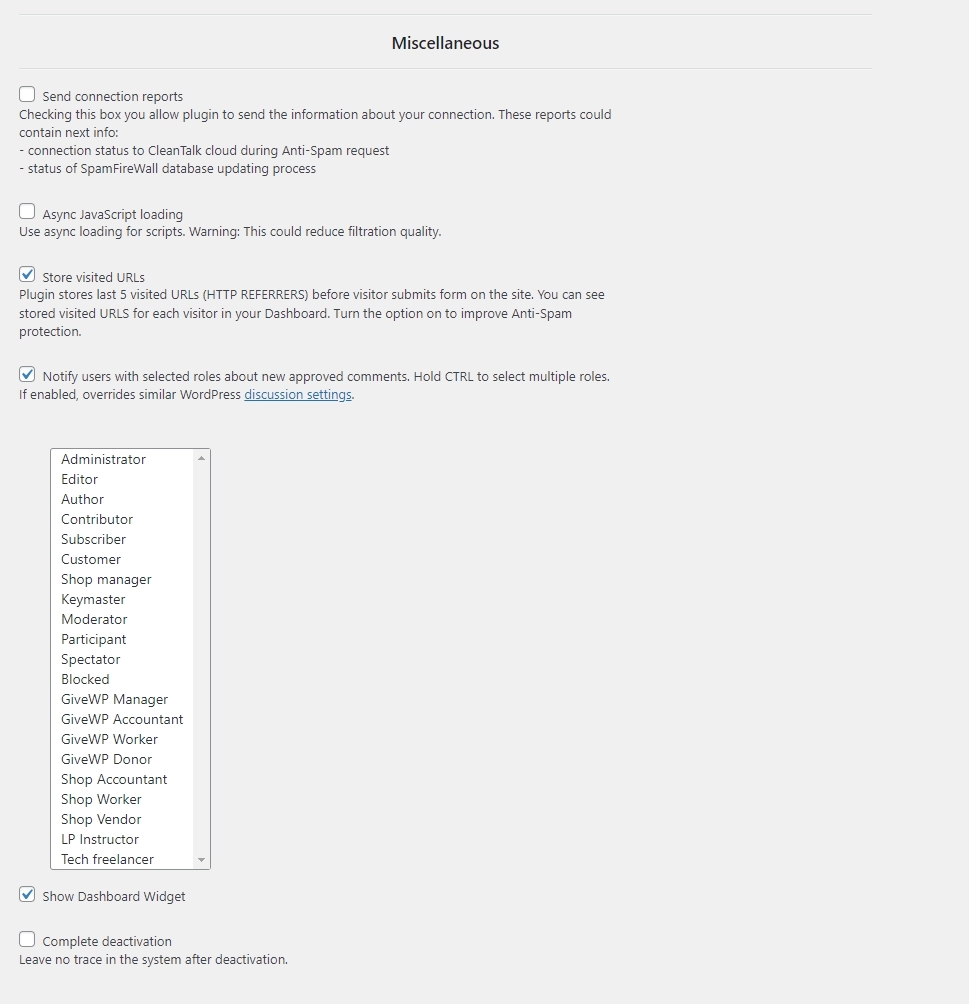
Send connection reports
Allow the plugin to send the information about your connection with CleanTalk Cloud if there are any issues. These reports could contain next info:
- connection status to the CleanTalk Cloud during Anti-Spam requests
- status of the SpamFireWall database updating process
Async JavaScript loading
Use asynchronous loading for scripts. Warning: This could reduce filtration quality.
Store visited URLs
Plugin stores the last 5 visited URLs (HTTP REFERRERS) before a visitor submits a form on the site. You can see the stored visited URLs for each visitor in your Dashboard. Turn the option on to improve Anti-Spam protection.
Notify users with selected roles about new approved comments
This option allows to choose users who will receive notifications about new approved comments. Hold CTRL to select multiple roles. If enabled, overrides similar WordPress discussion settings ("/wp-admin/options-discussion.php").
Show Dashboard Widget
Enables the CleanTalk widget in the WordPress Dashboard.
Complete deactivation
Leave no trace in the website system after deactivation. After setting this option on and deactivating the plugin, all its saved data (an access key, settings, and database tables) will be deleted. This option is used when you need to start the plugin from scratch.
Learn more here: How to Remove Anti-Spam & Security Plugins or Reset Their Data
Couldn't find what you were looking for? Contact our technical support team for assistance.
It would also be interesting
- Installing the CleanTalk Anti-Spam Plugin in WordPressHow to install the CleanTalk Anti-Spam Plugin in WordPress Video guide — Anti-Spam Plugin Installation...
- CleanTalk dashboard settings templatesHow to use CleanTalk dashboard settings templates To improve the user experience we've implemented...
- CleanTalk Plugin Settings TemplatesHow to Use CleanTalk Plugin Settings Templates For the WordPress plugin, we've added the possibility...