How to install the Anti-Spam by CleanTalk plugin on Craft CMS
1. Go to Plugin Store, type "cleantalk" into the search box, click on Anti-Spam by CleanTalk, no captcha/recaptcha.
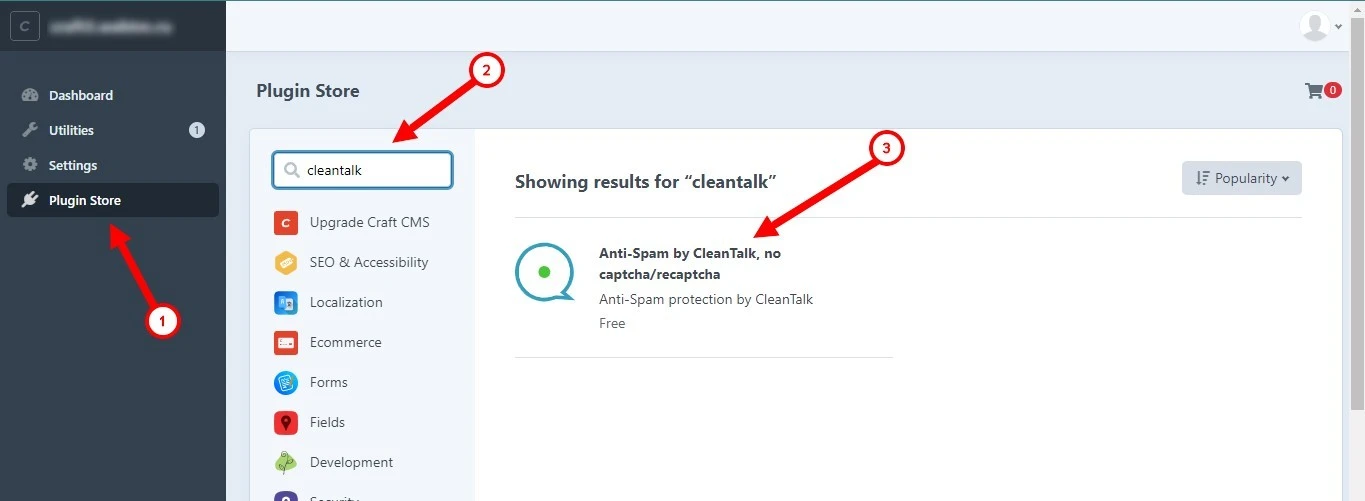
2. Scroll down the plugin description, click Install.

3. Go to Settings, find the Anti-Spam by CleanTalk plugin, and click on it.

4. Enter the Access key from your CleanTalk dashboard, click Save.
5. Make a test submission of the form using this blacklisted email address: stop_email@example.com. You should see a message about blocking.

How to Add a Website to Your CleanTalk Anti-Spam Dashboard
Please, use this guide to add a website to your CleanTalk Anti-Spam Dashboard.
Congratulations. The Anti-Spam is installed!
Please go to the Dashboard to see the Anti-Spam status, add new websites, or manage existing ones!
Please check your inbox to get your account password.
If you haven't found the answer to your question, please, contact our support team.
It would also be interesting
- OOPSpam vs CleanTalk: Which Anti-Spam Solution Should You Choose?.ct-oopspam-page, .ct-oopspam-page p, .ct-oopspam-page li { line-height: 1.6; font-family:...
- CleanTalk vs Wordfence: Anti-Spam vs WordPress Security Compared.ct-wordfence-page, .ct-wordfence-page p, .ct-wordfence-page li { line-height: 1.6; ...
- CleanTalk vs Cloudflare: Anti-Spam vs Website Security Compared.ct-cloudflare-page, .ct-cloudflare-page p, .ct-cloudflare-page li { line-height: 1.6; ...
Copied to clipboard