How to install the Anti-Spam by CleanTalk plugin on Craft CMS
1. Go to Plugin Store, type "cleantalk" into the search box, click on Anti-Spam by CleanTalk, no captcha/recaptcha.
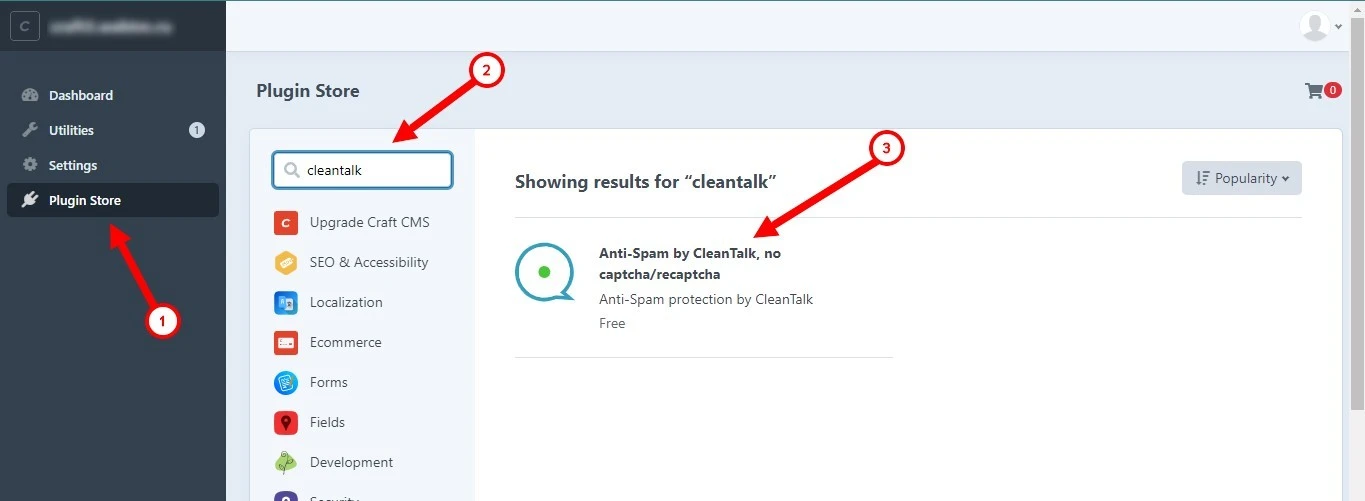
2. Scroll down the plugin description, click Install.

3. Go to Settings, find the Anti-Spam by CleanTalk plugin, and click on it.

4. Enter the Access key from your CleanTalk dashboard, click Save.
5. Make a test submission of the form using this blacklisted email address: stop_email@example.com. You should see a message about blocking.

How to Add a Website to Your CleanTalk Anti-Spam Dashboard
Please, use this guide to add a website to your CleanTalk Anti-Spam Dashboard.
Congratulations. The Anti-Spam is installed!
Please go to the Dashboard to see the Anti-Spam status, add new websites, or manage existing ones!
Please check your inbox to get your account password.
If you haven't found the answer to your question, please, contact our support team.
It would also be interesting
- DashboardAnti-Spam Dashboard Guide How do I report a missed spam bot or incorrect filter How to use Anti-Spam...
- What Features are Included in a CleanTalk Extra Package for Anti-Spam ServiceCleanTalk Extra Package for Anti-Spam Service 45-Day Log Stop-Words Country Block List Customize Response...
- All Installation Manuals of CleanTalk Anti-Spam ServiceCleanTalk Anti-Spam Installation Guides Here you can find our plugin installation guides for popular...
Copied to clipboard