CleanTalk Anti-Spam Setup on Joomla 4.x – 6.x
Anti-Spam Extension for Joomla 4.x – 6.x Features
Common:
- Keep Anti-Spam logs for 45 days
- Blocking visitors by country
- Blocking by Stop-Words
- Blocking by language
- Custom server response
- Form Validation Notice
- Additional email address for notifications about spam events
- Delegating access to the CleanTalk Dashboard
- Anti-Spam Event Log
- Checking email for existence
- Filtering disposable emails
- Notifications about filtering events on the site
Anti-Spam:
- Personal black and white lists for the Anti-Spam service
- Check existing users and comments for spam
- Manage spam comments
- Protection of contact forms, registration forms, comments
- RSForms Protection
- JComments Protection
- Plugin work without cookies usage
SpamFireWall Option:
- Personal SpamFireWall Black & White Lists
Installation Guide
Go to your Anti-Spam Dashboard
1. Make a backup of the site files and database!
2. Download the extension archive.
3. In the main Joomla menu, open System → Install → Extensions.
4. Go to the tab "Upload Package File" and browse for the installation package.
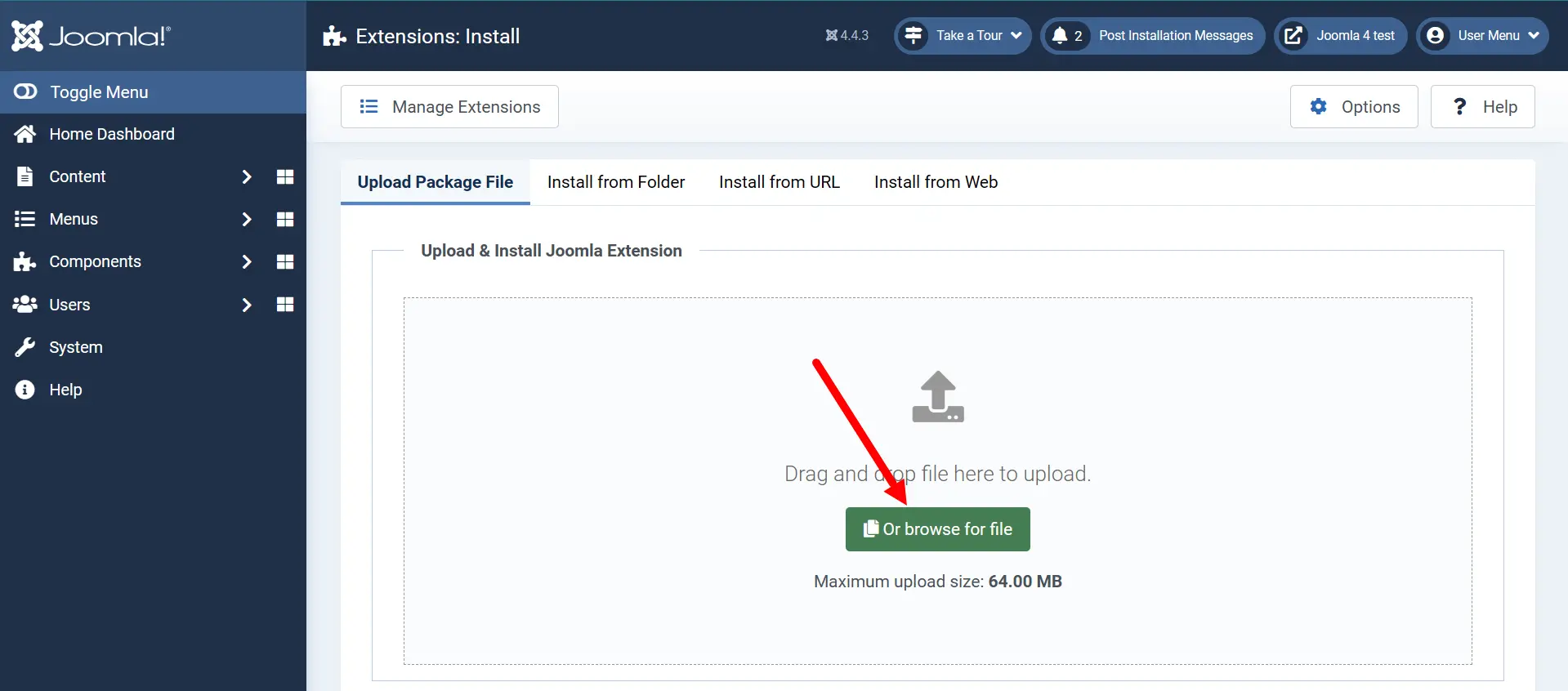
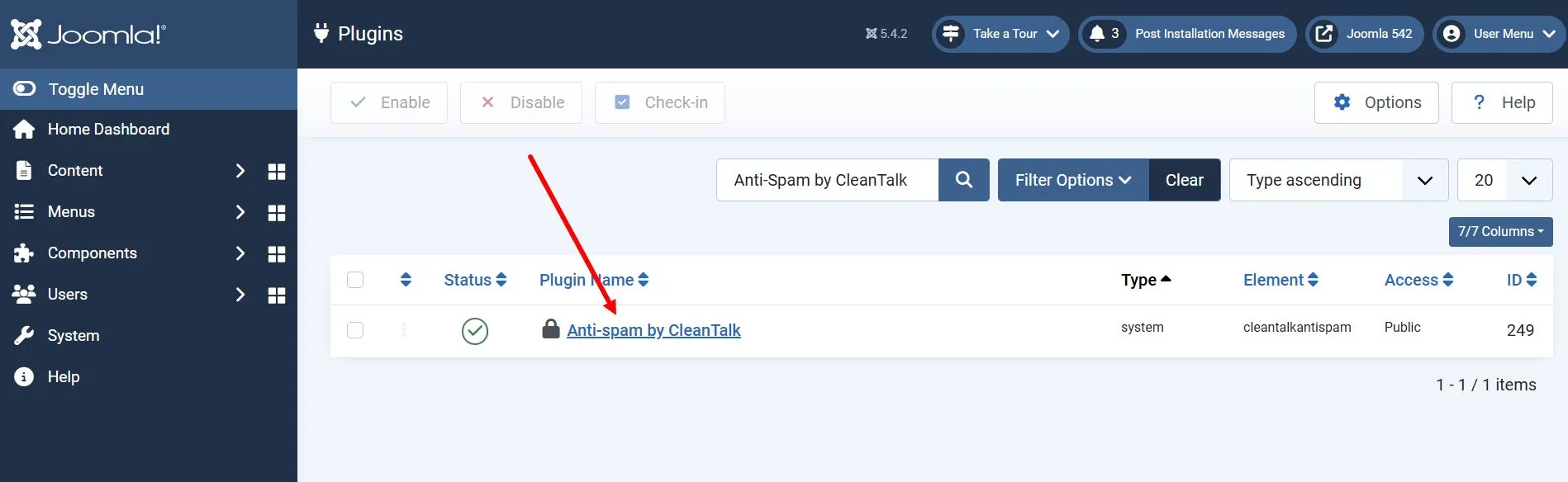
5. After the installation, go to System → Manage → Plugins → search for Anti-Spam by CleanTalk → follow the link to the plugin's settings.
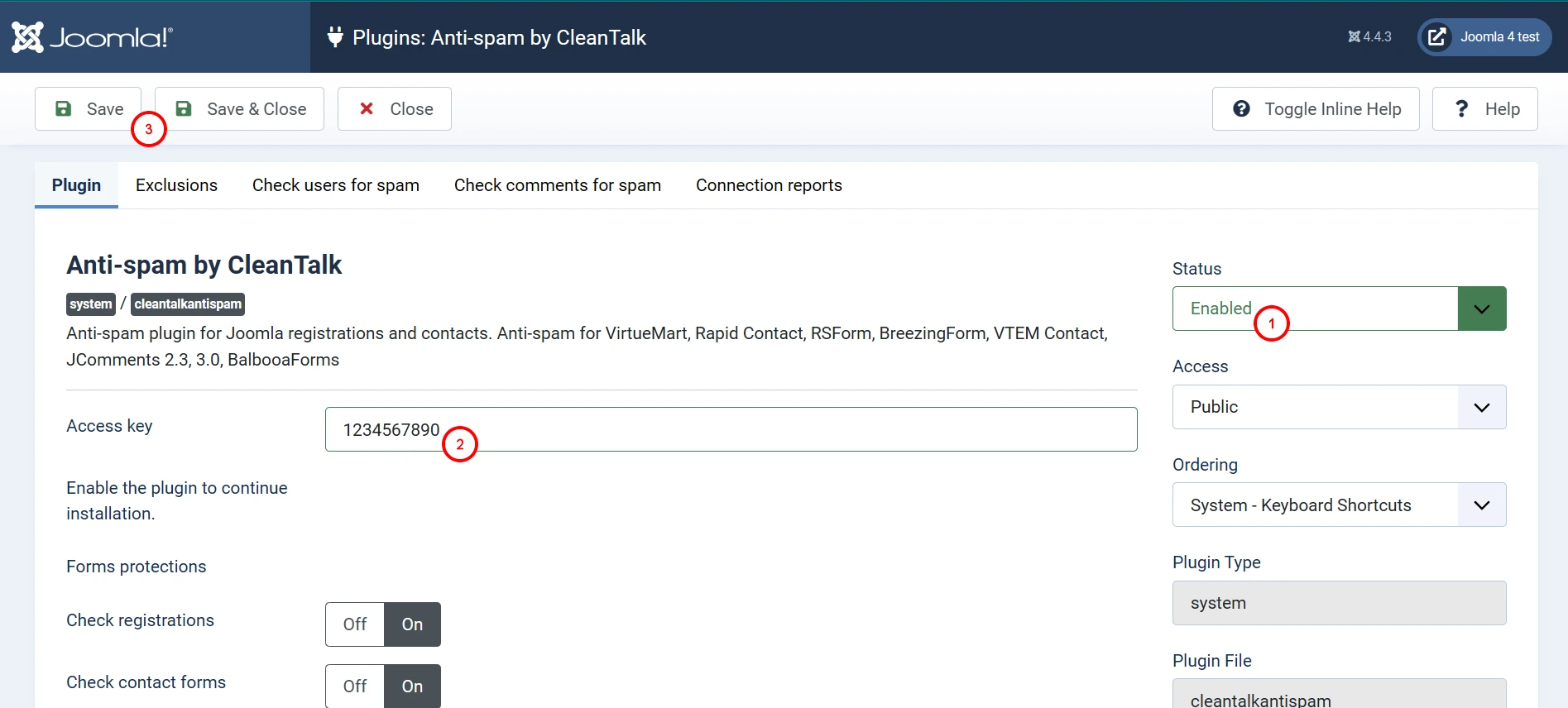
6. Set the plugin status to "Enabled", enter the access key, and enable the desired options in the settings. Make sure that the access key matches the key from your CleanTalk Dashboard. Then press the "Save" button.
7. (Optional) Test the protection by making a registration using this blocklisted email address: stop_email@example.com. This request must be blocked.

To test if SpamFireWall is working just add /?sfw_test_ip=10.10.10.10 to your site name. Example www.yoursitename.domain/?sfw_test_ip=10.10.10.10 (you must see the blocking screen)
Attention! You should test SFW with incognito mode switched on. To enable incognito mode press Ctrl+Shift+N for Chrome, Opera, and Safari browsers; press Ctrl+Shift+P for Firefox, Internet Explorer and Microsoft Edge.
How to Add a Website to CleanTalk Anti-Spam Dashboard
Please, use this guide to add a website to CleanTalk Anti-Spam Dashboard: https://cleantalk.org/help/add-website
Congratulations. The Anti-Spam is installed!
If you haven't found the answer to your question, please contact our support team:
https://cleantalk.org/my/support/open
It would also be interesting
- How to install the CleanTalk Anti-Spam on Joomla 3CleanTalk Anti-Spam Setup on Joomla 3 Anti-Spam Extension for Joomla 3 Features Click to open...
- How to Update the CleanTalk Anti-Spam Plugin for Joomla 4.x – 6.xHow to Update the CleanTalk Anti-Spam Plugin for Joomla 4.x – 6.x 1. Go to Joomla Administrator...
- All Installation Manuals of CleanTalk Anti-Spam ServiceCleanTalk Anti-Spam Installation Guides Here you can find our plugin installation guides for popular...