How to Update the CleanTalk Anti-Spam Module on Drupal 9.x-11.x
- How to Update the CleanTalk Anti-Spam Module on Drupal 9.x
- How to Update the CleanTalk Anti-Spam Module on Drupal 10.x-11.x
How to Update the CleanTalk Anti-Spam Module on Drupal 9.x
1. Go to Administrator Control Panel —> Manage —> Extend —> Uninstall, choose the module "Anti-Spam by CleanTalk" and click the Uninstall button. Confirm the uninstallation by clicking the Uninstall button on the next page.


2. Delete the folder "cleantalk" in /modules.
3. Go to Extend —> List and click the +Install new module button.

4. Choose the downloaded archive from CleanTalk, then click the Install button.

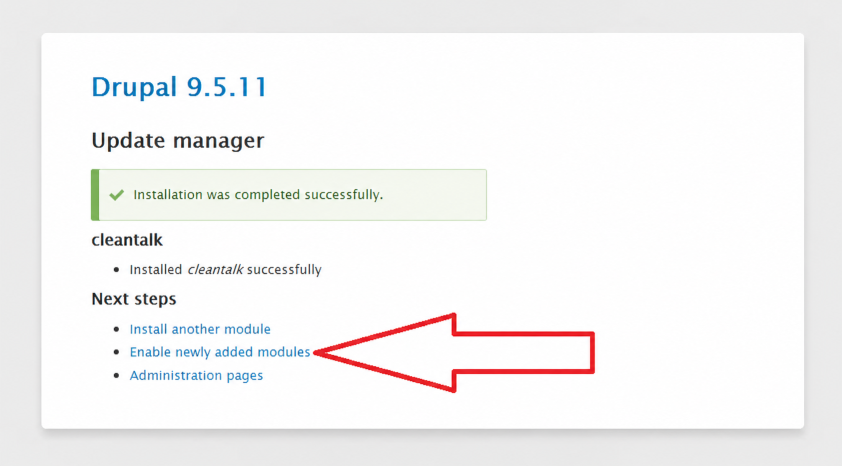
5. After installation, click on the Enable newly added modules link.
6. In the CLEANTALK category of the module list, tick the checkbox near the "Anti-Spam by CleanTalk" line and click the Install button.

7. When you enable the module, go to Configuration -> Content Authoring and click it.

8. Make sure that the access key matches the key from your CleanTalk Dashboard.

How to Update the CleanTalk Anti-Spam Module on Drupal 10.x-11.x
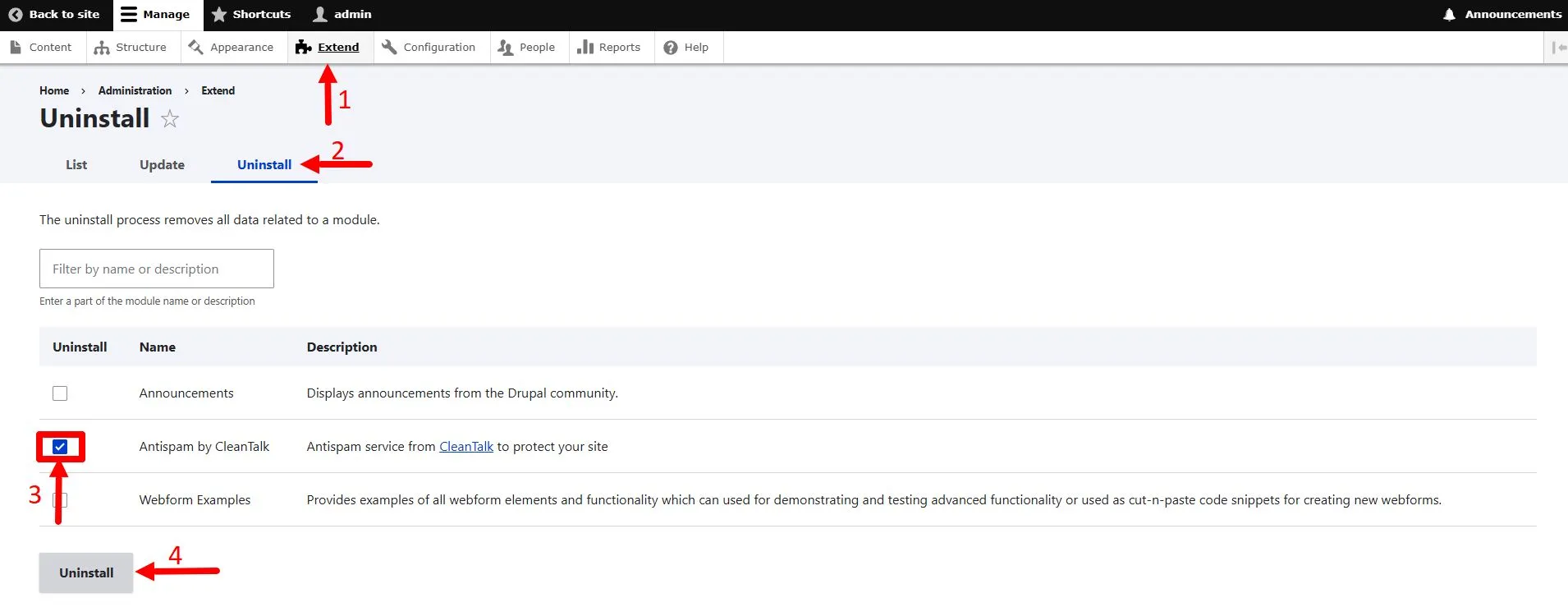
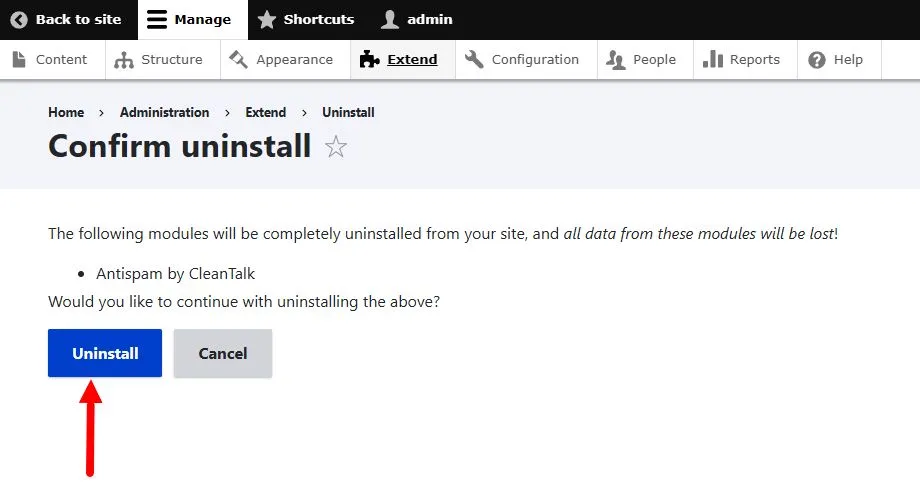
1. Go to Administrator Control Panel —> Manage —> Extend —> Uninstall, choose the module "Anti-Spam by CleanTalk" and click the Uninstall button. Confirm the uninstallation by clicking the Uninstall button on the next page.
2. Delete the folder "cleantalk" in /modules.
3. Download the module archive. The link to the archive is located in the header of the page.
4. Extract and copy the cleantalk folder to the /modules directory in the root directory of your website.
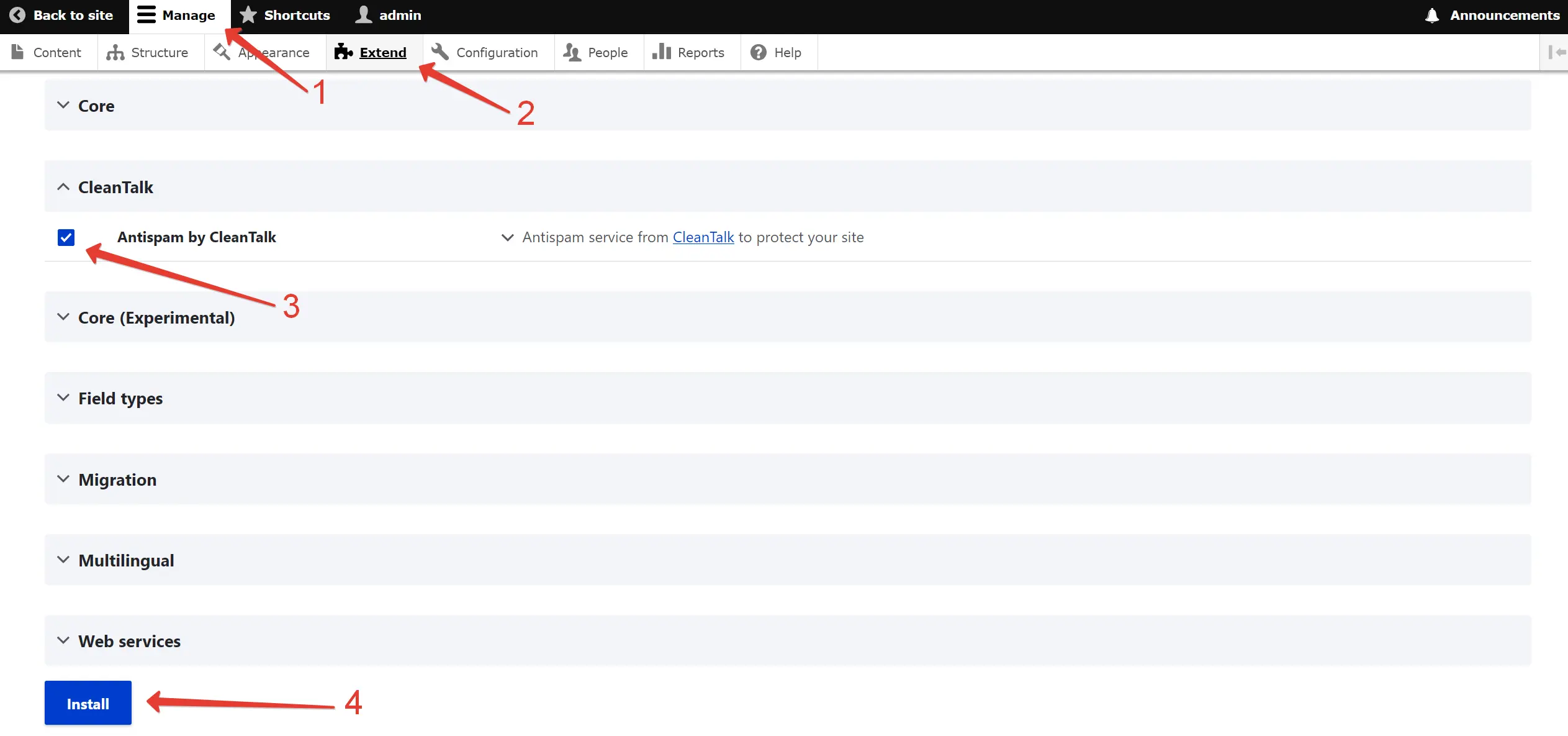
5. Log in to your site’s Administration Dashboard and navigate to Manage → Extend. Locate the Antispam by CleanTalk module, select the checkbox, and click Install.
6. Once the module installation is complete, click the Configure button.

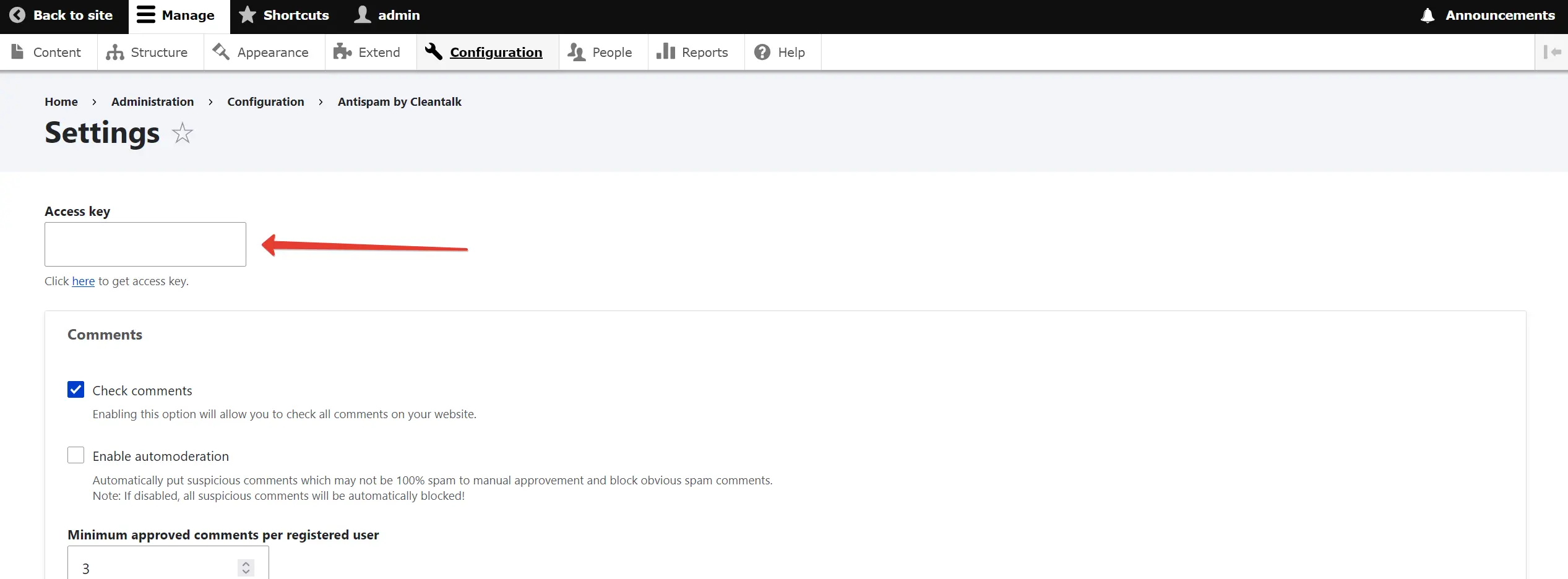
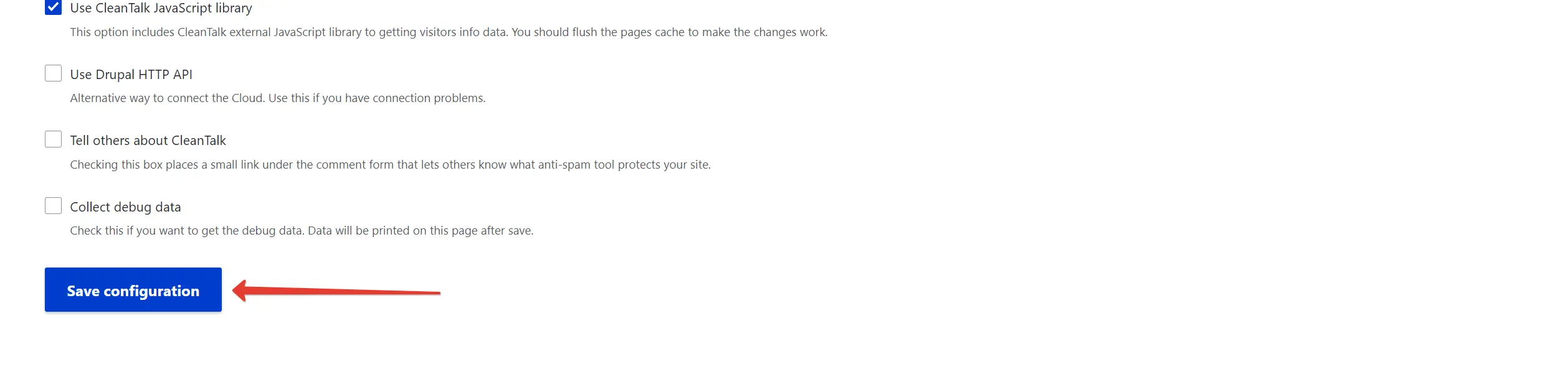
7. Enter your access key from the CleanTalk Dashboard into the Access key field → Enable the required options → Click the Save configuration button.
Congratulations. The Anti-Spam module has been updated!
If you haven't found the answer to your question, please contact our support team:
It would also be interesting
- All of CleanTalk Anti-Spam Update ManualsThe CleanTalk Anti-Spam Update Guides WordPress Joomla 1.5 Joomla 2.x Joomla...
- Installation of the CleanTalk Spam Protection Module on Drupal 9.x-11.xHow to Install the CleanTalk Anti-Spam Module on Drupal 9.x-11.x Go to your Anti-Spam Dashboard How...
- Installation of the CleanTalk Spam Protection Module on Drupal 8How to Install the CleanTalk Anti-Spam Module in Drupal 8 Important: Since official support for Drupal...