How to install the CleanTalk Anti-Spam add-on in XenForo
Important: The official support of the Anti-Spam plugin for XenForo 1.x has ended. This legacy version of the CleanTalk plugin is no longer maintained, meaning no further updates, bug fixes, or new features will be released for it. If you are running XenForo 2, please install the updated version of the Anti-Spam plugin from here:
Go to your Anti-Spam Dashboard
1. Download the archive.
2. Unzip the archive to "/library".
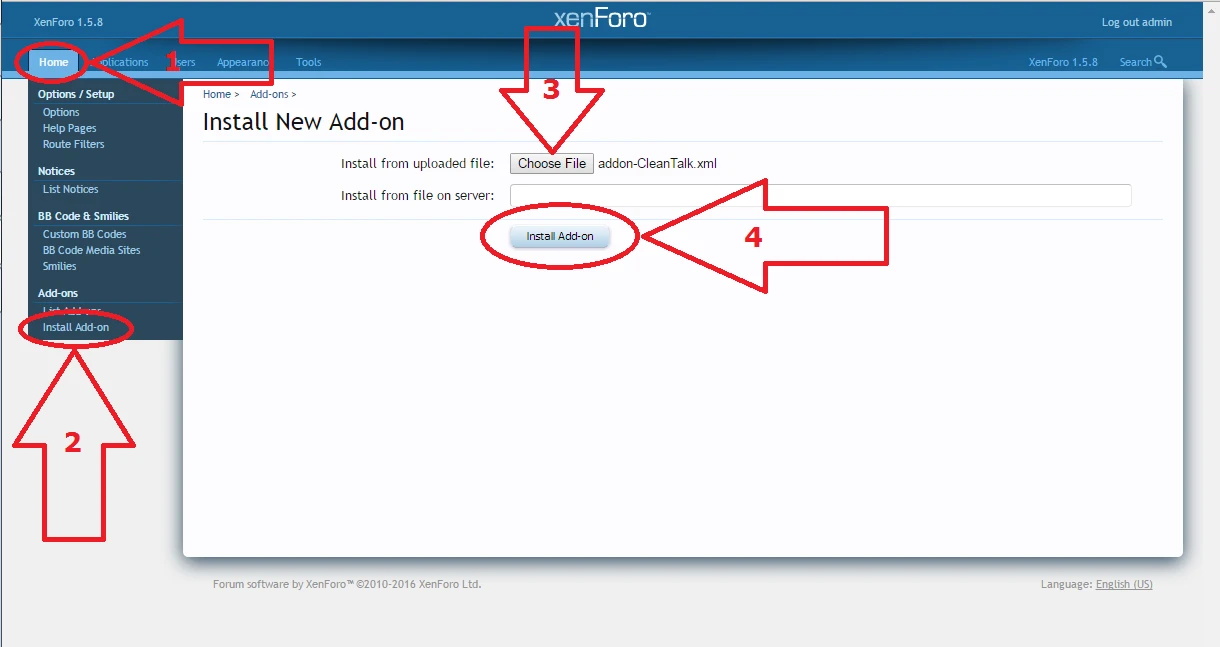
3. Go to "Home —> Add-ons —> Install Add-on". Choose the file "addon-CleanTalk.xml" from the folder "library". Then click the button "Install Add-on".
4. After the installation go to "Home —> Options", find and click the category "Spam Management".

5. Copy the access key from your CleanTalk Dashboard and paste it in the "Access key" field, turn on the options of the add-on.

6. You can disable inconvenient for your visitors CAPTCHA function now. Then click the button "Save Changes".

Do a test registration and post a comment using this e-mail: "stop_email@example.com". Do not do tests being an administrator.

— — — — —

Go to "Tools —> Spam Trigger Log". Spam activity can be found here.

How to Add Website to CleanTalk Anti-Spam Dashboard
Please, use this guide to add a website to CleanTalk Anti-Spam Dashboard: https://cleantalk.org/help/add-website
Congratulations. The Anti-Spam is installed!
It would also be interesting
- Installing the CleanTalk Anti-Spam Add-on on XenForo 2.xHow to Install the CleanTalk Anti-Spam Add-on in XenForo 2.x Go to your Anti-Spam Dashboard 1. Make backup...
- Updating the CleanTalk Anti-Spam Add-on in XenForoXenForo: How to Update the CleanTalk Anti-Spam Add-on Text version Go to XenForo Administrator...
- Updating CleanTalk Anti-Spam Add-on on XenForo 2.xXenForo 2.x: How to update the CleanTalk Anti-Spam Add-on 1. Go to XenForo Administrator...