How to Remove Anti-Spam & Security Plugins or Reset Their Data
Sometimes a plugin may glitch due to errors or conflicts, or you may want to remove it without leaving any traces on your website.
The Complete Deactivation option allows you to completely remove all plugin data, including the access key, settings, and database tables, without removing the plugin itself. This is useful if you want to start from scratch or resolve issues with the plugin.
Here’s how it works:
- When you reactivating the plugin with the Complete Deactivation option enabled, all plugin data is removed, and the settings are reset to their default values.
- When you delete the plugin, Complete Deactivation runs first, and then the plugin files are removed.
If you want to save your settings, you can export them as a template and then import them back into the plugin later. See this guide: https://cleantalk.org/help/plugin-template
In this guide, we will show you how to reset all plugin data using the Complete Deactivation option while keeping the plugin itself, and also how to completely remove the plugin from your site without leaving any traces.
How to Fully Deactivate the Anti-Spam Plugin
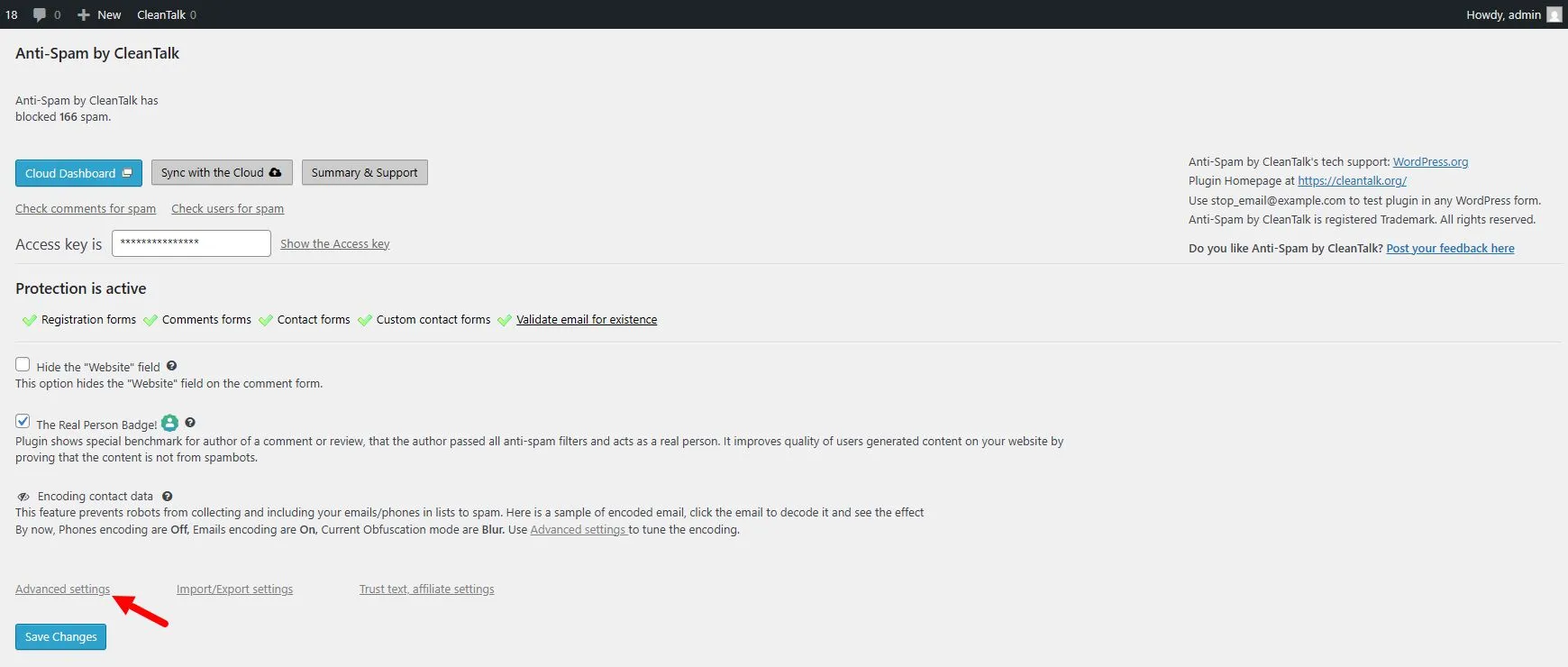
1. Go to the plugin settings and open the Advanced Settings tab.
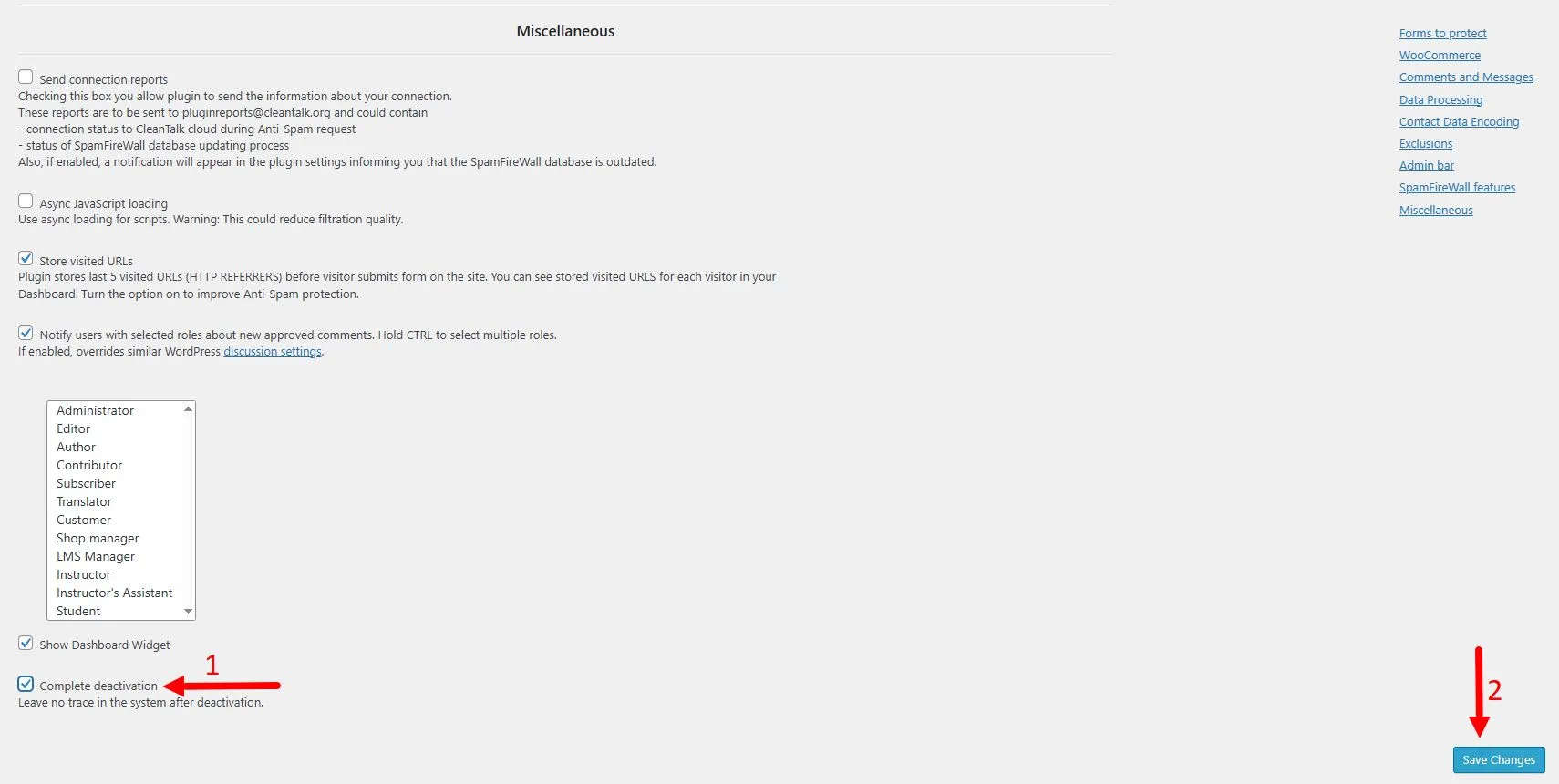
2. Scroll down to the Miscellaneous section, find the Complete Deactivation option, enable it, and click the Save Changes button.
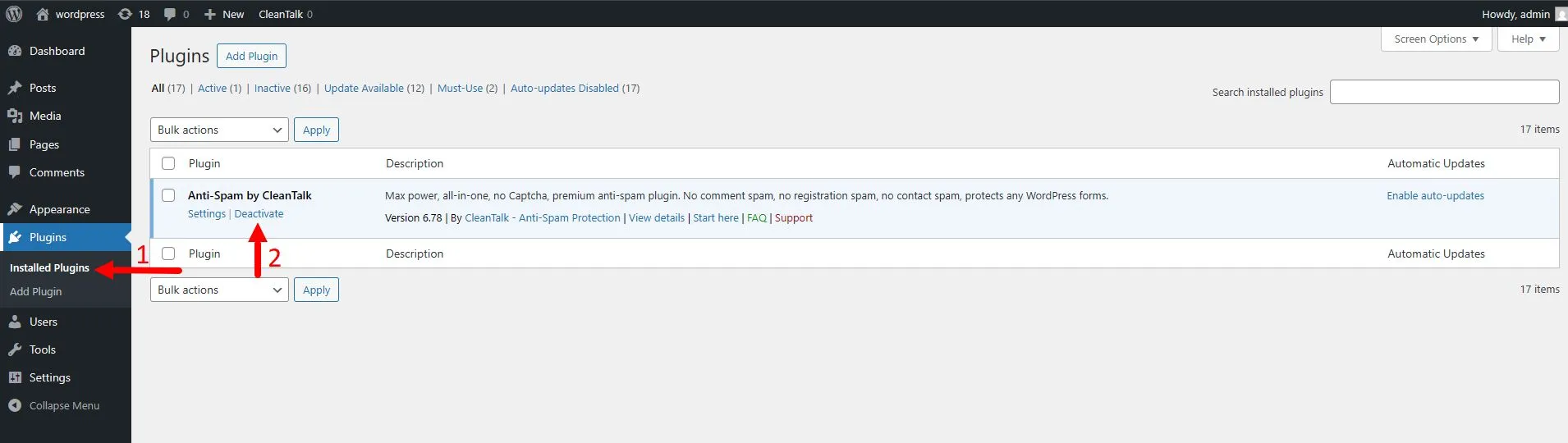
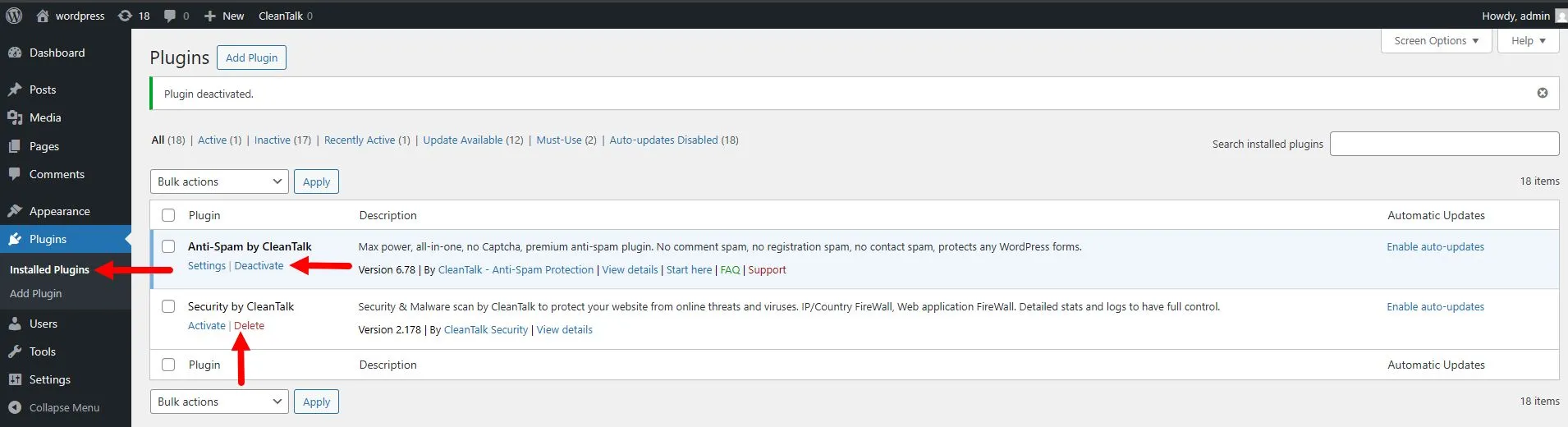
3. Go to Plugins → Installed Plugins, find Anti-Spam by CleanTalk, then click Deactivate and Activate.
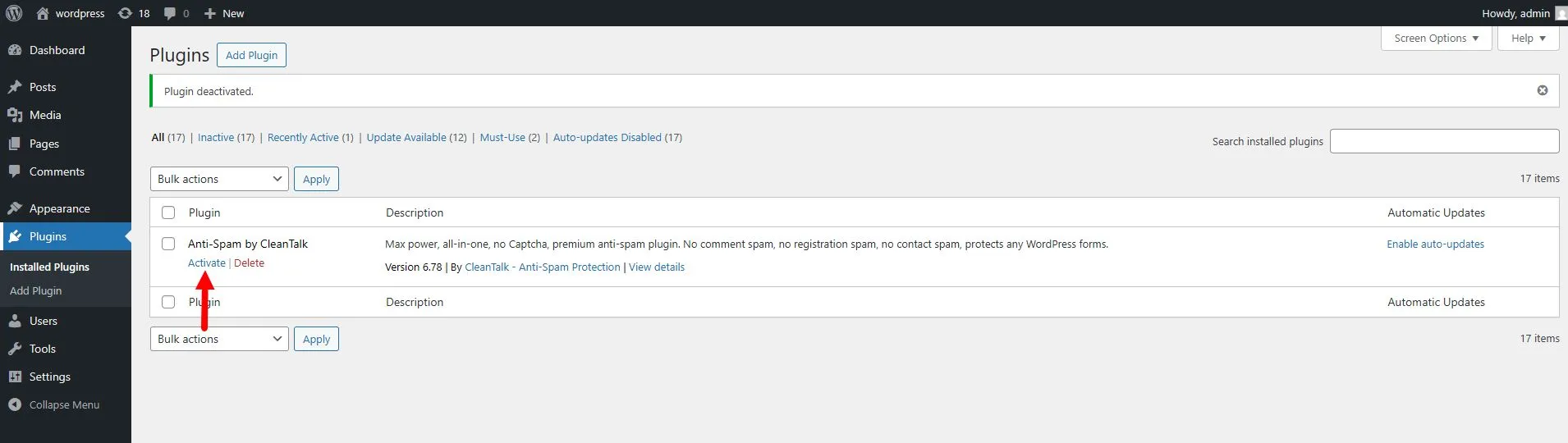
Note: This option resets all plugin settings. After reactivation, you will need to enter your access key again. You can find your Anti-Spam access key here: https://cleantalk.org/my/?cp_mode=antispam or follow this guide: https://cleantalk.org/help/access-key
How to Fully Deactivate the Security Plugin
1. Go to the plugin settings and open the General Settings tab.
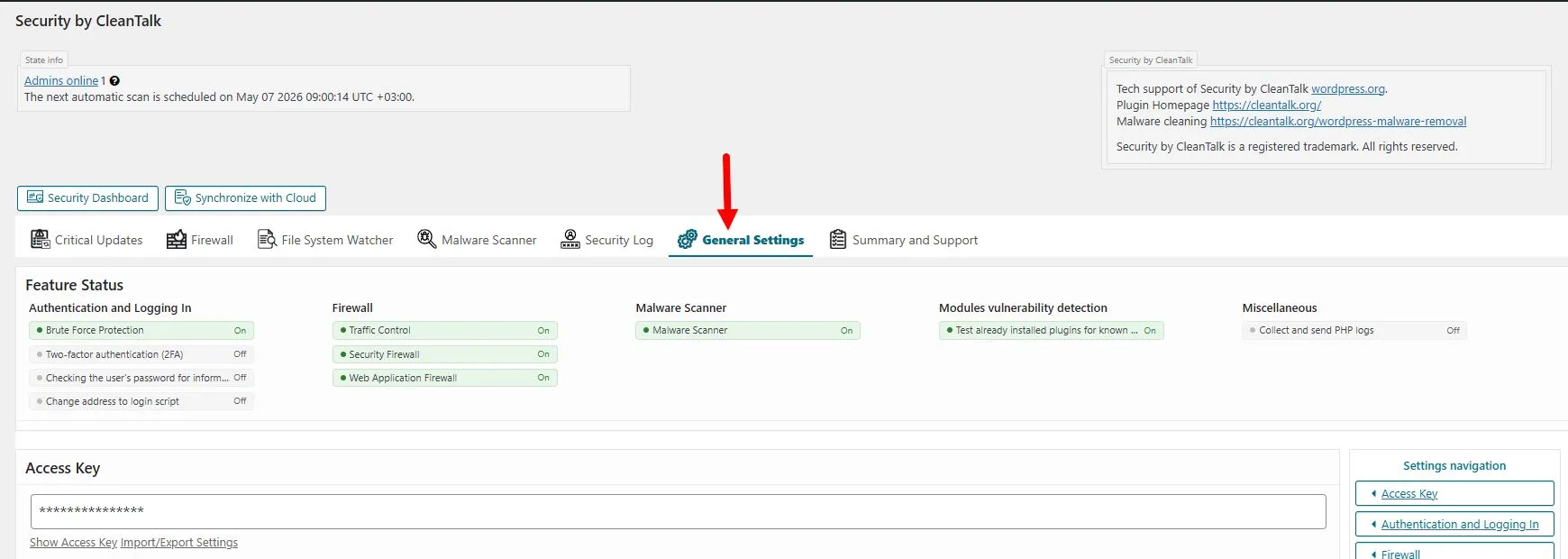
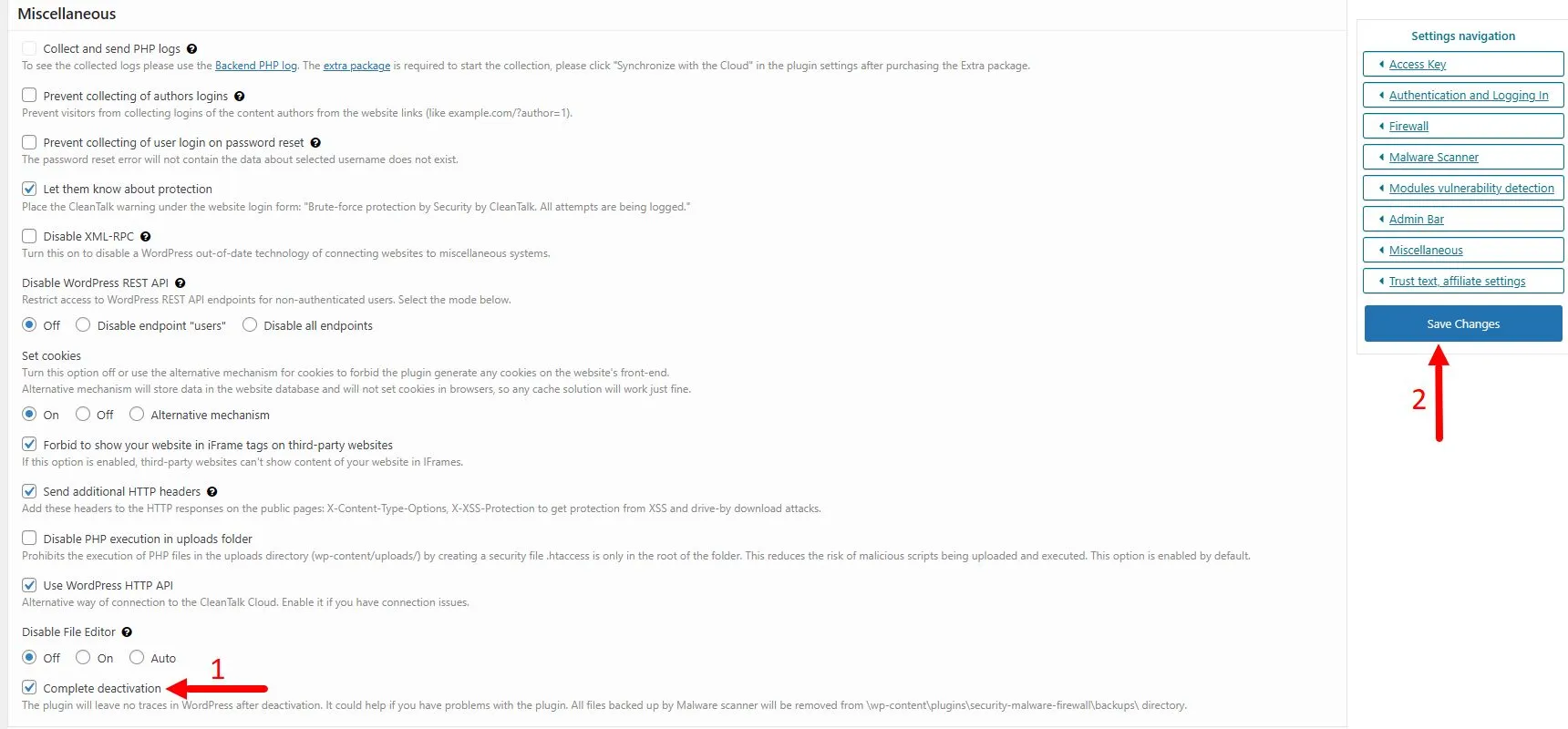
2. Scroll down to the Miscellaneous section, find the Complete Deactivation option, enable it, and click the Save Changes button.
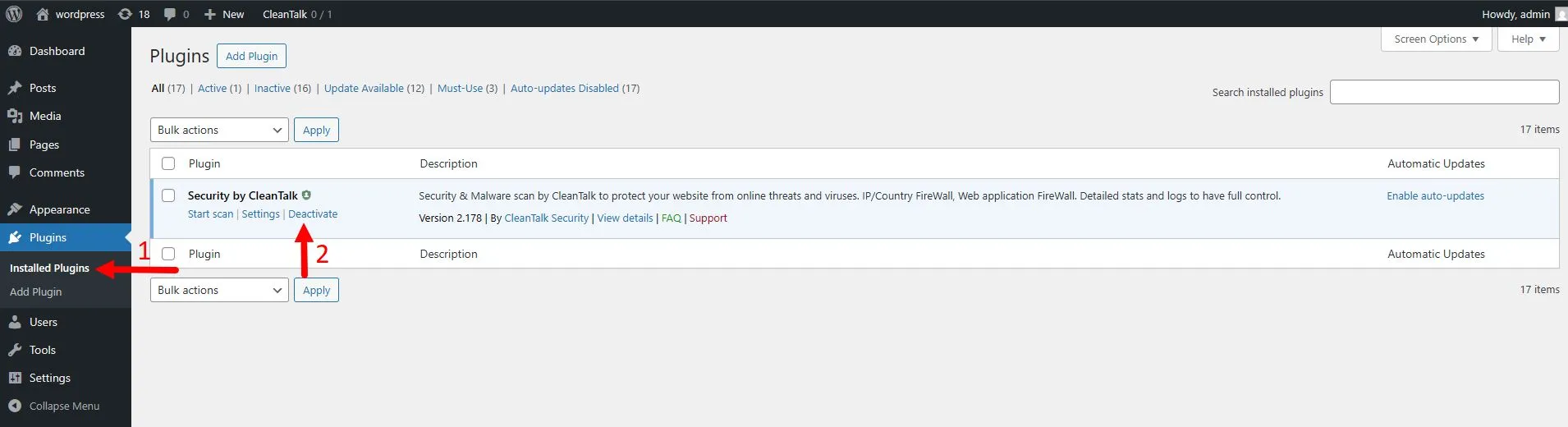
3. Go to Plugins → Installed Plugins, find Security by CleanTalk, then click Deactivate and Activate.
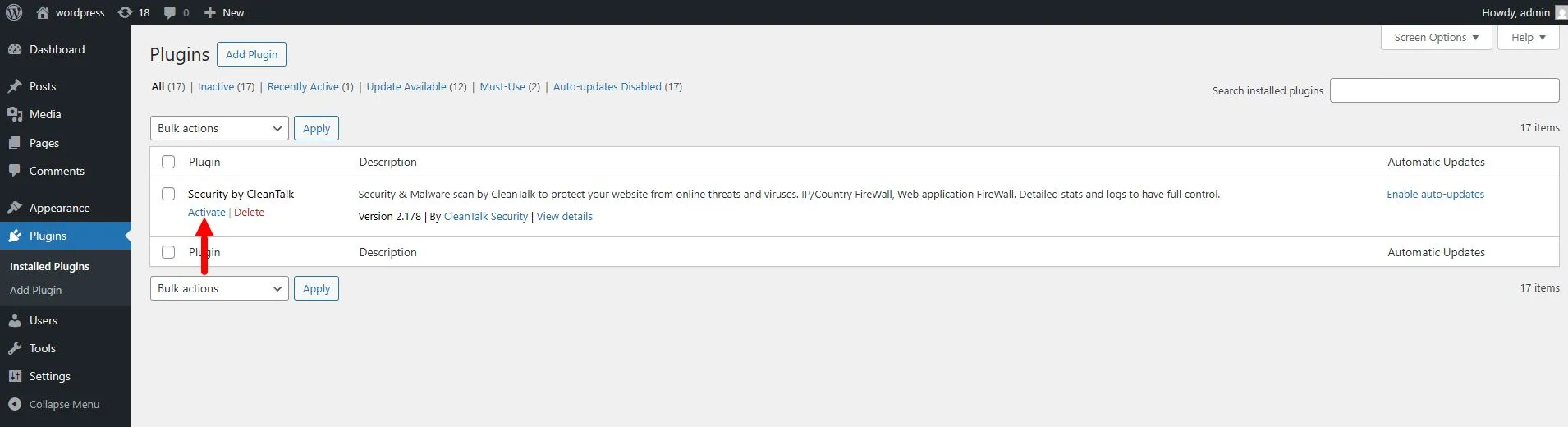
Note: This option resets all plugin settings. After reactivation, you will need to enter your access key again. You can find your Security access key here: https://cleantalk.org/my?cp_mode=security or follow this guide: https://cleantalk.org/help/access-key
How to Remove Anti-Spam & Security Plugins
Go to Plugins → Installed Plugins, find Anti-Spam by CleanTalk or Security by CleanTalk, then click Deactivate and Delete.
It would also be interesting
- All Security Features | DescriptionFeatures of the CleanTalk Security Plugin Brute-force Protection Security Report Login Attempts...
- WordPress Malware Removal – Clean Your Site Fastp { font-size: 14pt; } /* Make images fluid by default */ img { max-width: 100%; height:...
- Comparsion: Is CleanTalk Better than Akismet?.ct-akismet-page, .ct-akismet-page p, .ct-akismet-page li { line-height: 1.6; font-family:...