How to Use Anti-Spam and SpamFireWall Logs
Content:
- Using the Anti-Spam Log
- About notices "Excluded from spam filters"
- Using the SpamFireWall Log
- About the list of visited URLs of your visitors
One of the standout features of CleanTalk Anti-Spam is the comprehensive logging of all requests. Unlike other solutions where blocked requests simply disappear without a trace, CleanTalk provides full visibility into every interaction.
Why CleanTalk Logging is Different
Our system allows you to view and analyze data for both forbidden and allowed queries. This ensures that you never lose important information—even if a legitimate message was accidentally deleted from your email or website's administrative panel.
Using the Anti-Spam Log
1. Log in to your Anti-Spam Dashboard → Select "Anti-Spam" from the "Services" menu.
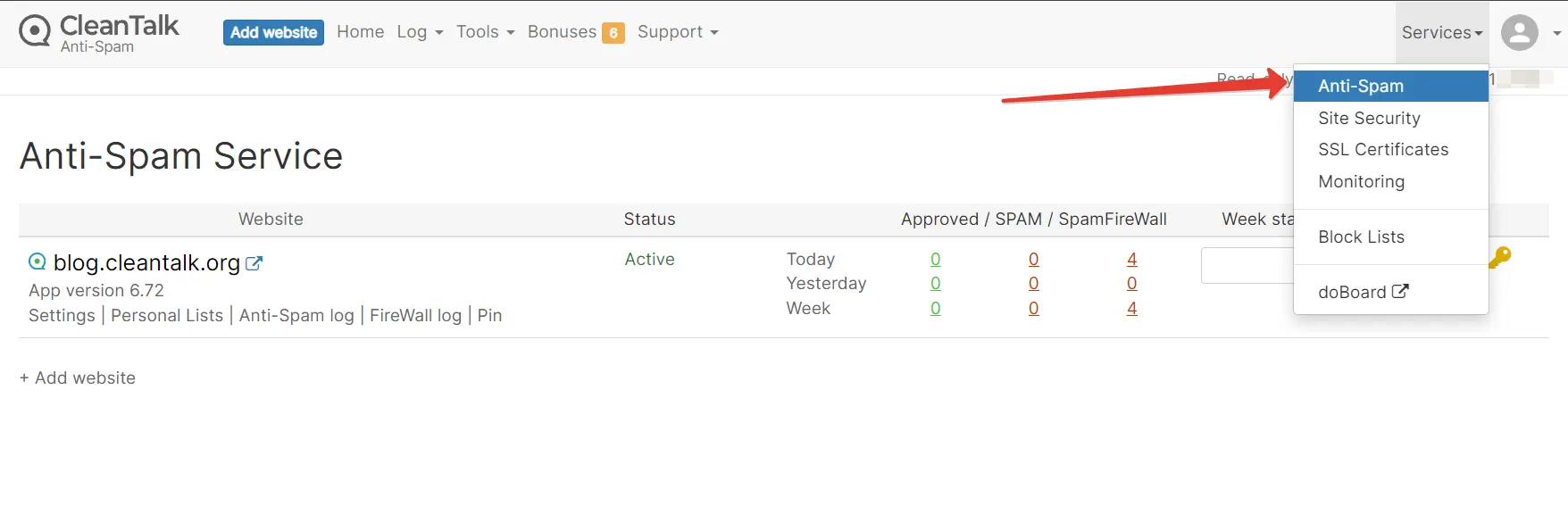
2. Navigate to your Anti-Spam Log within the dashboard.
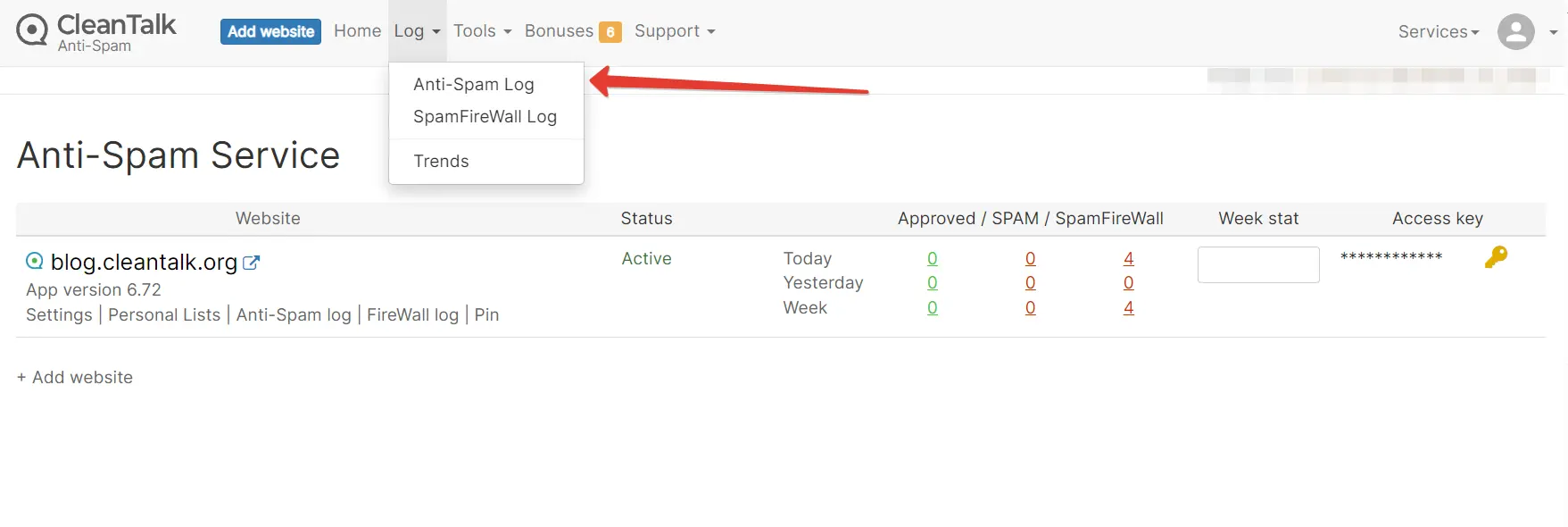
3. On the Anti-Spam Log page, you can use the following filters:
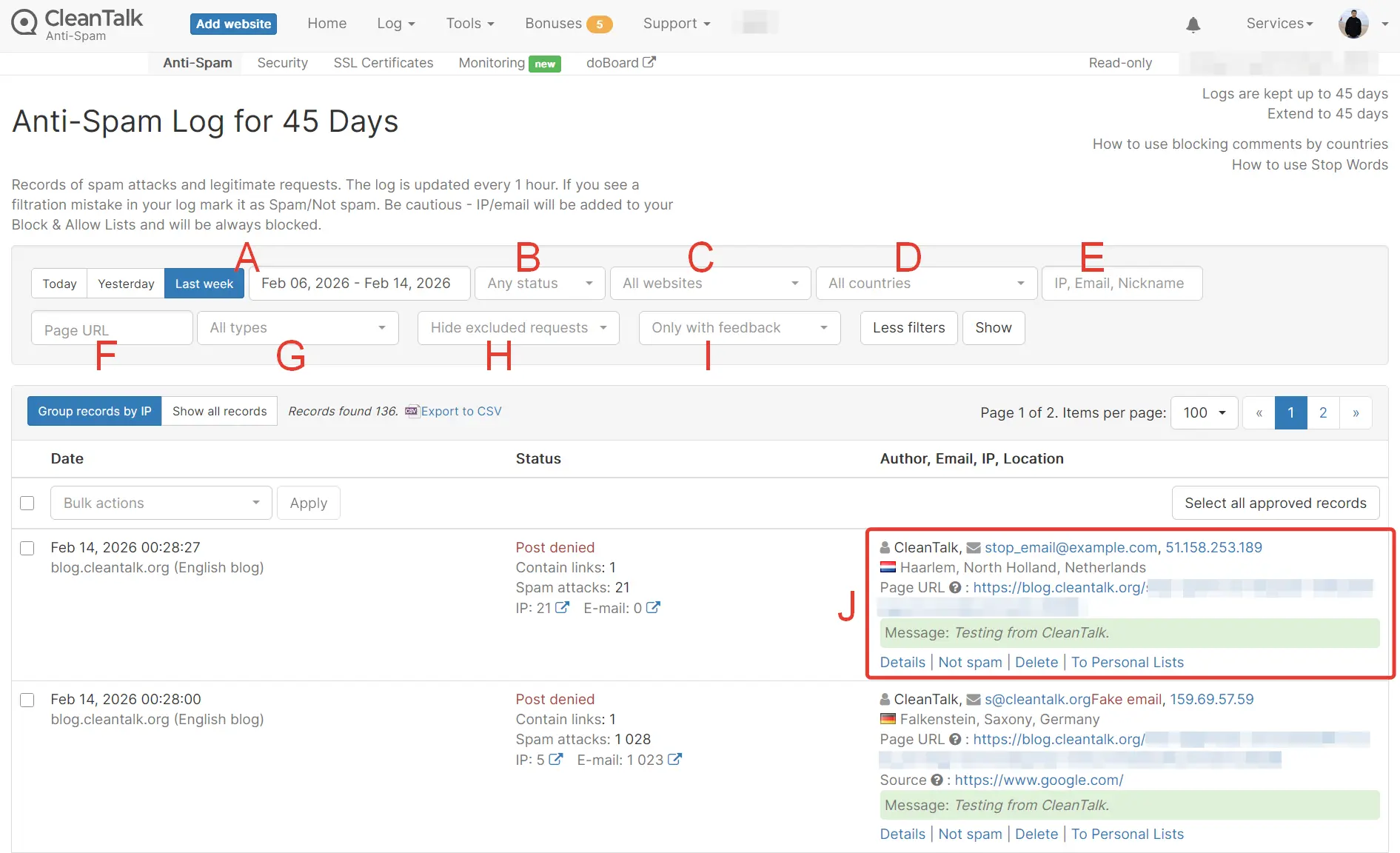
The following possibilities are available for you in the Anti-Spam Log:
A — Time Period: Select the timeframe for the records you wish to view.
B — Status: Filter records by their resolution: Any status, Denied, or Approved.
C — Websites: Filter records by a specific website in your account.
D — All Countries: Filter records by the sender's country of origin.
E — Search (IP, Email, or Nickname): Filter records by specific user data. You can perform advanced searches using email masks.
Search Rules: To represent any number of characters, use the asterisk symbol *. Please note that your search expression must contain at least one @ and at least one "." (dot).
| Mask Example | What it finds | Matches (Examples) |
| *john*@*.* | Any email containing "john" in the name | xmpljohn@yahoo.com, john6545@me.com |
| john*@*.* | Emails starting with "john" | johnny.v@gmail.com |
| *john@*.* | Names ending with "john" | bigjohn@domain.com |
| *john*@*is*.*u | Combined search (name + domain) | john11@vista.ru, atjohn@is74.eu |
F — Page URL: Filter records by the specific page URL where the request occurred.
G — Type: Filter by the type of request (e.g., Registration, Order, Search, Contact Form).
H — Hide Excluded Requests: Use this toggle to show or hide records marked as "Excluded."
Excluded From Spam Filters
You may notice the status "Excluded from spam filters" for certain records. This indicates that the request was logged for your information but was not processed by the Anti-Spam filtering. This typically happens for the following reasons:
- Invalid POST Requests: Bots often use generic templates to target common website forms (such as contact or registration forms). If a bot sends a request using a template that does not match your website's actual form structure — or if it targets a page that contains no forms at all — the request is inherently invalid. Because your website cannot "see" or process these mismatched requests as actual submissions, the Anti-Spam Service logs the attempt but does not perform a full filter check.
- Trusted User Bypass: This occurs when the "Don't check trusted user's comments" option is enabled in your settings. If a visitor has three or more previously approved comments on your website, the Anti-Spam Service will automatically bypass checks for their future submissions.
I — Only with feedback: only display the records marked as Spam / Not Spam. You can learn more about this feature here.
J — Record info:
- Sender's nickname, email, and IP addresses.
- Sender's country.
- Page URL: The page on your website where the visitor filled out and submitted the form.
- Message: text of the visitor's comment.
- Details: see item 4 below.
- Spam / Not Spam: Correct the anti-spam service decision if a request was wrongly blocked or approved.
- Delete: Permanently delete the record.
- To Personal Lists — go to your website Personal Lists page.
4. Record Details
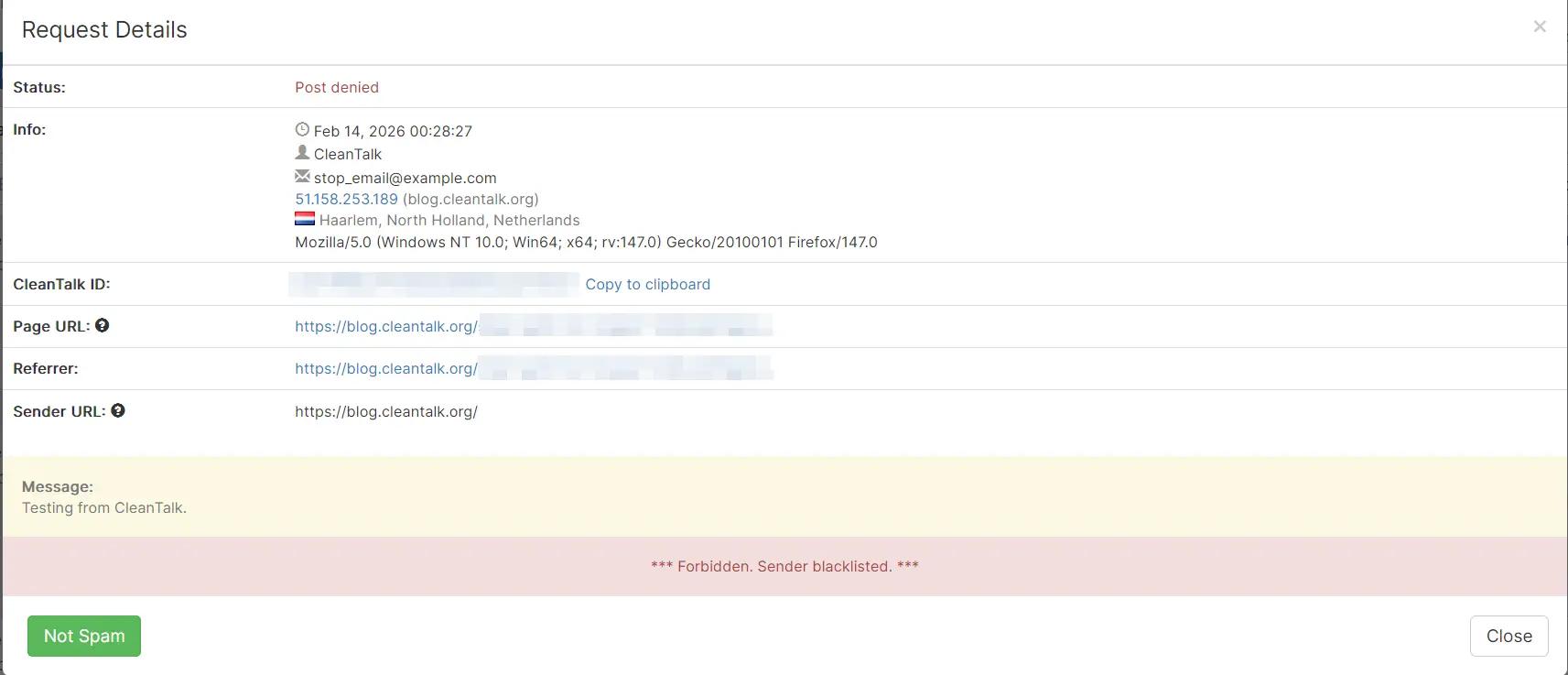
Clicking "Details" provides a deep dive into the request:
- Status: Labeled as Denied or Allowed.
- Info: Includes the date/time, nickname, email, IP address, country, and User-agent
- CleanTalk ID: the request's ID for tracking.
- Page URL: The specific page where the form was submitted.
- Referrer Page: The previous page the user visited before reaching the form.
- Sender URL: The value in the Website field on the form that a user filled out.
- Message: The text a user left in the comment/contact form
- Blocking Reason: The sender's IP or email has a high spam history.
- Feedback Button: You can mark the request as Not Spam or Spam.
Validation Errors
One of CleanTalk's most powerful features is capturing data from incorrectly filled forms. If a user makes a typo in their email address, the website’s backend often discards the submission entirely. CleanTalk, however, captures the text and form fields before the error occurs. You can find this information in the Info field, ensuring no lead is ever truly lost.

- If a log entry for a comment form is missing an email address, it usually means the user made a mistake during the submission process. Because the email field was invalid, the website's database couldn't process it normally, but CleanTalk still captured the attempt.
- The CleanTalk Anti-Spam plugin for WordPress, Drupal 7, Drupal 8, and Bitrix features advanced interception technology. It can capture data even when the website's own validation triggers an error.
- Even in these "error" states, CleanTalk attempts to save the text sent by the user. You can find the raw message content within the Info or Message field of your Anti-Spam Log. This allows you to manually reach out to a potential customer if you can identify them through other means.
If you have questions regarding a specific record, please send us the CleanTalk ID along with your inquiry through our Ticket System here.
What to do if you do not want to transmit or store information.
If you have strict privacy requirements or simply prefer not to store user data on our servers, CleanTalk provides several tools to help you manage, restrict, or completely disable data transmission.
1. By default, CleanTalk logs "Approved" requests. However, you can prohibit this storage in your dashboard settings. Every request will still be scanned for spam in real-time to protect your site, but no information about approved requests will be saved to our database once the check is complete.
2. If you have specific forms where you do not want any anti-spam processing to occur, you can add them to your Exclusions list.
3. Perhaps you want to protect a form but have one specific field (like a phone number or a custom ID) that should remain private. You can add these specific form fields to exceptions.
4. If a request has already been logged, you can delete the information for any specific request directly from your CleanTalk Dashboard.
Using the SpamFireWall Log
5. Access the SpamFireWall Log from your Anti-Spam Dashboard.
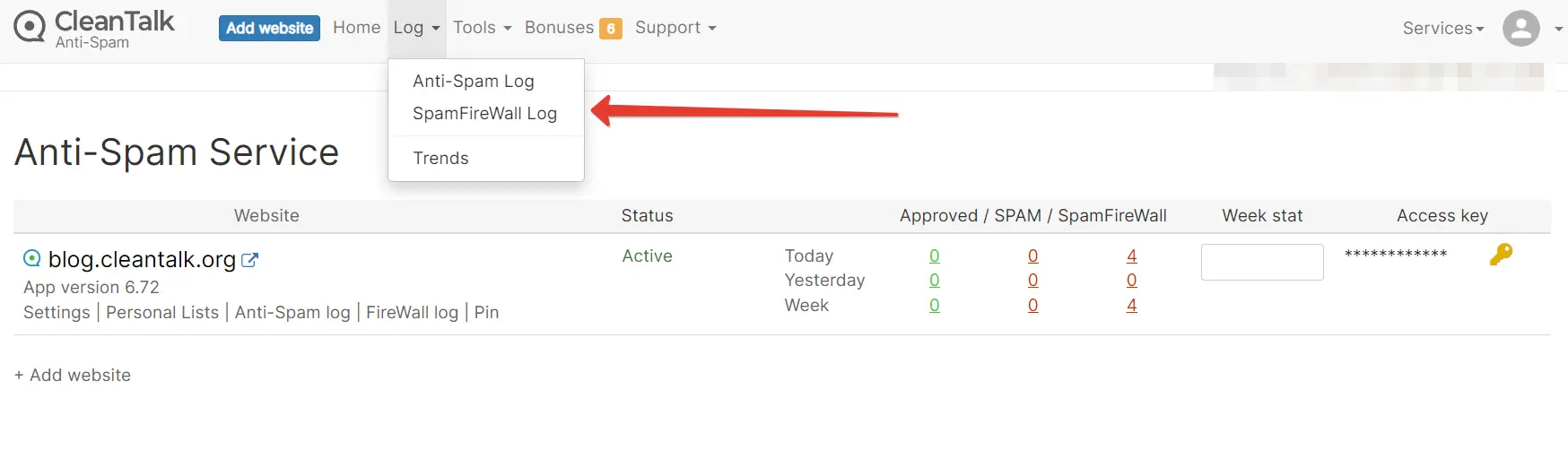
6. Available filters:
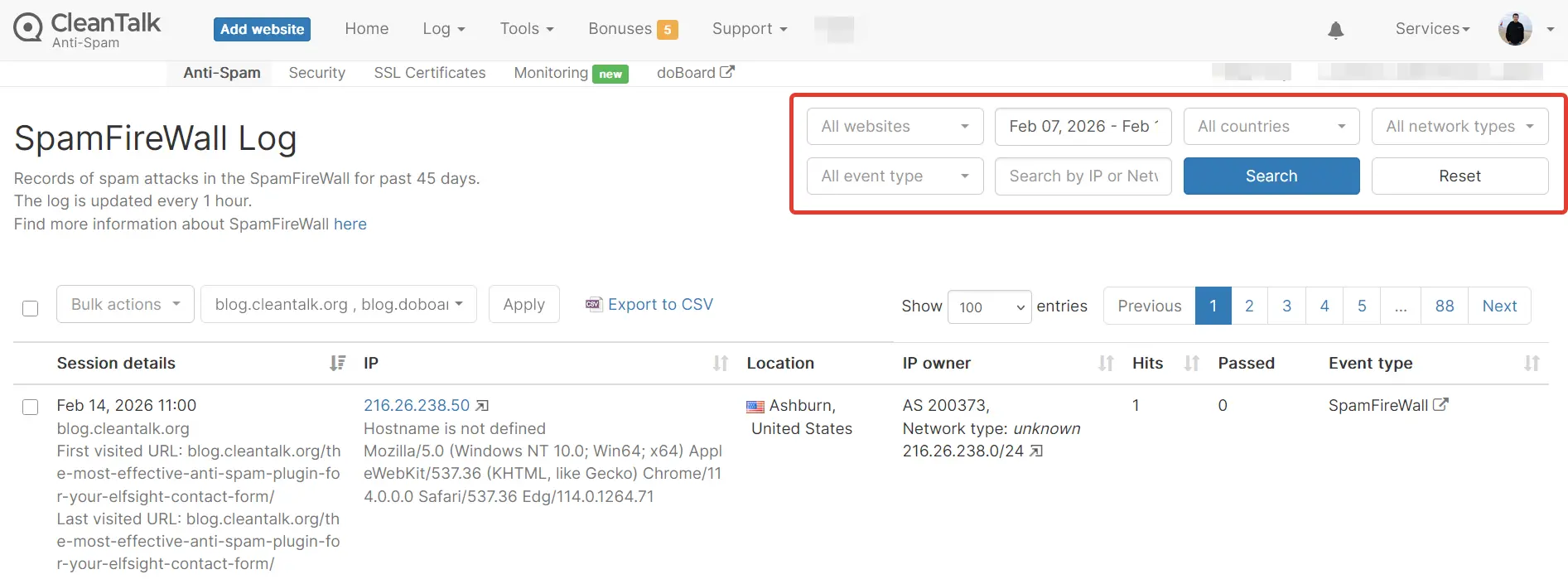
The following possibilities are available for you in the SpamFireWall Log:
- Website: Select the specific website to see the logs.
- Time Period: Choose the reporting interval.
- Country: Filter traffic by the origin country.
- Network Types: Select which types of IP networks to display (e.g., ISP, VPN, Hosting, etc.).
- Event Type: Select the specific reason for the block to be displayed (e.g., SpamFireWall, AntiFlood, Anti-Crawler, or Personal Lists).
- Search by IP / Network: Check all SpamFireWall events for a specific IP address or network.
List of Visited URLs of Your Visitors
(For the WordPress Plugin Only)
This feature allows you to see the path a visitor took on your site before submitting a form. This is useful for analyzing user behavior and popular entry points.
How to Enable:
- Go to your WordPress Admin → Settings → Anti-Spam by CleanTalk.
- Click Advanced settings.
- Check the box "Store Visited URLs" and click Save Changes.
How to View:
- Open your Anti-Spam Dashboard.
- Click the "Log" → Ant-Spam Log.
- Click "Details" for any specific request.
- The visitor's navigation history will be displayed in the details view.
3. Click the link "Details" in any row of any request.

4. You will be able to see the source and the list of URLs of the visitor, in addition to other details of the post.

It would also be interesting
- What to do if there are no requests in your Anti-Spam LogNo Requests in Your CleanTalk Anti-Spam Log Possible reasons: Incorrect Access Key Please verify...
- How do I report a missed spam bot or incorrect filter?Description of the process for sending a report about a missed spam bot or an incorrect filter If you...
- Extra Package for CleanTalk Security ServiceExtra Package for Security Service 45 Days Log Backend (PHP) Logs User Actions Log (Audit) Custom...